
The SCCM cloud management gateway (CMG) provides a simple way to manage Configuration Manager clients over the internet. CMG does not require any additional on-premises infrastructure. The CMG services are hosted in Microsoft Azure cloud and act as a gateway for internet clients to communicate with the on-premises Configuration Manager infrastructure.
In this blog post series, you will find the step-by-step guide to plan and implement a Cloud Management Gateway virtual machine scale set deployment.
Please note that the option to deploy CMG as a cloud service (Classic) is deprecated. All new CMG deployments should be a Virtual machine scale set.
Post in this series:
- Part 1 | Cloud Management Gateway (CMG) Setup Guide
- Part 2 | Issue, Enroll & Export Server Authentication Certificate
- Part 3 | Configure SCCM Site for SSL
- Part 4 | Integrate Azure Active Directory with ConfigMgr
- Part 5 | Setup Cloud Management Gateway
- Part 6 | Validate CMG Health & Client Communication
Prepare for Cloud Management Gateway (CMG) deployment with Virtual Machine Scale Set (VMSS).
In this first part of the series, we’ll cover the SCCM CMG prerequisites, SCCM CMG VMSS prerequisites, and the requirements for implementing a CMG VM Scale Set in a production environment.
Azure Subscription
An Azure subscription is required to host the Cloud Management Gateway. This subscription can be in one of the following environments:
- Global Azure cloud
- Azure US Government cloud
An Azure administrator needs to participate in the initial creation of certain components. When you create the CMG, you need an account that is an Azure Subscription Owner and an Azure AD Global Administrator.
Identify Globally Unique CMG Service URL
ConfigMgr VM Scale Set ( VMSS )Deployment do not use *.cloudapp.net address. The service name uses the cloudapp.azure.com domain along with the region. For example, GraniteFalls.EastUS.CloudApp.Azure.Com
Deployment Name should be globally unique. The ConfigMgr client policy includes the Service Name. The client resolves the Service Name via CNAME alias to the Deployment name.
The following options are available to decide a service name.
With DNS CNAME :
You can have your own domain in the service name
Service Name: cmgprefix.<Your Domain FQDN>
Deployment Name: cmgprefix.region.cloudapp.azure.com
Without DNS CNAME
Both the Service Name and the Deployment name should be the same.
Service Name: cmgprefix.region.cloudapp.azure.com
Deployment Name: cmgprefix.region.cloudapp.azure.com
For this deployment, we will use the CMG service and the deployment name.
Service Name: techuisitivecmg.techuisitive.com
Deployment Name: techuisitvecmg.eastus.cloudapp.azure.com
Check Unique CMG Service URL Availability
The CMG Server Authentication Certificate requires a globally unique name to identify the service in Azure. The Service Name we identified in the previous steps will be used for requesting the certificate. Hence, follow the next steps to confirm that the service name is available for Virtual Machine Scale Set, Key Vault, and Storage.
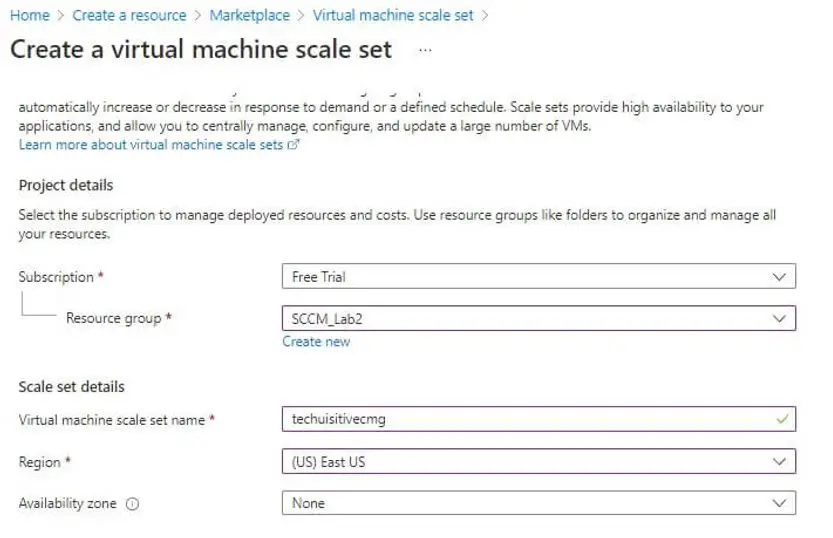
Check name availability for Virtual Machine Scale Set
- Sign in to the Azure Portal
- From the Azure portal home page, select Create a resource under Azure Services
- Search for Virtual machine scale set, select Create
- Select the Subscription and Resource group that you will use for the CMG.
- In the Virtual machine scale set name field, type the prefix techuisitivecmg
- Select the Region that you will use for CMG: East US
The interface reflected that the Domain is available.
Check name availability for Key Vault
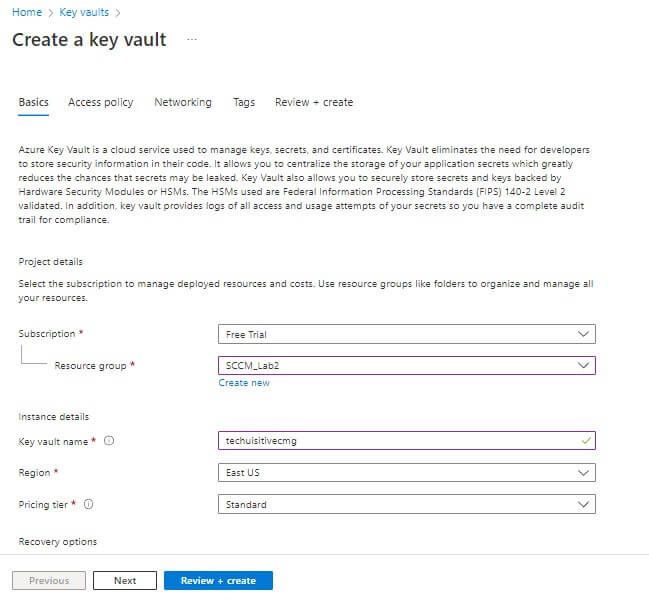
Follow the steps below to check the name availability for the key vault required for VMSS CMG deployment.
- Sign in to the Azure Portal
- From the Azure portal home page, select Create a resource under Azure Services
- Search for Key Vault, select Create
- Select the Subscription and Resource group that you will use for the CMG.
- In the Key vault field, type the prefix techuisitivecmg
- Select the Region that you will use for CMG: East US
The interface reflected that the Domain is available.
Check name availability for Storage Account
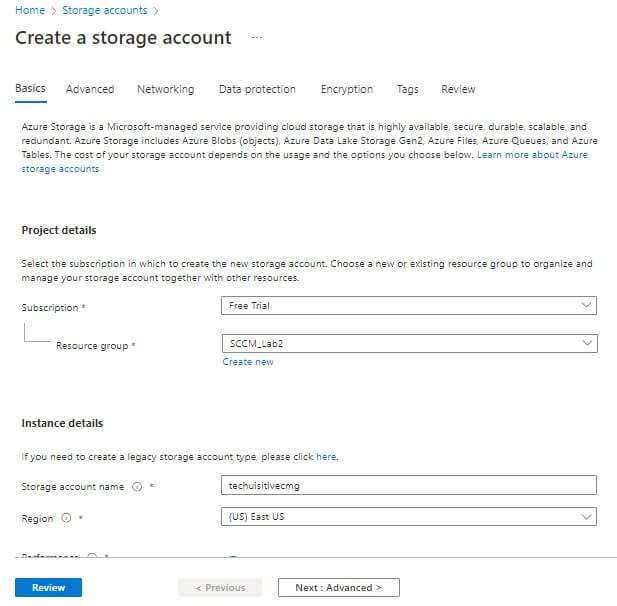
Follow the steps below to check the name availability for a storage account in Azure.
- Sign in to the Azure Portal
- From the Azure portal home page, select Create a resource under Azure Services
- Search for Storage Account, select Create
- Select the Subscription and Resource group that you will use for the CMG.
- In the Storage Account Name field, type the prefix techuisitivecmg
- Select the Region that you will use for CMG: East US
- The interface reflected that the Domain is available.
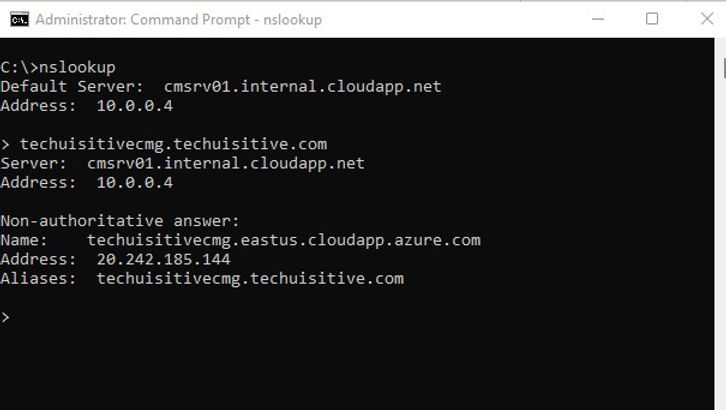
Create DNS CNAME
A DNS CNAME is required if you want to use your own corporate domain name for the Service Name.
e.g,
Service Name: techuisitivecmg.techusitive.com
Deployment Name: techuisitvecmg.eastus.cloudapp.azure.com
The following CNAMEs need to be created at your domain registrar.
Host: techuisitivecmg.techusitive.com
Destination: techuisitvecmg.eastus.cloudapp.azure.com
Register Azure Resource Providers
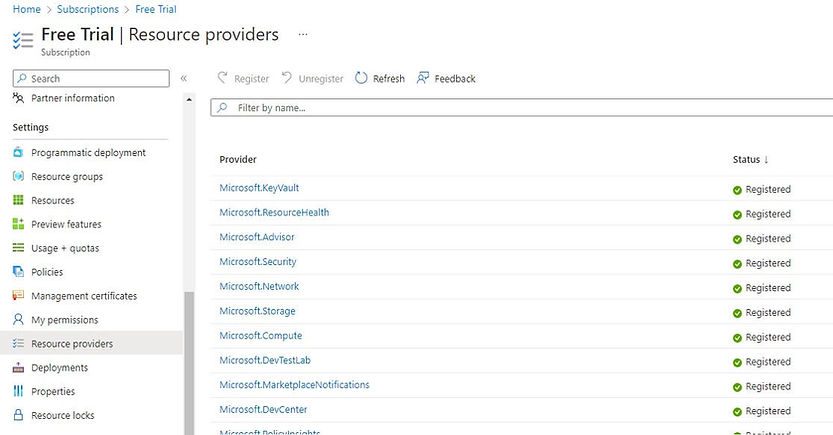
The CMG service requires that you register specific resource providers in your Azure subscription. When you deploy the CMG to a virtual machine scale set, register the following resource providers:
- Microsoft.KeyVault
- Microsoft.Storage
- Microsoft.Network
- Microsoft. Compute
Follow the steps below to register Azure Resource Providers in the Microsoft Azure Portal. If your Azure subscription is used for other services, most likely these resource providers are already registered. However, validate the same before proceeding to the next steps.
- Log in to the Azure Portal
- In the Azure Portal, select Cost management and billing
- Click on Cost Management and select Go to subscription
- Under the section Settings, select Resource Provider and click on Register if it’s not already registered.
Internet Access / Firewall Ports Requirements
ConfigMgr/SCCM servers must allow required internet traffic to Microsoft portals and Azure services for a secure, fully functional production environment.
Review Microsoft’s official documentation to understand detailed internet access requirements and firewall configurations for SCCM CMG.
Identify Certificate Requirements for Server and Clients
The Cloud Management Gateway uses a certificate-based HTTPS web service to help secure network communication with clients. You need a web server authentication certificate for CMG. The certificate can be obtained from an internal PKI or a Public certificate authority. If you want to go for a public certificate authority, then the CMG service name must use your own domain, and a DNS CNAME will be required. We already discussed this in previous steps.
Internet-based clients connect to the CMG to access on-premises Configuration Manager components. There are multiple options for client identity and authentication:
- Azure AD
- PKI certificates
- Configuration Manager site-issued tokens
We will use a PKI certificate from Microsoft PKI / Active Directory Certificate Service for this deployment.
Active Directory Groups
The following Active Directory group is required for issuing a PKI certificate for the SCCM site server and the SCCM Management Point / Software Update Point.
Group name: SCCM Site Server
Member: SCCM Site servers
Group Name: SCCM IIS Servers
Member: Management Point and Software Update Point Site System servers
Service Connection Point Requirement for CMG Setup
The Configuration Manager Service Connection Point (SCP) must be configured in online mode to successfully deploy and manage a Cloud Management Gateway (CMG).
When the SCP is in online mode, it can:
- Communicate directly with Microsoft cloud services.
- Download the latest updates, feature packs, and hotfixes.
- Enable CMG provisioning by exchanging required metadata with Azure.
- Ensure compliance with Microsoft’s licensing and service validation requirements.
If the SCP is set to offline mode, CMG setup will fail because the site cannot establish the necessary trust and connectivity with Azure services.
Identify Servers for Site System Roles
The following on-premises roles are required for Cloud Management Gateway.
- Cloud Management Gateway Connection Point
- Management Point (HTTPS)
- Software Update Point (SSL)
Configure at least one Management Point and Software Update Point for Secure Communication to be used with CMG.
You’ve now completed the prerequisites and initial configuration for CMG. The next step is to issue, enroll, and export the server authentication certificate — a critical requirement for secure communication between SCCM and Azure. Continue with [Part 2 Issue, Enroll & Export Server Authentication Certificate] to move forward in your CMG setup journey.”
Next post: Part 2 | Issue, Enroll & Export Server Authentication Certificate
Frequently Asked Questions (FAQs)
Which certificates are required for CMG?
A server authentication certificate is mandatory. You can use either an internal PKI or a public CA.
What Azure roles are needed to deploy CMG?
You need Azure subscription owner rights and Azure AD Global Admin permissions to provision resources.
Which firewall ports must be open for CMG communication?
Outbound HTTPS (TCP 443) is required from SCCM servers to Microsoft portals and Azure services.
Can CMG be deployed in offline mode?
No, the Service Connection Point must be in online mode for CMG provisioning.
Related posts:
- Configure Management Point for HTTPS | ConfigMgr | SCCM
- Configure Software Update Point for SSL | ConfigMgr | SCCM
- Deploy client authentication certificate for SCCM clients
- SCCM CMG Part 1 | Cloud Management Gateway (CMG) Setup Guide
- SCCM CMG Part 2 | Issue, Enroll & Export Server Authentication Certificate
- SCCM CMG Part 3 | Configure SCCM Site for SSL
- SCCM CMG Part 4 | Integrate Azure Active Directory with ConfigMgr
- SCCM CMG Part 5 | Setup Cloud Management Gateway
- SCCM CMG Part 6 | Validate CMG Health & Client Communication
Explore More SCCM Guides
Continue building your Microsoft Intune & SCCM skills with step-by-step tutorials covering device management, application deployment, automation, and troubleshooting.
- Microsoft Intune Learning – Explore comprehensive guides on device enrollment, compliance policies, application deployment, Windows updates, and more.
- SCCM (Configuration Manager) Guides – Explore more SCCM guides covering device management, application deployment, software updates, troubleshooting, and automation.
