
Managing Microsoft Intune environments often requires administrators to export reports regularly for compliance checks, device auditing, and operational monitoring. While Intune provides built-in reporting in the admin center, manually exporting reports and emailing them repeatedly can quickly become time-consuming.
In this guide, we’ll build a PowerShell-based Intune reporting automation framework that:
- Authenticates using a Service Principal
- Reads report configuration from JSON
- Exports Intune reports using the Microsoft Graph API
- Generates CSV reports automatically
- Email reports using Microsoft Graph Mail API
- Supports multiple reports dynamically
- Includes logging and report enable/disable controls
By the end, you’ll have a reusable and scalable reporting solution for Intune.
Solution Overview
The automation works using the following flow:
PowerShell Script
        ↓
Authenticate to Microsoft Graph
        ↓
Read Report Configuration from JSON
        ↓
Export Intune Report Data
        ↓
Format Report Data
        ↓
Generate CSV File
        ↓
Send Email via Graph API
Features Included
- Service Principal authentication
- JSON-driven report configuration
- Multiple report support
- Enable/Disable reports individually
- Dynamic report formatting
- Graph API email delivery
- Automatic log generation
- Automatic log cleanup
- CSV report exports
- Modular report functions
Prerequisites
Before using the script, ensure the following requirements are completed:
- An active Microsoft Intune tenant
- A licensed Microsoft 365 mailbox
- An App Registration in Microsoft Entra ID
- Microsoft Graph API application permissions configured
- PowerShell 5.1 or later
Required Microsoft Graph Permissions
Add the following Application Permissions to the App Registration:
| Permission | Type |
|---|---|
| DeviceManagementManagedDevices.Read.All | Application |
| DeviceManagementConfiguration.Read.All | Application |
| Mail.Send | Application |
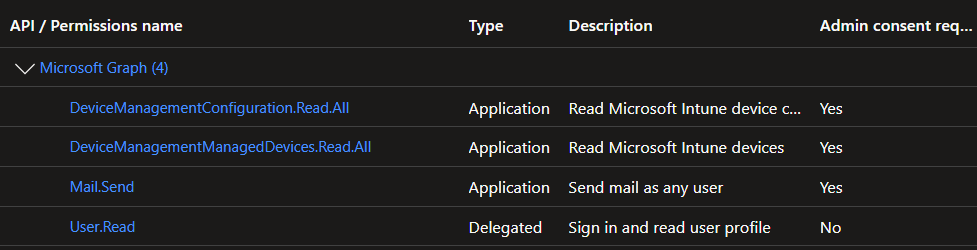
After adding permissions:
- Grant Admin Consent
- Generate a Client Secret
- Note down:
- Tenant ID
- Client ID
- Client Secret
Microsoft Graph permissions documentation:
Microsoft Graph Permissions Reference
Project Structure
Intune_Report_Automailer
│
├── Intune_Report_Automailer.ps1
├── config.json
│
├── Reports
│   └── *.csv
│
└── Logs
    └── *.log
JSON Configuration File
The script reads all report settings dynamically from a JSON configuration file.
Example:
{
  "EmailSettings": {
    "SenderEmail": "intunereports@contoso.com"
  },

  "Reports": [
    {
      "Enabled": true,
      "ReportName": "Device Inventory Report",
      "ReportType": "ManagedDevices",
      "FileName": "DeviceInventory",
      "ReportUri": "https://graph.microsoft.com/beta/deviceManagement/managedDevices",
      "Recipients": [
        "admin@contoso.com"
      ]
    },

    {
      "Enabled": true,
      "ReportName": "Device Compliance Report",
      "ReportType": "Compliance",
      "FileName": "DeviceCompliance",
      "ReportUri": "https://graph.microsoft.com/beta/deviceManagement/managedDevices",
      "Recipients": [
        "security@contoso.com"
      ]
    }
  ]
}
Understanding the Report Configuration
Each report entry supports:
| Property | Purpose |
|---|---|
| Enabled | Enables or disables the report |
| ReportName | Friendly report name |
| ReportType | Used for custom formatting |
| FileName | Exported CSV filename |
| ReportUri | Graph API endpoint |
| Recipients | Email recipients |
Supported Reports
Currently, the script supports:
| Report | Graph Endpoint |
|---|---|
| Device Inventory | /deviceManagement/managedDevices |
| Device Compliance | /deviceManagement/managedDevices |
The same Graph endpoint can be reused with different formatting functions to create multiple report types.
Service Principal Authentication
The script authenticates to Microsoft Graph using OAuth 2.0 Client Credentials flow.
$TokenBody = @{
    Grant_Type    = "client_credentials"
    Scope         = "https://graph.microsoft.com/.default"
    Client_Id     = $ClientId
    Client_Secret = $ClientSecret
}
This avoids interactive sign-ins and makes the automation suitable for scheduled execution.
Report Formatting Functions
One of the biggest challenges with Microsoft Graph responses is nested JSON properties.
For example:
hardwareInformation contains multiple embedded objects and arrays.
To generate clean CSV exports, the script uses custom formatting functions.
Device Inventory Report
The Format-ManagedDevicesReport function:
- Flattens nested hardware information
- Converts storage values to GB
- Selects only required properties
- Removes nested array issues
Example exported columns:
- Device Name
- OS Version
- Compliance State
- Manufacturer
- Serial Number
- TPM Version
- Storage Information
Device Compliance Report
The compliance report focuses on:
- Device Name
- Compliance state
- Management state
- Last sync time
- Device ownership
This provides a simplified operational compliance report for administrators.
Exporting Reports
The script dynamically exports CSV files to the .\Reports folder using the Export-Csv cmdlet. The generated files include timestamps for easier tracking.
Example:
DeviceInventory_20260525_101500.csv
Sending Reports via Microsoft Graph API
The script uses Microsoft Graph Mail API /users/{sender}/sendMail to send the report. Its provide cloud native email delivery, modern authentication, and better security.
Microsoft Graph sendMail documentation:
Microsoft Graph SendMail API Documentation
Logging
The script includes centralized logging with automatic log cleanup.
Example log entries:
2026-05-25 09:00:01 [INFO] Getting Graph access token...
2026-05-25 09:00:05 [INFO] Processing Report: Device Inventory Report
2026-05-25 09:00:12 [INFO] Report exported successfully.
2026-05-25 09:00:15 [INFO] Email sent successfully.
Logs are stored in:
.\Logs
Older logs are automatically removed after 30 days.
Enabling or Disabling Reports
Reports can easily be enabled or disabled directly from the JSON file.
Example:
"Enabled": false
The script automatically skips disabled reports.
Running the Script
Execute the script using:
.\Intune_Report_Automailer.ps1
You can also schedule it using:
Windows Task Scheduler
for daily or weekly report delivery.
Common Use Cases
This framework can be extended for:
- Non-compliant device reporting
- Stale device detection
- Autopilot device exports
- BitLocker reporting
- App inventory exports
- Windows 11 readiness reporting
Future Enhancements
Potential future improvements include:
- HTML report templates
- ZIP compression
- Teams notifications
- Advanced filtering
- Graph Export Jobs integration
- Dashboard reporting
- Azure Automation support
- Azure Key Vault integration
Final Thoughts
Using Microsoft Graph with PowerShell provides a powerful way to automate Intune reporting workflows.
This approach offers:
- Better scalability
- Modern authentication
- Reusable automation
- Flexible reporting
- Simplified administration
If you regularly export Intune reports manually, this framework can significantly reduce repetitive administrative work while improving operational visibility.
Script Download
Download the latest version of the Intune Report Auto mailer automation script from GitHub.
https://github.com/techuisitive/Intune-scripts/tree/main/Intune-report-automailer
Explore More Intune Guides
Continue building your Microsoft Intune skills with step-by-step tutorials covering device management, application deployment, automation, and troubleshooting.
- Microsoft Intune Learning – Explore comprehensive guides on device enrollment, compliance policies, application deployment, Windows updates, and more.
- Intune Automation – Discover PowerShell and Microsoft Graph automation solutions to simplify repetitive Intune administration tasks.
