
Bulk uploading Win32 applications to Microsoft Intune can become time-consuming when you need to package applications, create Entra ID groups, configure detection rules, assign applications, and repeat the same process for dozens of applications.
This guide demonstrates how to automate the complete deployment process using PowerShell and the Microsoft Graph API. Instead of uploading every application manually, the automation reads configuration files, packages applications, uploads them to Intune, creates assignment groups, and assigns applications automatically.
By the end of this guide, you’ll understand how the solution works, what it supports, and how to customize it for your environment.
Win32 App Bulk Upload Workflow
The following workflow illustrates how the PowerShell automation deploys Win32 applications to Microsoft Intune. From reading the application folder to creating Microsoft Entra groups and assigning applications, each step is performed automatically to minimize manual effort and ensure consistent deployments.
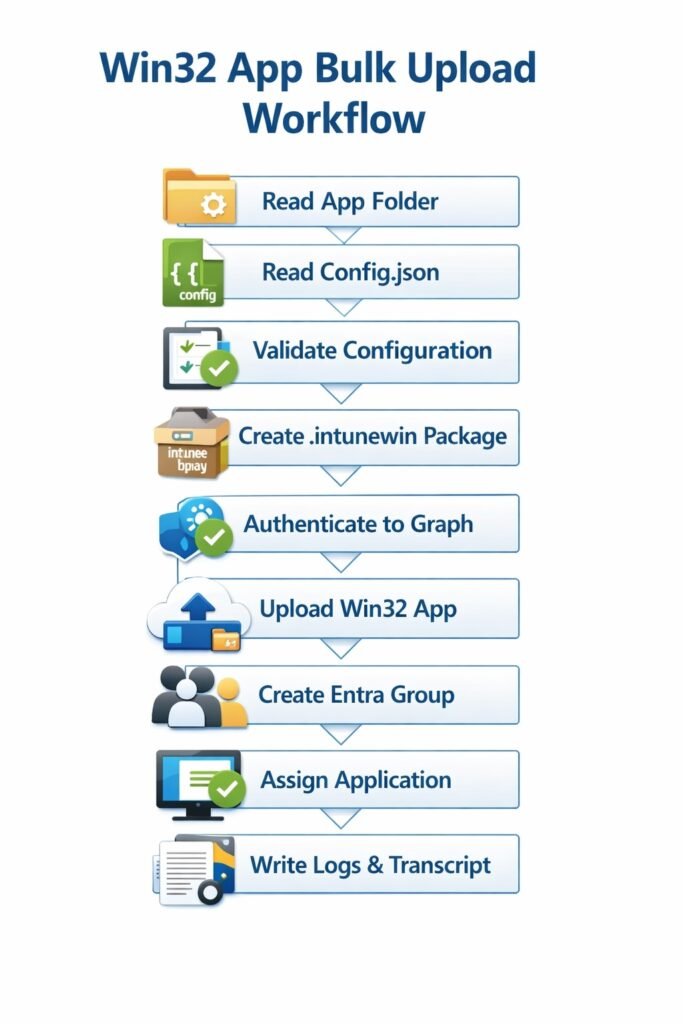
The sections below explain each stage of the workflow in detail.
How the Automation Works
Read Application Folder
The script begins by scanning the specified application root folder and identifies each subfolder as a separate application. It verifies that the required installation files and configuration file are present before proceeding with the deployment.
Read Config.json
For each application, the script reads the Config.json file to retrieve deployment settings such as the application name, publisher, installation command, uninstall command, detection rule, assignment group, and other metadata. This allows every application to be deployed using its own configuration without modifying the PowerShell script.
Validate Configuration
Before packaging the application, the script validates the configuration to ensure all required properties are present and correctly formatted. If mandatory values are missing or invalid, the deployment for that application is skipped and the error is recorded in the log.
Create .intunewin Package
If the application package has not already been created, the script automatically packages the installer using the Microsoft Win32 Content Prep Tool. The resulting .intunewin file is then prepared for upload to Microsoft Intune.
Authenticate to Microsoft Graph
The script authenticates to Microsoft Graph using the configured Azure App Registration and required application permissions. Once authentication succeeds, all subsequent operations—including application creation, group management, and assignments—are performed through Microsoft Graph APIs.
Upload Win32 App
The script uploads the generated .intunewin package to Microsoft Intune and creates the Win32 application using the settings defined in the configuration file. It also configures application metadata, installation commands, detection rules, return codes, and other deployment properties automatically.
Create Microsoft Entra Group
If specified in the configuration, the script creates a Microsoft Entra security group for the application. This eliminates the need to manually create assignment groups for every application and ensures a consistent naming convention.
Assign Application
After the application and security group have been created, the script automatically assigns the Win32 application to the configured Microsoft Entra group. Assignment intent, such as Required or Available, is applied based on the values defined in the configuration.
Write Logs & Transcript
Throughout the deployment process, the script records detailed log entries and generates a PowerShell transcript. These logs help administrators verify successful deployments and quickly troubleshoot failures by identifying the exact step where an error occurred.
Intune Automation Script Components
1. Configuration Validation
The script validates:
- Required JSON properties
- Empty values
- Installer file existence
- Folder name vs DisplayName mismatch
- Detection rule structure
Example validation logic:
if ($folderName -ne $Config.DisplayName) {

    Write-Log @"
Folder name does not match DisplayName.

Folder Name : $folderName
DisplayName : $($Config.DisplayName)
"@ "ERROR"

    $validationFailed = $true
}
This helps avoid deployment issues caused by copied configuration files. This helps in cleaner transcript logs and easier troubleshooting.
2. Centralized Logging
Instead of scattered Write-Host calls, the script uses a centralized logging function.
Example:
function Write-Log {

    param(
        [string]$Message,

        [ValidateSet("INFO","WARN","ERROR","SUCCESS")]
        [string]$Level = "INFO"
    )

    $timestamp = Get-Date -Format "yyyy-MM-dd HH:mm:ss"

    switch ($Level) {

        "INFO" { $color = "White" }
        "WARN" { $color = "Yellow" }
        "ERROR" { $color = "Red" }
        "SUCCESS" { $color = "Green" }
    }

    Write-Host "[$timestamp] [$Level] $Message" `
        -ForegroundColor $color
}
3. Automated Packaging
The script automatically creates .intunewin packages using IntuneWinAppUtil.exe.
Example:
Start-Process ` -FilePath $intuneUtilPath ` -ArgumentList $arguments ` -Wait ` -WindowStyle Hidden
4. Entra Group Creation
The script checks whether a group already exists before creating it.
Benefits:
- Prevents duplicate groups
- Safe re-execution
- Better bulk deployment experience
5. Assignment Handling
The script:
- Assigns apps automatically
- Prevents duplicate assignments
- Supports Available intent
Prepare the Environment
Before you begin, prepare your environment by installing the required tools, configuring Microsoft Graph permissions, organizing the application folder structure, and updating the Config.json file. Completing these steps ensures the automation script can successfully package, upload, and assign Win32 applications in Microsoft Intune.
Prerequisites
Microsoft Intune and Microsoft Entra Access
An active Microsoft Intune environment and appropriate administrator access to Microsoft Intune and Microsoft Entra ID are required to configure the application deployment and assignment resources.
Required PowerShell Modules
Install the following PowerShell modules before running the script:
- MSAL.PS – Used for Microsoft Entra authentication.
- IntuneWin32App – Used to package and upload Win32 applications to Intune. The script has been tested with version 1.5.0.
Microsoft Win32 Content Prep Tool
Download IntuneWinAppUtil.exe from the Microsoft Win32 Content Prep Tool GitHub repository. The tool is used by the script to package application source files into the .intunewin format required by Intune.
Application Source Files
Store each application’s source files and its corresponding Config.json file in an individual folder under the Apps directory. The folder structure is described in the Application Folder Structure section below.
PowerShell Execution Policy
Ensure your PowerShell execution policy allows the script and required modules to run. If your environment restricts script execution, configure the appropriate execution policy according to your organization’s security requirements.
Microsoft Entra App Registration
The script uses a service principal for unattended authentication, allowing it to connect to Microsoft Intune and Microsoft Graph without requiring an administrator to sign in interactively each time the script runs. To enable this, create a Microsoft Entra App Registration and use its Tenant ID, Client ID, and Client Secret in the script.
Grant the application the following Microsoft Graph application permissions and provide admin consent:
DeviceManagementApps.ReadWrite.All
DeviceManagementConfiguration.ReadWrite.All
Group.ReadWrite.All
These permissions allow the script to create and manage Intune applications and configurations, as well as create and manage Microsoft Entra groups used for application assignments.

Current Limitations
Currently Supported
- MSI Detection Rules
Planned for Future Release
- File, Registry, and Script Detection Rules
- Icon Upload Support
- Supersedence Support
- Requirement Rules Expansion
Folder Structure
The application installation source and configuration files need to be aligned as per the folder structure below.
Intune_Win32App_AutoDeploy/
│
├── Apps/
│   ├── Notepad++ 8.9.1 x64/
│   │   ├── npp.8.9.1.Installer.x64.msi
│   │   └── config.json
│   │
│   └── 7Zip 24.09/
│       ├── 7z2409-x64.msi
│       └── config.json
│
├── IntuneWinAppUtil.exe
├── Intune_Win32App_AutoDeploy.ps1
└── Logs/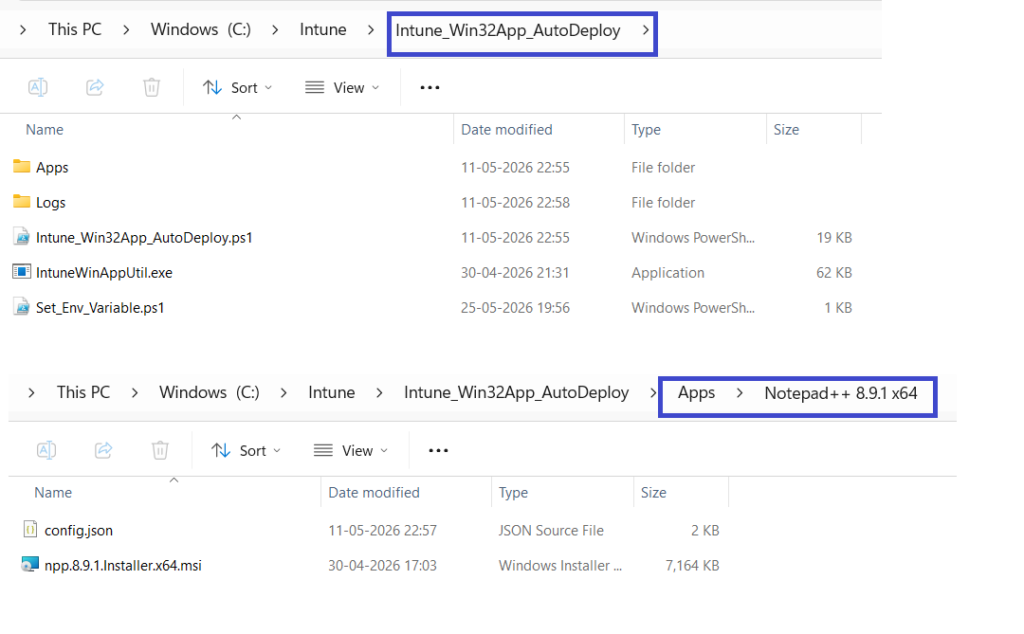
Config.json Parameters
The Config.json file controls how each Win32 application is packaged, uploaded, and assigned. Update the following properties to match your application’s deployment requirements.
| Parameter | Description | Required |
|---|---|---|
| DisplayName | Name displayed for the application in the Microsoft Intune admin center. | Yes |
| Description | Brief description of the application shown to administrators and users. | No |
| Publisher | Software publisher displayed in the application properties. | No |
| AppVersion | Version number of the application. Used for identification and reporting. | Yes |
| InstallerName | Name of the installer file located in the application folder. | Yes |
| InstallCmd | Silent installation command executed during deployment. | Yes |
| UninstallCmd | Silent uninstall command executed when removing the application. | Yes |
| CreateGroup | Specifies whether the script should automatically create a Microsoft Entra security group (Yes or No). | Yes |
| GroupName | Name of the Microsoft Entra security group created or used for application assignment. | Required if CreateGroup is Yes |
| AssignApp | Specifies whether the application should be automatically assigned after upload (Yes or No). | Yes |
| DetectionRules | Defines the detection method used by Intune to determine whether the application is installed. | Yes |
Detection Rule Parameters
| Parameter | Description |
|---|---|
| Type | Detection rule type. Currently, the script supports MSI detection. |
| Enabled | Enables or disables the detection rule. |
| ProductCode | MSI Product Code used to detect the installed application. |
| ProductVersionOperator | Comparison operator for the product version, such as equal, greaterThanOrEqual, or lessThan (depending on what your script supports). |
| ProductVersion | Version number compared against the installed MSI version. |
Note: The current version of the script supports MSI-based detection rules. Support for File, Registry, and PowerShell Script detection rules may be added in a future release.
Sample Config.json File
{
  "DisplayName": "Notepad++ 8.9.1 x64",
  "Description": "Notepad++",
  "Publisher": "Notepad++",
  "AppVersion": "8.9.1",
  "InstallerName": "npp.8.9.1.Installer.x64.msi",

  "InstallCmd": "msiexec /i npp.8.9.1.Installer.x64.msi /qn /norestart",
  "UninstallCmd": "msiexec /x npp.8.9.1.Installer.x64.msi /qn /norestart",

  "CreateGroup": "Yes",
  "GroupName": "APP - Notepad++",

  "AssignApp": "Yes",

  "DetectionRules": [
    {
      "Type": "MSI",
      "Enabled": true,
      "ProductCode": "{7349B4F3-02E1-4234-A67A-FA85B33B67AF}",
      "ProductVersionOperator": "equal",
      "ProductVersion": "8.9.1"
    }
  ]
}
Download the Script
Download the latest version of the Bulk Win32 App Deployment automation script from GitHub. The repository includes the PowerShell script, sample Config.json file, folder structure, and supporting files required to automate Win32 application deployment to Microsoft Intune using Microsoft Graph API.
Download the complete Intune automation script from Techuisitive GitHub repository.
Run the Script
Configuration Validation Mode
The script supports a validation-only mode. This is useful before large bulk deployments, as you can validate the configurations before bulk upload. Any issues identified with the configuration can be fixed before the bulk upload.
Example:
.\Intune_Win32App_AutoDeploy.ps1 -ValidateConfig
This mode:
- Validates JSON files
- Checks the installer’s existence
- Verifies folder naming
- Skips upload and assignment
The Validate Config mode is useful before large bulk deployments. You can identify the fix the configuration issues before running the script in deployment mode.
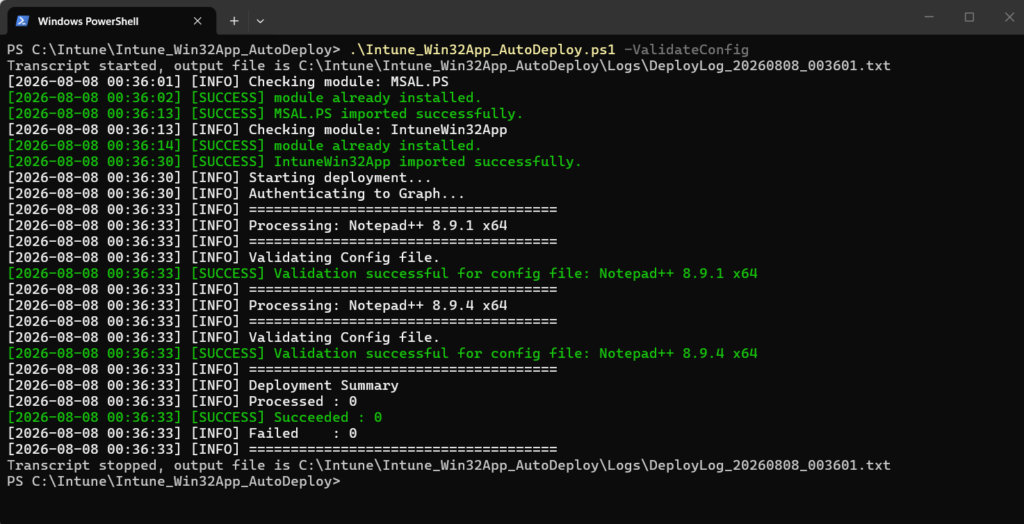
Deployment Mode
The script will run in deployment mode when executed without any parameters.
.\Intune_Win32App_AutoDeploy.ps1
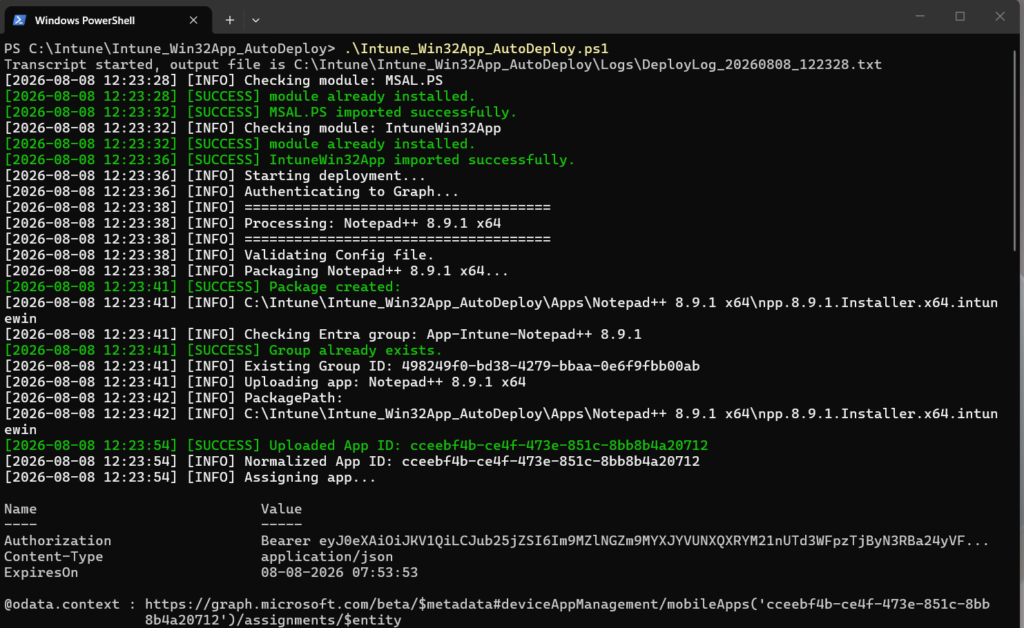
The script provides application deployment summary at the end.

Verify the Deployment
After running the script, verify the deployment in the Microsoft Intune admin center. Under Apps > Windows apps, confirm that the Win32 applications have been created with the expected application name, version, and assignment status, as shown below.
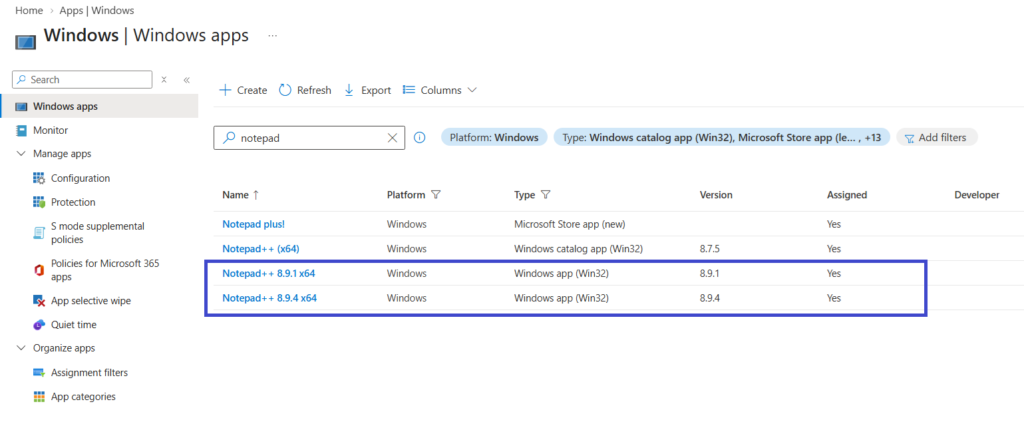
In this example, both Notepad++ 8.9.1 x64 and Notepad++ 8.9.4 x64 were successfully created as Windows app (Win32) applications and show Assigned: Yes. This confirms that the application upload and assignment steps completed successfully.
Recommended Security Practice
Avoid storing secrets directly in the script. Instead, use environment variables:
$clientSecret = $env:INTUNE_CLIENT_SECRET
Set the user environment variable using the PowerShell command below. You need to run this with elevated PowerShell.
[System.Environment]::SetEnvironmentVariable( "INTUNE_CLIENT_SECRET", "YOUR_SECRET", [System.EnvironmentVariableTarget]::User)
Benefits of This Intune Automation
This automation framework streamlines Win32 application deployment by reducing repetitive administrative tasks and ensuring a consistent deployment process across your Microsoft Intune environment.
Key benefits include:
- Reduces repetitive Intune administration
- Standardizes application onboarding
- Improves deployment consistency
- Minimizes manual configuration errors
- Accelerates bulk Win32 application deployments
- Simplifies application assignment using Microsoft Entra groups
- Generates detailed logs for easier troubleshooting
Ideal for:
- Managed Service Provider (MSP) environments
- Enterprise IT administrators managing large application portfolios
- Application packaging teams
- Test and lab environments
- Organizations onboarding multiple Win32 applications
Future Enhancements
Planned improvements include:
- File and Registry detection rules
- Script detection support
- Icon uploads
- Supersedence support
- Requirement rule expansion
- Dependency support
- Retry logic improvements
Related Posts
- Automating Intune Remediation Script Creation with Microsoft Graph API
- Bulk Export Entra ID Group Members with PowerShell & Microsoft Graph API
- How to Bulk Sync Intune Devices with Microsoft Graph
- Bulk Add Devices to Entra ID Group from CSV File
Explore More Intune Guides
Continue building your Microsoft Intune skills with step-by-step tutorials covering device management, application deployment, automation, and troubleshooting.
- Microsoft Intune Learning – Explore comprehensive guides on device enrollment, compliance policies, application deployment, Windows updates, and more.
- Intune Automation – Discover PowerShell and Microsoft Graph automation solutions to simplify repetitive Intune administration tasks.
