
The DeviceAADJoin failed with 0x8018000A error typically appears during Windows device enrollment into Microsoft Intune when the Microsoft Entra join process cannot be completed. Although the error message is generic, the underlying cause can range from enrollment limits and licensing issues to stale device objects or incorrect enrollment settings. This article walks through the most common causes and provides proven troubleshooting steps to resolve the problem.
Issue
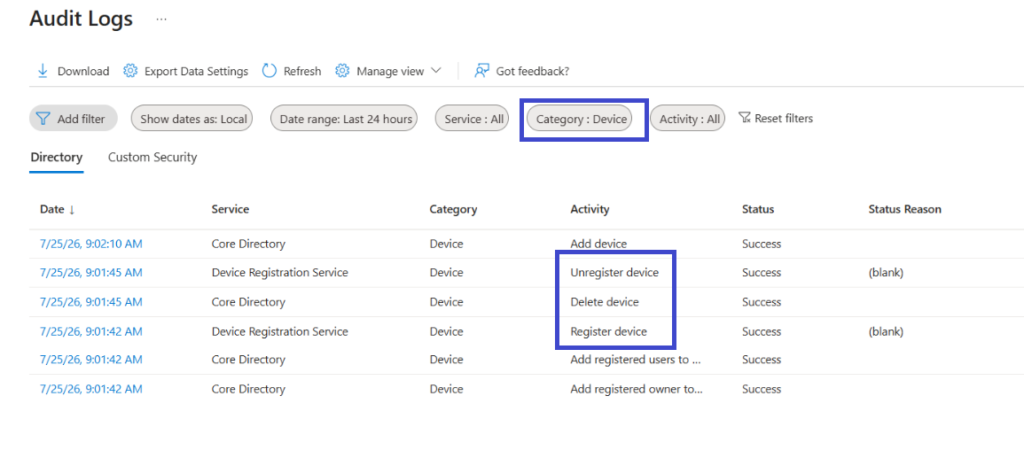
When enrolling a Windows device using a provisioning package (.ppkg), the enrollment process initially appears to complete successfully. The device is successfully joined to Microsoft Entra ID, and a corresponding device object is created in the Entra admin center. However, within a few moments, the device object is automatically deleted, causing the enrollment to fail.
The Audit logs in Microsoft Entra show that the device was added and then almost immediately removed.
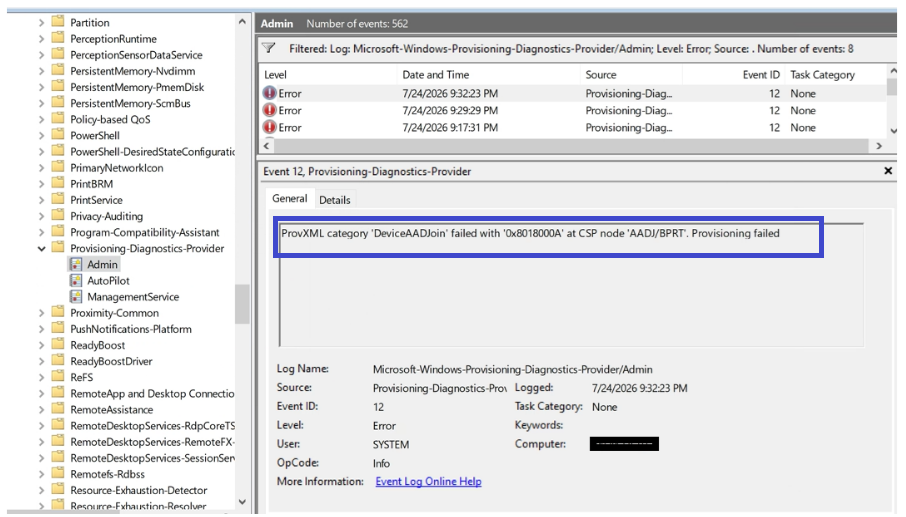
The Windows Event Viewer (Event Viewer > Applications and Services Logs > Microsoft > Windows > Provisioning-Diagnostics-Provider > Admin) reports the error DeviceAADJoin failed with 0x8018000A. As a result, the device never completes Intune enrollment and remains unmanaged.
The error below was logged in the Event Viewer.
ProvXML category ‘DeviceAADJoin’ failed with ‘0x8018000A’ at CSP node ‘AADJ/BPRT’. Provisioning failed
Solution
This PowerShell script performs a complete cleanup of Mobile Device Management (MDM) enrollment artifacts from a Windows device. It removes stale enrollment records, scheduled tasks, registry entries, certificates, and other remnants left behind by previous MDM enrollments. This cleanup is especially useful when re-enrolling a device into Microsoft Intune, migrating a device from one Microsoft Entra tenant to another, or troubleshooting enrollment failures caused by orphaned or inconsistent enrollment information. By removing these leftover MDM components, the script helps ensure that the device starts with a clean enrollment state, reducing the likelihood of errors during the new enrollment process and simplifying Intune migration and recovery scenarios.
The script performs the following actions.
- Backs up MDM enrollment registry keys before making changes, allowing recovery if needed.
- Stops MDM-related services to prevent conflicts during the cleanup process.
- Removes stale MDM enrollment artifacts, including enrollment GUIDs, provisioning and policy registry keys, certificates, and other enrollment-related records.
- Deletes MDM scheduled tasks created for device enrollment and ongoing management.
- Generates a cleanup summary showing successful and failed actions, then recommends restarting the device before attempting Microsoft Entra join or Intune re-enrollment.
MDM Enrollment Cleanup Script
# MDM Enrollment Cleanup

# Backup first
reg export "HKLM\SOFTWARE\Microsoft\Enrollments" "C:\Temp\Enrollments_backup_$(Get-Date -Format 'yyyyMMdd_HHmmss').reg" /y
Write-Host "Backup done" -ForegroundColor Green

# Stop MDM services
$services = @("dmwappushservice","diagsvc","DeviceManagementEnterpriseDriver")

foreach ($svc in $services) {
    Stop-Service -Name $svc -Force -ErrorAction SilentlyContinue
    Write-Host "Stopped: $svc"
}

# Force remove ALL enrollment GUIDs

$enrollPath = "HKLM:\SOFTWARE\Microsoft\Enrollments"
$entries = Get-ChildItem $enrollPath -ErrorAction SilentlyContinue
$removed = 0; $failed = 0

foreach ($entry in $entries) {
    $guid = $entry.PSChildName

    # Skip non-GUID entries like 'Context'

    if ($guid -notmatch '^[0-9a-fA-F]{8}-') {
        Write-Host "SKIPPED (non-GUID): $guid" -ForegroundColor Yellow
        continue
    }

    try {
        Remove-Item -Path $entry.PSPath -Recurse -Force -ErrorAction Stop
        Write-Host "REMOVED: $guid" -ForegroundColor Green
        $removed++
    } catch {

        Write-Host "FAILED : $guid — $_" -ForegroundColor Red
        $failed++
    }

}

# Clean companion keys

$keys = @(

    "HKLM:\SOFTWARE\Microsoft\Enrollments\Status",
    "HKLM:\SOFTWARE\Microsoft\EnterpriseResourceManager\Tracked",
    "HKLM:\SOFTWARE\Microsoft\PolicyManager\AdmxInstalled",
    "HKLM:\SOFTWARE\Microsoft\PolicyManager\Providers",
    "HKLM:\SOFTWARE\Microsoft\Provisioning\OMADM\Accounts",
    "HKLM:\SOFTWARE\Microsoft\Provisioning\OMADM\Logger",
    "HKLM:\SOFTWARE\Microsoft\Provisioning\OMADM\Sessions"
)

foreach ($key in $keys) {

    if (Test-Path $key) {
        Get-ChildItem $key -ErrorAction SilentlyContinue |
        Remove-Item -Recurse -Force -ErrorAction SilentlyContinue
        Write-Host "Cleaned: $key" -ForegroundColor Green
    }
}

# Remove MDM scheduled tasks

foreach ($tp in @("\Microsoft\Windows\EnterpriseMgmt\","\Microsoft\Windows\EnterpriseMgmtNoncritical\")) {

    Get-ScheduledTask -TaskPath "$tp*" -ErrorAction SilentlyContinue |
    Unregister-ScheduledTask -Confirm:$false -ErrorAction SilentlyContinue

    Write-Host "Tasks cleaned: $tp" -ForegroundColor Green
}

# Summary

$remaining = (Get-ChildItem $enrollPath -ErrorAction SilentlyContinue).Count

Write-Host "`n================================" -ForegroundColor Cyan
Write-Host " Removed : $removed" -ForegroundColor Green
Write-Host " Failed  : $failed" $(if ($failed -gt 0) { "-ForegroundColor Red" })
Write-Host " Remaining entries: $remaining" -ForegroundColor $(if ($remaining -eq 0){"Green"}else{"Red"})
Write-Host "================================" -ForegroundColor Cyan
Write-Host "`nREBOOT NOW then retry Entra join" -ForegroundColor Yellow
Script Download
Download the PowerShell script for MDM enrollment cleanup.
Related Posts
- How to Fix Intune Enrollment Error 0x800705b4
- Intune Bulk Enrollment with Provisional Package failed with Error 0xCAA2000C
- Fix Windows 11 Intune Enrollment Error 0x800700b7 [Step-by-Step Guide]
Explore More Intune Guides
Continue building your Microsoft Intune skills with step-by-step tutorials covering device management, application deployment, automation, and troubleshooting.
- Microsoft Intune Learning – Explore comprehensive guides on device enrollment, compliance policies, application deployment, Windows updates, and more.
- Windows 10/11 – Explore practical guides for Windows device management, configuration, enrollment, troubleshooting, PowerShell, and administration.
