
Modern endpoint management goes way beyond just pushing out policies – it’s about getting devices to fix themselves. With Microsoft Intune’s detection and remediation scripts, you can catch and fix issues automatically before users even realize anything is wrong. Now that we are dealing with hybrid work setups and managing Windows 10 and 11, having that kind of automation isn’t just a nice bonus—it’s pretty much essential.
This playbook highlights the strategy behind Intune remediation scripts—helping admins design smarter fixes, automate compliance, and build self‑healing endpoints. We will cover detection logic, remediation triggers, logging, and reporting so you can move beyond quick fixes to a sustainable automation framework.
👉 For step‑by‑step deployment tutorials, check out:
- Automate Intune Remediation Script Creation with PowerShell and Graph API
- Step‑by‑Step Guide to Creating Intune Detection and Remediation Scripts
What Are Detection and Remediation Scripts?
Detection Script: A PowerShell script that checks whether a specific condition is met on the device. For example, it can verify whether BitLocker is enabled, OneDrive is syncing properly, or a required registry key exists. The script returns a status indicating whether the device is compliant.
Remediation Script: A companion PowerShell script that runs only when the detection script reports a non-compliant state. It automatically applies the required fix, such as enabling BitLocker, restarting a service, resetting OneDrive, or updating a registry setting to restore compliance.
Think of the detection script as the diagnostic test that identifies the issue, and the remediation script as the treatment plan that automatically resolves it.
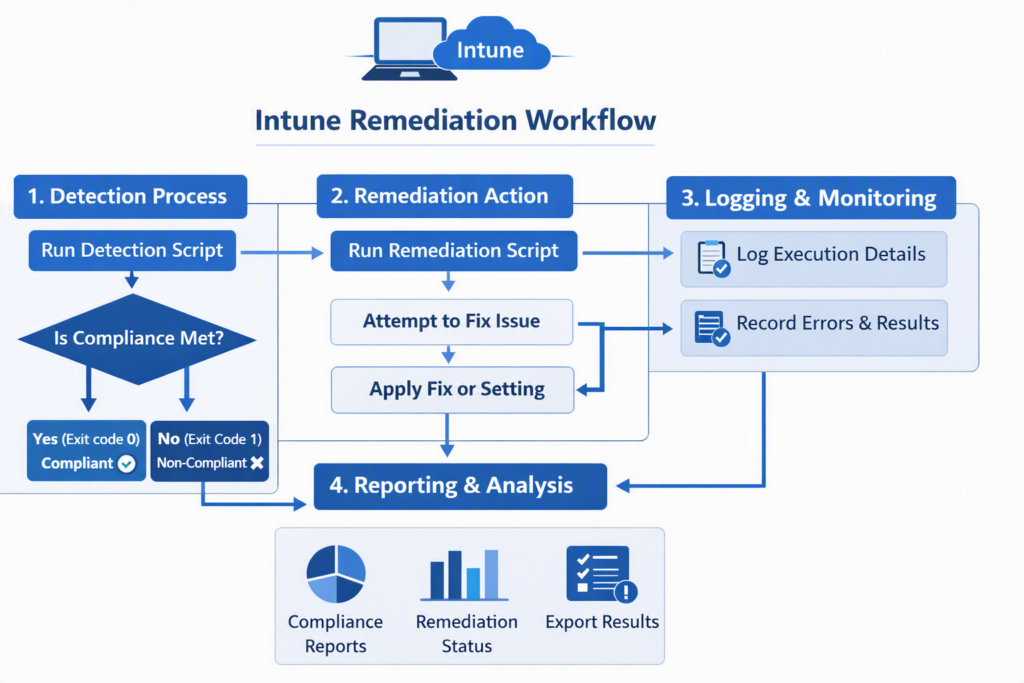
Intune Remediation Workflow
How Detection Works
When a remediation package is assigned, Microsoft Intune deploys the PowerShell detection script to all targeted devices. The script runs locally on each device and checks whether the required condition is satisfied, such as verifying that BitLocker is enabled, a registry value exists, or a specific service is running.
The detection script then returns an exit code to Intune:.
- Exit code 0 → The required condition is met, so the device is considered compliant. No further action is taken.
- Exit code 1 → The required condition is not met, so the device is considered non-compliant. Intune proceeds to run the remediation script (if one is available).
Based on the detection result, Intune determines whether remediation is necessary, ensuring that fixes are applied only to devices that actually require them.
How Remediation Is Triggered
If the detection script returns an exit code of 1, indicating that the device is non-compliant, Microsoft Intune automatically runs the associated PowerShell remediation script. The remediation script attempts to correct the issue and bring the device back into the desired state.
Administrators can configure how often the detection and remediation scripts run, such as once, hourly, or daily, depending on the scenario and organizational requirements.
The scripts run silently in the background using the configured execution context (user or system), allowing issues to be resolved with minimal disruption to end users. At the next scheduled run, the detection script executes again to verify that the remediation was successful and that the device remains compliant.
Why Enable Logs for Troubleshooting
Intune remediation logs provide detailed information about each script execution, including when the detection script ran, what condition it evaluated, the exit code that was returned, and whether the remediation script was executed successfully.
These logs help administrators quickly identify the root cause of failures, such as incorrect registry paths, missing files, insufficient permissions, or errors in the PowerShell script itself.
In addition to troubleshooting, the logs provide valuable evidence for compliance reporting and security audits by showing when remediation was performed and whether the device was successfully returned to the desired state.
👉 Best practice: Always enable transcript logging in your scripts (Start-Transcript / Stop-Transcript).
Exported Reports: What They Contain & Why They Matter
Microsoft Intune allows administrators to export remediation reports that provide a detailed overview of script execution across managed devices. These reports include key information such as:
- Detection results – Shows which devices passed or failed the detection script.
- Remediation status – Indicates whether the remediation script ran successfully or encountered an error.
- Execution details – Includes timestamps, device names, user information, and error messages to help diagnose failures.
These reports help administrators:
- Identify recurring issues by spotting devices or configurations that repeatedly fail detection.
- Measure remediation effectiveness by verifying that scripts are successfully resolving issues across the environment.
- Prioritize troubleshooting efforts by focusing on devices with persistent failures or specific error messages.
- Track compliance trends and generate documentation for operational reviews or security audits.
Intune reports give visibility into:
- Device compliance status (how many devices passed detection).
- Remediation success/failure counts.
- Error messages from failed runs.
Benefits of Using Detection and Remediation
- Proactive issue resolution – Detect and fix common issues automatically before users notice them or submit help desk tickets.
- Consistent device configuration – Apply the same remediation across all managed devices, ensuring a standardized and compliant environment. Scalability – Automate repetitive administrative tasks and manage thousands of devices without manual intervention.
- Improved security and compliance – Continuously enforce security baselines by correcting issues such as disabled BitLocker, missing antivirus settings, or non-compliant configurations.
- Better user experience – Resolve problems in the background, reducing downtime, minimizing disruptions, and improving device reliability.
Example Use Cases for 2026
Microsoft Intune remediation can automate the detection and repair of many common Windows issues. Some popular use cases include:
- Reset Windows Update components – Detect Windows Update failures and automatically reset update components to resolve installation issues.
- Repair Intune enrollment issues – Identify devices with broken or incomplete Intune enrollment and perform automated corrective actions where applicable.
- Reapply network configurations – Restore Wi-Fi, VPN, or proxy settings that have been modified or are preventing users from accessing corporate resources.
- Clear Microsoft Teams or Outlook cache – Remove corrupted cache files to resolve sign-in problems, synchronization issues, and application performance problems.
- Update Microsoft Defender signatures – Detect outdated security intelligence and trigger a signature update to keep devices protected against the latest threats.
- Enforce security and configuration baselines – Automatically correct issues such as disabled BitLocker, stopped services, missing registry values, or incorrect system settings to maintain compliance.
Conclusion
Detection and remediation scripts are a core component of modern Microsoft Intune administration, enabling organizations to identify and resolve device issues automatically. By combining proactive detection, automated remediation, and detailed reporting, IT administrators can shift from reactive troubleshooting to a scalable, self-healing device management approach.
Whether you’re enforcing security baselines, correcting configuration drift, or resolving common Windows issues, Intune remediation helps improve compliance, reduce support tickets, and deliver a more reliable experience for end users. As organizations continue to adopt cloud-based endpoint management, detection and remediation scripts will remain an essential tool for maintaining healthy, secure, and productive Windows devices.
Related Posts
- How to Create Intune Detection and Remediation Scripts (Step‑by‑Step Guide)
- Automating Intune Remediation Script Creation with Microsoft Graph API
- Automating Intune Reports Using PowerShell and Microsoft Graph API
Explore More Intune Guides
Continue building your Microsoft Intune skills with step-by-step tutorials covering device management, application deployment, automation, and troubleshooting.
- Microsoft Intune Learning – Explore comprehensive guides on device enrollment, compliance policies, application deployment, Windows updates, and more.
- Intune Automation – Discover PowerShell and Microsoft Graph automation solutions to simplify repetitive Intune administration tasks.
