
The remediation scripts in Microsoft Intune are a powerful way to remediate issues. We can use a remediation script to automatically fix common Windows issues across managed devices. We can also leverage the Microsoft Graph API to automate remediation script creation and assignment.
In this post, we’ll walk through:
- A common Windows issue to remediate (clearing temp files to free disk space).
- The PowerShell script to fix the issue.
- How to automate the creation of the remediation script in Intune using Microsoft Graph API.
Pre‑requisites & Required permissions
Before running the deployment framework, ensure your environment meets the following requirements:
- Licensing: An active Microsoft Intune license within the tenant.
- Authentication: An Entra ID (Azure AD) App Registration configured for the Client Credentials Flow using the
[https://graph.microsoft.com/.default](https://graph.microsoft.com/.default)scope. - Graph API Permissions(Requires Admin Consent):
DeviceManagementScripts.ReadWrite.All— To create and manage the remediation scripts.Directory.ReadWrite.All— To read, verify, and assign the script to Entra ID groups.
- Local Environment: PowerShell installed along with the required Microsoft.Graph modules.
- Workspace Assets: The target
config.jsonparameter map file stored alongside the detection and remediation.ps1source files.
Automation Script Workflow for Intune Remediation
To automate Intune remediation script deployment with Microsoft Graph, follow these structured steps:
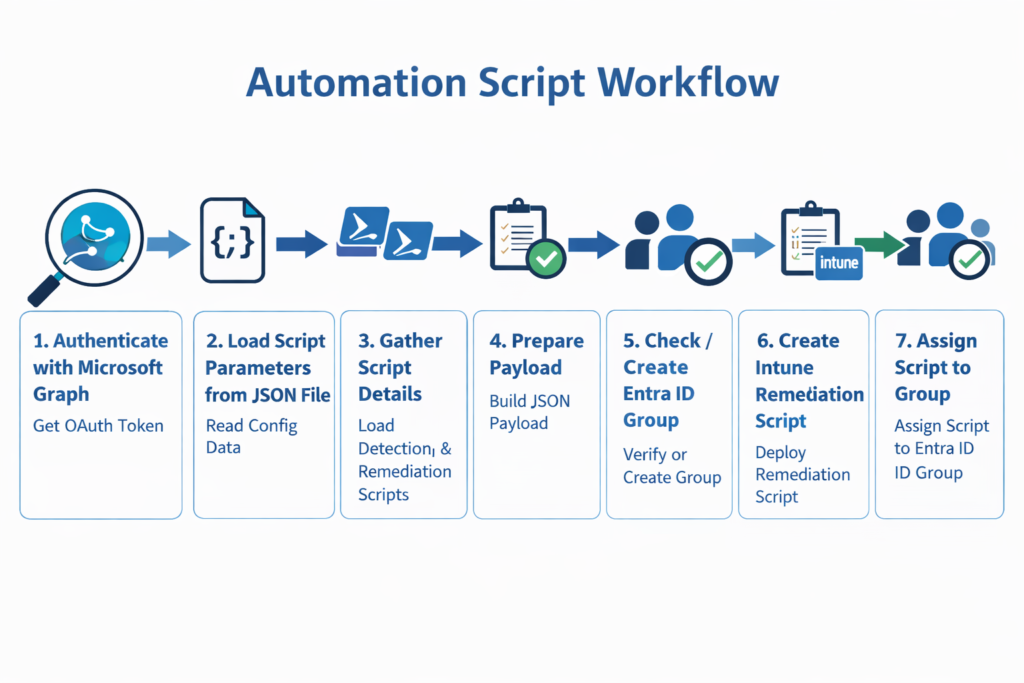
Set up Environment
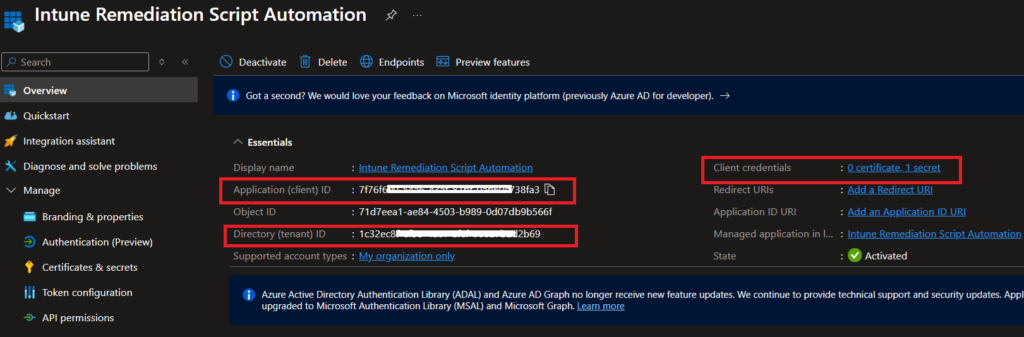
Create Azure App Registration
Register an Entra ID app with the required Graph API permissions, then record the Tenant ID, Application (Client ID), and Client Secret. These credentials will be used later in the Intune automation script.
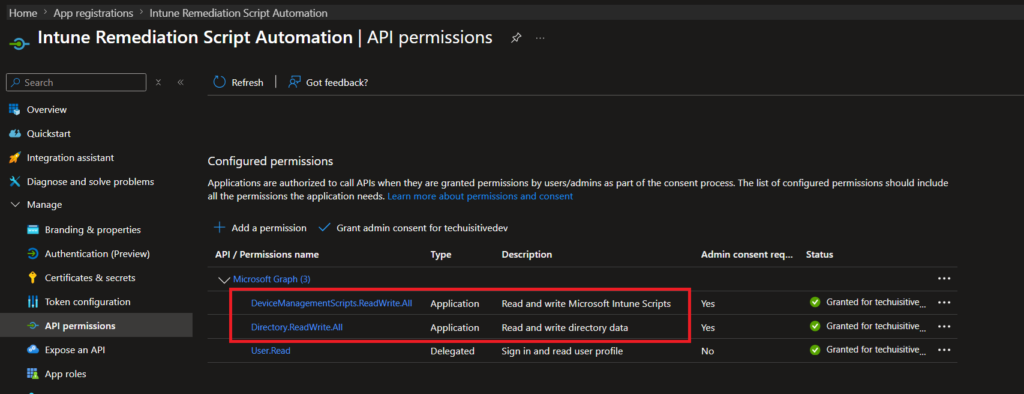
Core Permissions
- DeviceManagementScripts.ReadWrite.All
Grants full read/write access to Intune scripts, including creating, updating, deleting, and assigning remediation scripts.
This is the mandatory permission for automation scenarios using the Microsoft Graph API and Intune. - Directory.ReadWrite.All
Provides read/write access to directory data in Entra ID (Azure AD).
Required when your automation needs to create, update, or manage Entra ID groups for script assignment.
This ensures seamless integration between Intune remediation scripts and Entra ID group management.
Defining the Core Components (Detection, Remediation, and JSON)
To build this automation, we will use two PowerShell scripts and a configuration JSON file. Together, they provide the logic and input required by the master script (create_intune_remediation_script.ps1) to deploy the Intune remediation.
- Detection Script: Evaluates the target system to check if the available disk space on the system drive (C:) is below 5 GB.
- Remediation Script: Executes only if the detection script finds low disk space, clearing files from the Windows temporary folder to free up storage.
- JSON Configuration File: Centralizes all input arguments—such as script names, target Entra ID groups, and description fields—passing them seamlessly to the master script.
💡 Note: Ensure that all three files are saved in the same directory as your master script (
create_intune_remediation_script.ps1) before executing the automation.
Intune-Remediation-Automation/
├── create_intune_remediation_script.ps1  # Master Execution Script
├── config.json                            # Deployment Configuration
├── detection_script.ps1                    # Target Detection Script
└── remediatiation_script.ps1              # Target Remediation Script
Detection Script
Intune remediation logic relies on strict exit codes. This script evaluates whether the primary system drive has dropped below the 5 GB threshold.
- Exit Code 0: System compliant (No action needed).
- Exit Code 1: System non-compliant (Triggers the remediation script).
PowerShell

# Check if free disk space on C: drive is less than 5 GB
$freeSpaceGB = (Get-PSDrive -Name C).Free / 1GB
if ($freeSpaceGB -lt 5) {
    Write-Output "Disk space is low: $freeSpaceGB GB free."
    exit 1  # Indicate detection of issue
} else {
    Write-Output "Disk space is sufficient: $freeSpaceGB GB free."
    exit 0  # No issue detected
}
Remediation Script
Executed automatically by the Intune Management Extension only if the detection script above exits with code 1. It target-clears local Windows temporary directories to recover storage.
PowerShell

# Clear Temp Folder Script
$TempPath = $env:TEMP
Write-Output "Clearing temp files from $TempPath..."
Get-ChildItem -Path $TempPath -Recurse -Force -ErrorAction SilentlyContinue | Remove-Item -Force -Recurse -ErrorAction SilentlyContinue
Write-Output "Temp files cleared successfully."
These scripts can be uploaded to Intune as detection and remediation scripts, respectively, ensuring remediation runs only when disk space is low.
Automation Configuration Payload (Config.JSON)
This file externalizes all environment-specific variables. Instead of hardcoding target groups or script configurations into the master script, define them within this structured JSON profile:
JSON

{
  "ScriptName": "Clear Temp Folder",
  "Description": "Detects low disk space and clears temp files.",
  "DetectionScriptPath": "C:\\Intune\\Automate Remediation Script Creation\\Detection_script.ps1",
  "RemediationScriptPath": "C:\\Intune\\Automate Remediation Script Creation\\Remediation_script.ps1",
  "EntraIDGroupName": "Intune Remediation Script Disk Cleanup UAT",
  "CreateGroup": "Yes"
}
The Automation Script
Ensure you configure Microsoft Graph API credentials to enable Intune remediation automation. Update Tenant ID, Client ID, and Client Secret before running the script.
Gather Parameter from JSON and Prepare Payload
The snippet below shows how to read parameters from JSON and prepare the payload.
# Set path to config.json in the current script directory
$JsonFilePath = Join-Path -Path $PSScriptRoot -ChildPath "config.json"
Show-Message "Json File: $JsonfilePath" -Type Info


# Read JSON input file

$jsonContent = Get-Content -Path $JsonFilePath -Raw | ConvertFrom-Json

Show-Message "JSON Parameters:" -Type Info
foreach ($property in $jsonContent.PSObject.Properties) {
    Show-Message "$($property.Name): $($property.Value)" -Type Info
}


# Read and encode the detection script content
$detectionScriptContent = Get-Content -Path $jsonContent.DetectionScriptPath -Raw
$encodedDetectionScript = [System.Convert]::ToBase64String([System.Text.Encoding]::UTF8.GetBytes($detectionScriptContent))

# Read and encode the remediation script content
$remediationScriptContent = Get-Content -Path $jsonContent.RemediationScriptPath -Raw
$encodedRemediationScript = [System.Convert]::ToBase64String([System.Text.Encoding]::UTF8.GetBytes($remediationScriptContent))

# Prepare payload
$payload = @{
    displayName = $jsonContent.ScriptName
    description = $jsonContent.Description
    publisher   = "IT Admin"
    runSchedule = @{ interval = "PT24H" } # Run every 24 hours
    detectionScriptContent = $encodedDetectionScript
    remediationScriptContent = $encodedRemediationScript
}
Steps to Use the Automation Script
- Update Tenant ID, Client ID, and Client Secret before running the script (Required once for a tenant)
- Update the content of the detection script.
- Update the content of the remediation script.
- Update the JSON file with parameters.
- Run the automation script.
Result
The automation script will create the remediation script and assign the script to the Entra ID group provided in the JSON file. You can see in the screenshot below that the script was created and assigned based on the details provided in the JSON config file.
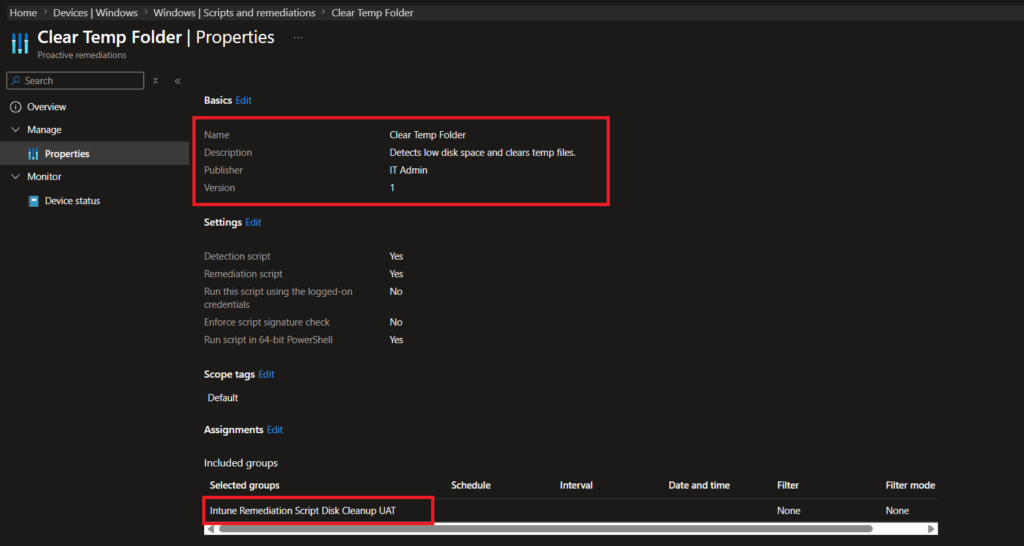
You can find the log files for the script execution under the “Logs” subfolder within the script directory.
Conclusion
With this approach, you can automate the creation and deployment of Intune remediation scripts using the Microsoft Graph API. The example here addresses a simple but common issue – clearing temp files. The same workflow can be applied to more complex scenarios like fixing registry settings, resetting services, or enforcing configuration baselines.
Script Download
Download the complete script from Techuisitive GitHub repository.
FAQs About Intune Remediation Script Automation
Why should I use automation instead of creating scripts directly in the Intune admin center?
While the Intune web UI is fine for one-off tasks, it creates massive technical debt in enterprise environments. Moving to a Microsoft Graph API automation framework shifts your endpoint management to an Infrastructure as Code (IaC) model, delivering four primary advantages:
Disaster Recovery: If a critical script is accidentally deleted from the console, you don’t have to search through old local files. Running your master script instantly re-creates, configures, and re-assigns the entire remediation layout down to the target Entra ID groups.
Version Control & CI/CD: Instead of losing your script history with every portal overwrite, you can store your code in a Git repository (like GitHub) to track every modification, run peer code reviews, and automate deployments.
Zero Configuration Drift: By tying the script files directly to a config.json payload metadata profile, you guarantee that script settings, execution contexts, descriptions, and assignments remain perfectly standardized every single time.
Multi-Tenant Scalability: Instead of wasting time clicking through the portal across different Development, QA, or production tenants, you update your configuration array once and deploy universally in seconds.
What happens if token acquisition fails?
The master script proactively evaluates the response payload from the identity provider to verify the token’s operational status. In the event that token acquisition fails—whether due to an expired client secret, incorrect GUID parameters, or unauthorized scopes—the framework executes a controlled, fail-fast sequence; it suppresses subsequent API logic to prevent a cascade of unauthorized request errors, terminates the execution pipeline gracefully with an explicit exit code, and logs the comprehensive error diagnostics directly to the system console for rapid troubleshooting.
Related Posts
- Bulk Win32 App Deployment to Intune Using PowerShell and Microsoft Graph API
- Automating Intune Remediation Script Creation with Microsoft Graph API
- Bulk Export Entra ID Group Members with PowerShell & Microsoft Graph API
- How to Bulk Sync Intune Devices with Microsoft Graph
- Bulk Add Devices to Entra ID Group from CSV File
- How to Bulk Rename Windows Devices from Intune
Explore More Intune Guides
Continue building your Microsoft Intune skills with step-by-step tutorials covering device management, application deployment, automation, and troubleshooting.
- Microsoft Intune Learning – Explore comprehensive guides on device enrollment, compliance policies, application deployment, Windows updates, and more.
- Intune Automation – Discover PowerShell and Microsoft Graph automation solutions to simplify repetitive Intune administration tasks.
