
Firefox Windows SSO enables users to seamlessly authenticate to supported enterprise web applications in Firefox using their existing Windows or Microsoft Entra ID credentials. This guide explains how Firefox Windows SSO works and how administrators can configure it using enterprise policies.
What Is Firefox Windows SSO and How Does It Work?
Firefox Windows SSO (Single Sign-On) allows users to access supported Microsoft and enterprise web applications in Firefox using their existing Windows or Microsoft Entra ID credentials, without repeatedly entering their username and password. When configured by an administrator, Firefox can use Windows integrated authentication to pass the user’s logged-in identity to supported services, providing a more seamless sign-in experience. In managed environments, this functionality can be configured through Firefox enterprise policies, making it suitable for organizations using Intune or other device management solutions.
Why Enable Firefox Windows SSO?
Firefox Windows SSO can improve the sign-in experience for users in managed enterprise environments while helping administrators maintain a consistent authentication experience across browsers. It can reduce repeated credential prompts and the associated user support requests, particularly in organizations that use Microsoft Entra ID for identity and access management.
For organizations supporting multiple browsers, enabling SSO in Firefox also helps provide a similar authentication experience to what users may already have in Microsoft Edge or Google Chrome. From a security perspective, the configuration works with the existing Windows and Microsoft Entra ID authentication infrastructure, including Primary Refresh Token (PRT)-based authentication on supported Windows configurations.
Key benefits include:
- Reduced repeated sign-in prompts
- Better user experience across managed browsers
- Fewer authentication-related helpdesk requests
- Integration with Microsoft Entra ID
- Use of existing Windows authentication mechanisms
Prerequisites & Device Licensing
You need to ensure the following prerequisites are met before enabling Windows SSO in Firefox,
- Operating System: Windows 10 or Windows 11.
- Firefox Version: Version 91 or newer.
- Accounts: Microsoft, work, or school accounts linked to Windows.
- Administrative Rights: Required if deploying via Intune or Group Policy.
Manually Configure SSO on a Device
You can manually configure SSO in Mozilla Firefox by following the steps below. This is useful when your organization has not configured SSO for Firefox, and you want to enable that. Please note that you will not be able to change this option if your organization has enabled or disabled Windows SSO for Firefox through Microsoft Intune or Group Policies.
- Open Firefox.
- Click the menu button (≡) located at the top-right corner of the browser window.
- Select Settings from the dropdown menu.
- Navigate to the Privacy & Security panel on the left sidebar.
- Scroll down to the Logins and Passwords section.
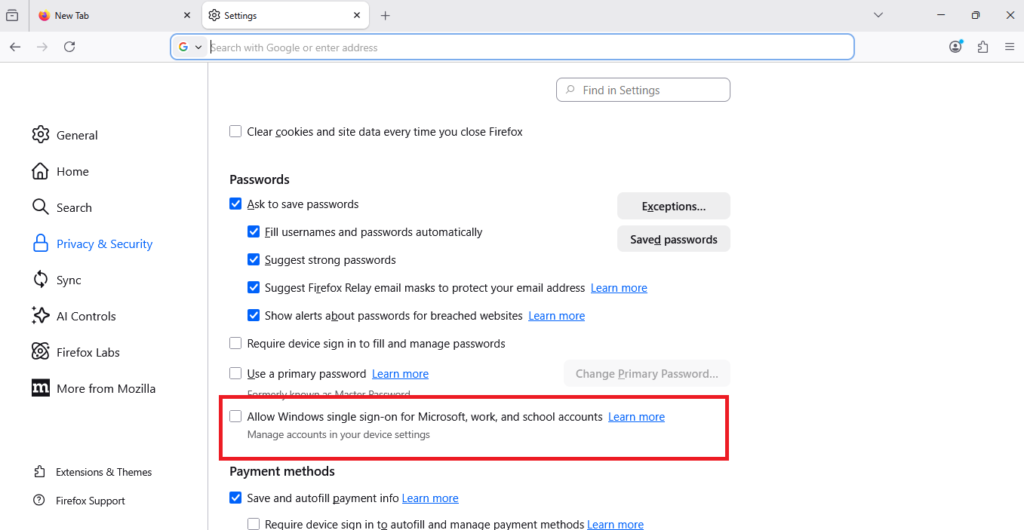
- Check the box next to Allow Windows single sign-on for Microsoft, work, and school accounts to enable the feature.
- Close the settings tab.
- Restart Firefox to apply the changes and ensure the SSO feature is active.
Deploy Firefox Windows SSO via Intune Imported ADMX Templates
Follow the steps below to configure Windows SSO in Firefox for managed devices using Microsoft Intune.
Step 1: Download and Import Firefox AMDX templates
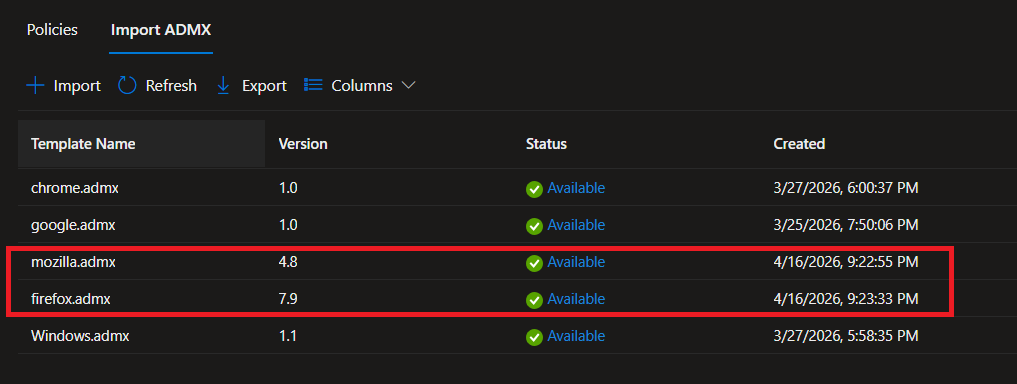
Download the latest Firefox ADMX templates from the official Mozilla website. The Firefox policy template depends on both the Mozilla.admx and Windows.admx files, so make sure these required ADMX templates are also imported into Microsoft Intune before configuring Firefox policies.
Step 2: Create Configuration Profile
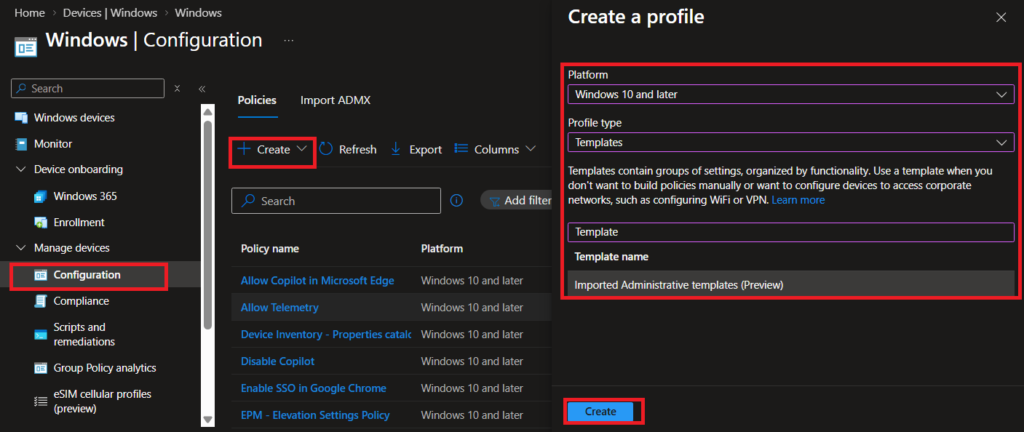
- Open the Intune Admin Portal and navigate to Devices > Windows > Configuration profiles.
- Click Create profile and select Windows 10 and later as the platform.
- Choose Templates > Imported Administrative Templates (Preview) to create a new policy.
- Provide an appropriate name & description for the policy and click on Next to create the profile.
Step 3: Add Firefox Setting
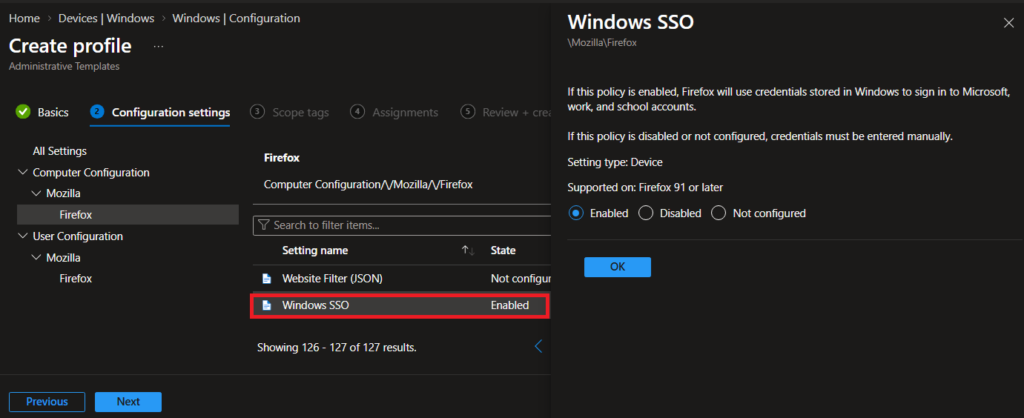
- In the profile wizard, click Add settings.
- Search for Firefox (appears after ADMX import).
- Search for Windows SSO and select the policy Windows SSO from the results.
- Select Enabled and click on Ok to turn on the settings.
- Select Next.
Step 4: Assign the Profile
Assign the profile to the target All Devices, All users, Entra ID groups. You can also use Assignment filters for granular targeting of the deployment.
Monitor deployment status and troubleshoot any issues via Intune reporting tools.
How to Verify Policy Application on Endpoints
Once Windows SSO is enabled in Firefox:
- Users accessing Microsoft 365 services such as Outlook, Teams, and SharePoint will be automatically signed in using their Windows credentials.
- Users will no longer be prompted repeatedly for usernames and passwords, streamlining access.
- This seamless authentication improves productivity and reduces login friction in enterprise environments.
Open Firefox on the device and follow the steps below to verify the policy.
- Open Firefox.
- Click the menu button (≡) located at the top-right corner of the browser window.
- Select Settings from the dropdown menu.
- Navigate to the Privacy & Security panel on the left sidebar.
- Scroll down to the Logins and Passwords section.
- Check the box next to Allow Windows single sign-on for Microsoft, work, and school accounts to enable the feature.
You can notice that the “Allow Windows Single Sign-on for Microsoft, work, and school accounts” option is now enabled and grayed out. The policy is now applied through Intune, and users won’t be able to change the settings.

Troubleshooting Firefox Windows SSO
If Firefox Windows SSO is not working as expected, check the following areas before troubleshooting the individual application.
1. Verify Device Registration
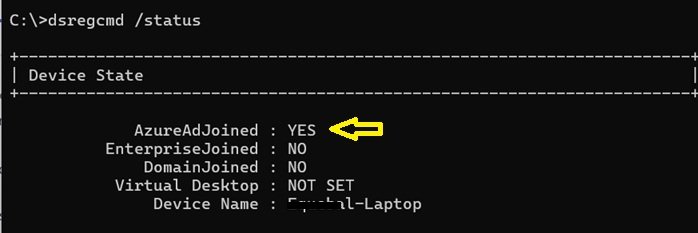
Confirm that the Windows device is Microsoft Entra joined or Microsoft Entra hybrid joined. The device’s Entra registration and Windows sign-in context are important for the authentication token to be passed successfully to supported applications.
You can verify the device registration status by running:
dsregcmd /status
Check the Device State section for AzureAdJoined or DomainJoined status.
2. Verify the Firefox Policy
If Windows SSO is configured through Intune, confirm that the Firefox ADMX policy has reached the client.
In Firefox, open:
about:policies
Under Active, verify that the WindowsSSO policy is listed without errors.
You can also check the Windows Registry for the Firefox policy configuration under:
HKLM\SOFTWARE\Policies\Mozilla\Firefox
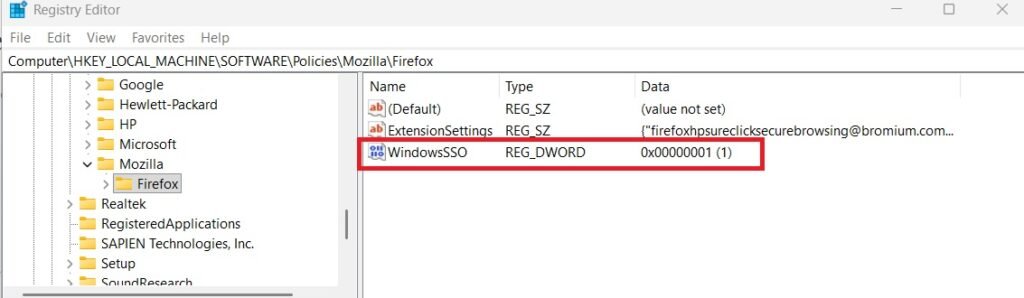
If the policy is not present, check the Intune assignment and initiate a policy sync from the affected device.
3. Check the Windows Authentication Broker
Firefox Windows SSO depends on the Windows authentication broker and the user’s Microsoft Entra authentication state. If the device does not have a valid authentication token, the broker is disabled, or broker functionality is blocked by policy, Firefox cannot complete the SSO handshake.
I. Verify the Primary Refresh Token (PRT) Status
The Windows broker needs a valid Primary Refresh Token (PRT) from Microsoft Entra ID to provide the user’s authentication context to supported applications.
Open Command Prompt as administrator and run:
dsregcmd /status
Under SSO State, check:
AzureAdPrt : YES
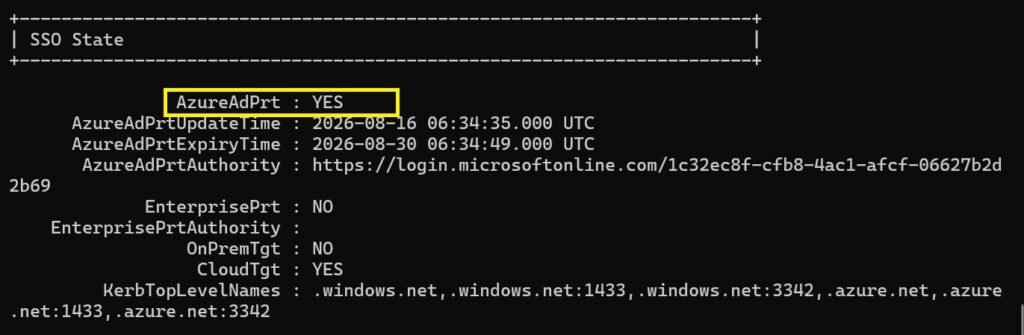
If AzureAdPrt shows NO, investigate the device’s Microsoft Entra registration and authentication state before troubleshooting Firefox.
II. Check the Web Account Manager (TokenBroker) Service
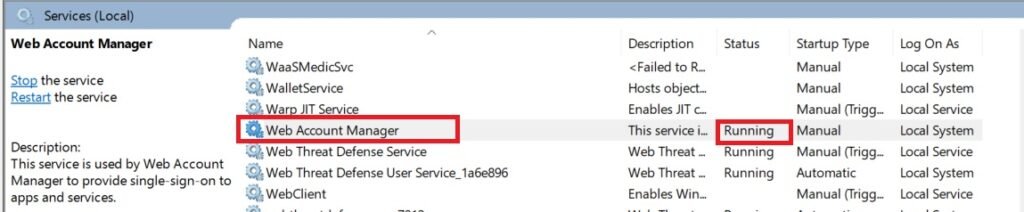
Windows uses Web Account Manager (WAM) to manage authentication tokens for applications. If the service has been disabled or restricted by an optimization script or security configuration, SSO may not work.
Open Services (services.msc) and locate Web Account Manager (TokenBroker). Verify that the service is not disabled and can start when required. Its normal startup configuration is Manual.
III. Check Whether WAM Is Blocked by Policy
Security baselines or legacy Group Policies can sometimes restrict Windows account authentication.
Open Registry Editor (regedit) and check:
HKEY_LOCAL_MACHINE\SOFTWARE\Policies\Microsoft\Windows\WorkplaceJoin
Look for values such as DisableAADWAM or BlockAADWorkplaceJoin. If either value is configured as 1, review the policy responsible for the setting, as it may prevent Windows authentication broker functionality required for SSO.

IV. Verify Firefox’s Windows SSO Setting
Finally, verify that Firefox is configured to allow Windows SSO. Open:
about:config
Search for:
network.http.windows-sso.enabled
The value should be true. If it is set to false, review the Firefox enterprise policy configuration and check about:policies to confirm that the expected policy has been applied.
If the PRT is healthy, WAM is available, no policy is blocking it, and Firefox’s Windows SSO setting is enabled, the issue is more likely related to the target application’s authentication flow or its support for Windows SSO.
4. Restart Firefox and Test Again
After correcting the configuration, completely close and reopen Firefox and test a supported Microsoft, work, or school account sign-in again.
Quick checklist:
- Device is Entra joined or Hybrid Entra joined.
WindowsSSOPolicy is successfully applied.about:policiesShows the policy as active.- Firefox policy exists under the expected Registry path.
- Windows account/broker functionality is available.
- Firefox is restarted after policy changes.
Conclusion
Enabling Windows SSO in Firefox streamlines authentication for Microsoft, work, and school accounts, providing users with a more seamless sign-in experience and reducing the need to repeatedly enter credentials. It is particularly useful in managed enterprise environments where users access Microsoft Entra ID–based applications across multiple browsers. Whether configured manually or deployed centrally through Microsoft Intune, Firefox Windows SSO can improve productivity, reduce authentication-related user friction, and provide a consistent sign-in experience while leveraging the organization’s existing Windows and Microsoft identity infrastructure.
Frequently Asked Questions (FAQs)
Which Firefox versions support Windows SSO?
Firefox version 91 and newer support this feature.
Does this work on macOS or Linux?
No, Windows SSO is exclusive to Windows 10 and Windows 11 operating systems.
Can administrators enforce this setting?
Yes, administrators can enforce Windows SSO using Intune or Group Policy with the ADMX templates.
What types of accounts are supported?
Microsoft, work, and school accounts that are linked to Windows credentials.
Is a browser extension required?
No, the Windows SSO feature is built directly into Firefox and does not require any extensions.
Related Posts
- How to Allow Copilot in Microsoft Edge Using Intune
- Configure Microsoft Edge Sleeping Tabs using Microsoft Intune
- Manage Microsoft Edge Favorites with Intune for Windows 10/11
- Enabling Azure Single Sign-On in Google Chrome with Intune: Don’t Miss This Key Setting
Explore More Intune Guides
Continue building your Microsoft Intune skills with step-by-step tutorials covering device management, application deployment, automation, and troubleshooting.
- Microsoft Intune Learning – Explore comprehensive guides on device enrollment, compliance policies, application deployment, Windows updates, and more.
- Device Configuration Guides – Explore practical Microsoft Intune guides for configuring Windows and other devices, including device restrictions, browser settings, user experience, security, and system configuration.
