
Seamless sign-on is one of the biggest productivity wins for IT admins. If your users are still being prompted for credentials in Chrome despite enabling browser sign-in, chances are you’ve overlooked one critical policy: Allow automatic sign-in to Microsoft cloud identity providers. Let’s walk through the complete setup so you can deliver true single sign-on (SSO) across Windows and Chrome.
Why This Matters
- Without it: Chrome may sign users into the browser, but Microsoft 365 apps (Teams, Outlook, SharePoint) still ask for credentials.
- With it: Chrome automatically passes the Windows Entra ID account into Microsoft cloud services, eliminating repeated prompts.
- Result: A consistent, frictionless identity experience aligned with your organization’s Azure AD (Entra ID) policies.
Step-by-Step Configuration in Intune
1. Import Chrome ADMX Templates in Intune
- Download the latest Google Chrome ADMX files.
- In Intune, go to Devices > Windows > Configuration > Import ADMX
- Upload the ADMX templates so Chrome policies can be managed centrally. To upload the ADMX templates, select both the ADMX and ADML files and select Next.
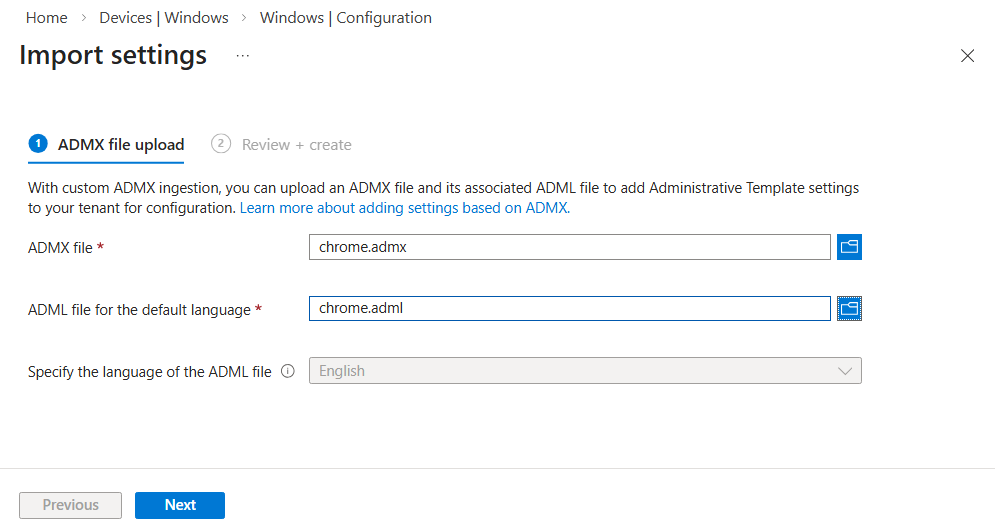
On the Review + Create page, verify the ADMX and ADML file details to ensure the correct files are selected, then click Create
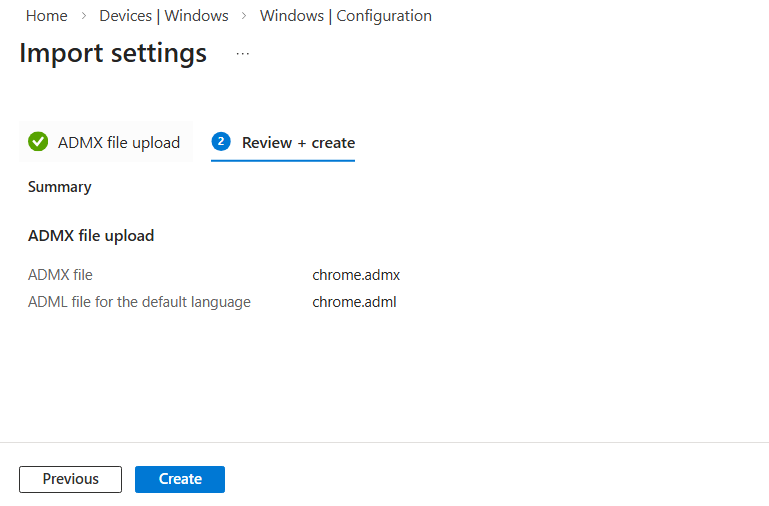
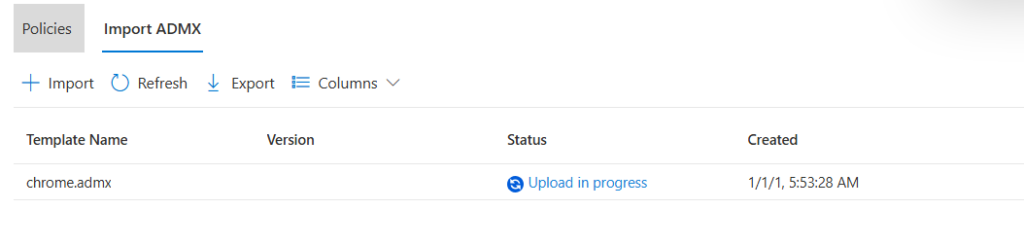
You will now see the ADMX upload is in progress.
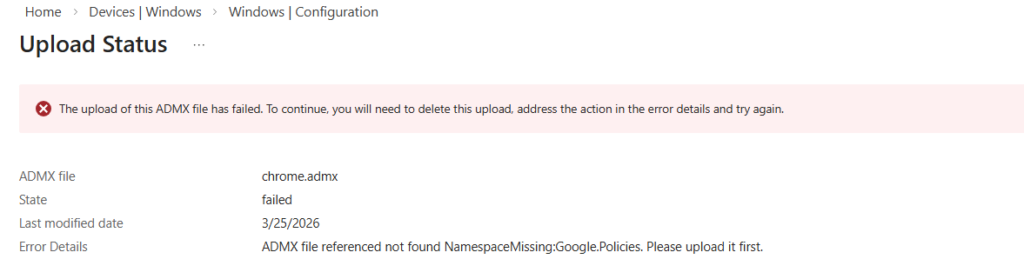
If the upload fails with the following error, it indicates that the google.admx file has not been uploaded. This file is a prerequisite for Chrome ADMX templates and must be added first.
ADMX file referenced not found
NamespaceMissing: Google.Policies
Please upload it first.
Resolution:
- Upload the google.admx file first.
- Delete the existing chrome.admx file.
- Re‑upload the chrome.admx file again.
This ensures that the Chrome ADMX template is properly recognized by Group Policy and avoids dependency errors during import.
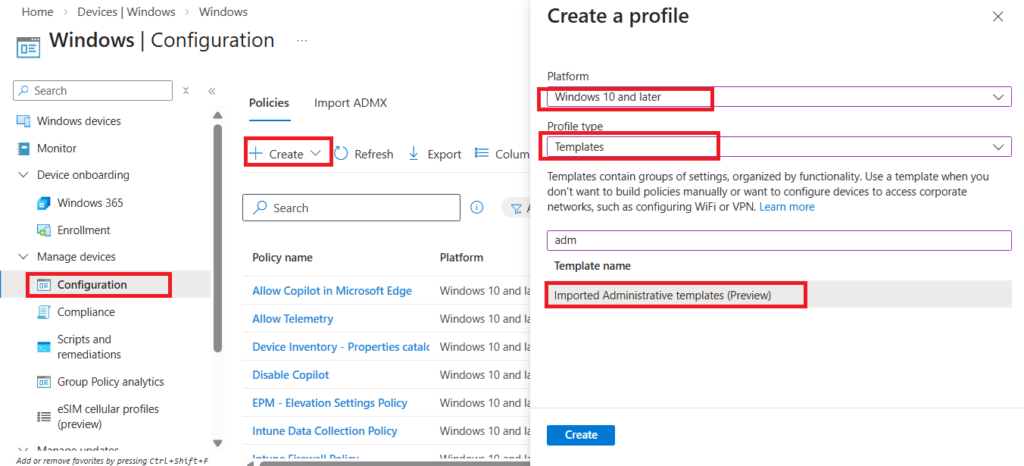
2. Create a Configuration Profile
- Navigate to Devices > Windows > Configuration profiles.
- Select + Create profile.
- Choose Platform: Windows 10 and later.
- Choose Profile type: Templates > Imported Administrative Templates.
- Choose Create.
3. Configure Chrome Identity Policies
Configure the following settings for Google Chrome.
| Policy | Role in SSO (Adjusted) |
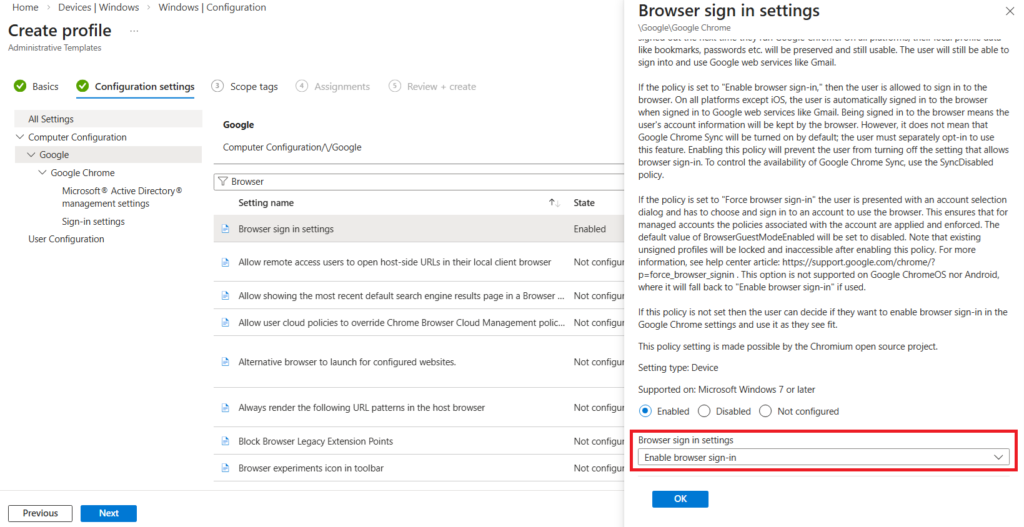
| Browser sign-in settings | The Identity Foundation. This establishes the user’s “Profile Identity” within the browser. Without this enabled, Chrome remains in a “guest-like” state regarding enterprise identity, meaning it won’t attempt to manage the user profiles necessary for identity passthrough. |
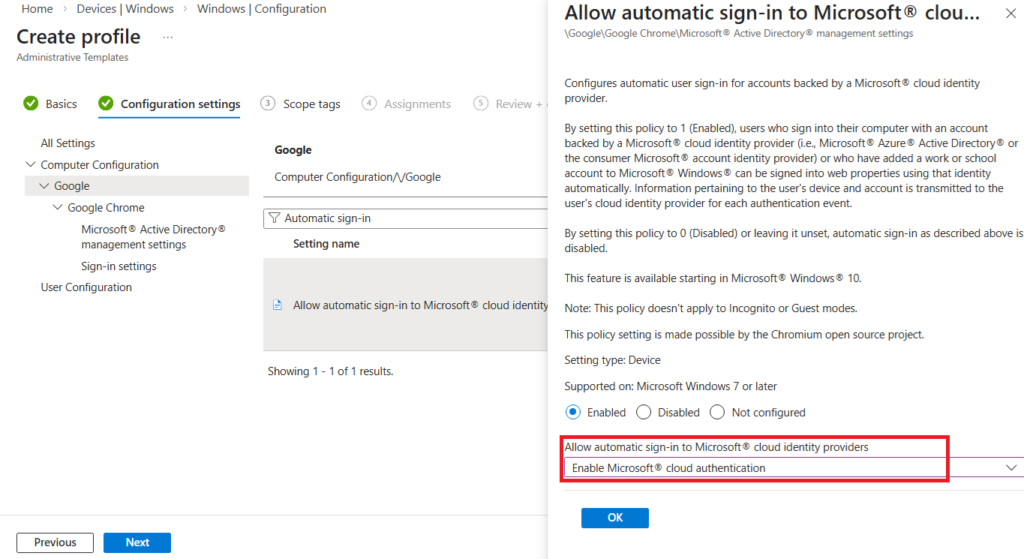
| Allow automatic sign-in to Microsoft cloud identity providers | The Authentication Connector. This acts as the bridge between Chrome and the Windows Web Account Manager (WAM). It specifically authorizes Chrome to request and pull the Microsoft Entra ID (Azure AD) token from the OS, enabling the “silent” sign-in experience. |
Browser sign-in settings → Enabled
Allow automatic sign-in to Microsoft cloud identity providers → Enabled
4. Assign the Profile
- Target the profile to your Azure AD groups (e.g., all Windows devices or specific departments).
- Save and deploy.
End User Experience
- On a managed Windows device, open Google Chrome.
- Users should be automatically signed in with their Entra ID credentials.
- Test by accessing Microsoft 365 apps — no additional login should be required.
Common Pitfalls
- Outdated Chrome versions: Ensure Chrome 111+ is deployed.
- Hybrid join issues: Devices must be properly joined/registered in Entra ID.
- Policy conflicts: Group Policy Objects (GPOs) may override Intune settings.
- User expectations: Once enabled, users cannot sign out of Chrome without signing out of Windows.
Frequently Asked Questions (FAQ)
1. Why is the “Allow automatic sign-in to Microsoft cloud identity providers” setting so important?
This policy acts as the specific bridge between Google Chrome and the Windows Web Account Manager (WAM). While other settings prepare the browser for an identity, this one specifically authorizes Chrome to “silently” pull the Entra ID (Azure AD) token from the OS, which is what eliminates the password prompt for Microsoft 365 apps.
2. I’ve enabled all policies, but my users still see a login prompt. What’s wrong?
The most common culprit is the Device Join Status. For SSO to function, the device must be either Microsoft Entra Joined or Hybrid Entra Joined. You can verify this on the local machine by running the command dsregcmd /status and ensuring AzureAdPrt is set to YES.
3. Do I still need the “Microsoft Single Sign-On” extension for Chrome?
No. If you are using Chrome version 111 or later and have configured the Allow automatic sign-in to Microsoft cloud identity providers policy, the extension is no longer required. The browser now handles this communication natively at the OS level.
4. Why can’t I find “EnableAutoLogin” or “IdentityConsistencyEnabled” in Intune?
Google has updated their ADMX templates. EnableAutoLogin is now largely managed via the Browser sign-in settings toggle. IdentityConsistencyEnabled has been superseded by the Microsoft cloud identity providers policy. If you are using the latest templates, search for these newer names in the Settings Catalog.
5. Does this SSO setup work in Incognito mode?
No. By design, Incognito mode prevents the browser from accessing the user’s OS identity tokens to ensure privacy. SSO will only function within standard, managed Chrome profiles.
6. Can a user sign out of Chrome once this is enabled?
When these policies are strictly enforced, users generally cannot sign out of the Chrome profile without signing out of the Windows session itself. This ensures that the corporate identity remains consistent across the device.
Conclusion
Enabling Azure SSO in Chrome through Intune is straightforward, but the Allow automatic sign-in to Microsoft cloud identity providers setting is often overlooked. By combining it with BrowserSignin, IdentityConsistencyEnabled, and EnableAutoLogin, you deliver a truly seamless sign-on experience that boosts productivity and reduces helpdesk tickets.
Related Posts
- How to Enable Azure Single Sign-On in Google Chrome
- How to Allow Copilot in Microsoft Edge Using Intune
- Configure Microsoft Edge Sleeping Tabs using Microsoft Intune
- How to Configure Google Chrome settings using Administrative templates | Intune
- Manage Desktop Wallpaper with Microsoft Intune
- Manage Edge Chromium Favorites with Intune