
Microsoft Edge now includes Copilot, an AI assistant that helps people work smarter by giving quick tips, summarizing web pages, and connecting safely with Microsoft 365 data. For IT admins, turning on Copilot across managed devices is simple—you just need to set the right Intune policies. This guide shows you step by step how to enable Copilot in Edge using Intune, so your users can enjoy AI-powered productivity, secure browsing, and a smoother work experience.
Why Enable Copilot in Edge Browser?
- Productivity boost: Users can ask Copilot to summarize documents, analyze data, or draft content directly in the browser.
- Seamless integration: Copilot leverages Microsoft Entra ID (Azure AD) profiles and organizational context for secure, grounded responses.
- Security & compliance: Policies ensure Copilot respects enterprise-grade security standards while accessing corporate data like SharePoint or OneDrive.
Prerequisites
Before configuring, ensure:
- Devices are enrolled in Microsoft Intune.
- Users sign in with Microsoft Entra ID (Azure AD) accounts.
- Microsoft Edge is updated to the latest version.
- You have admin rights to create and assign Intune configuration profiles.
Step-by-Step Configuration
Step 1: Create a Configuration Profile
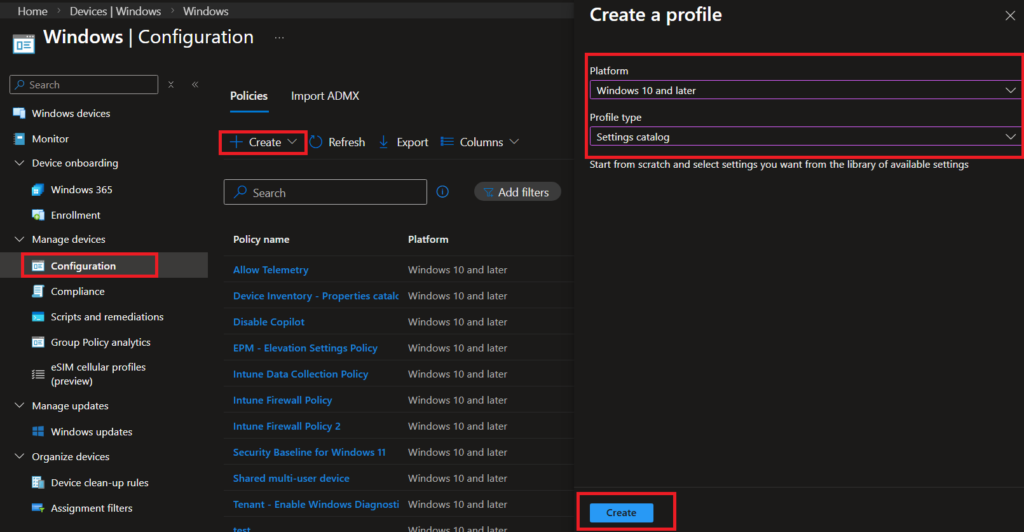
- Sign in to the Intune Admin Center.
- Navigate to Devices → Configuration profiles → Create profile.
- Choose:
- Platform: Windows 10 and later
- Profile type: Settings catalog
- Select Create.
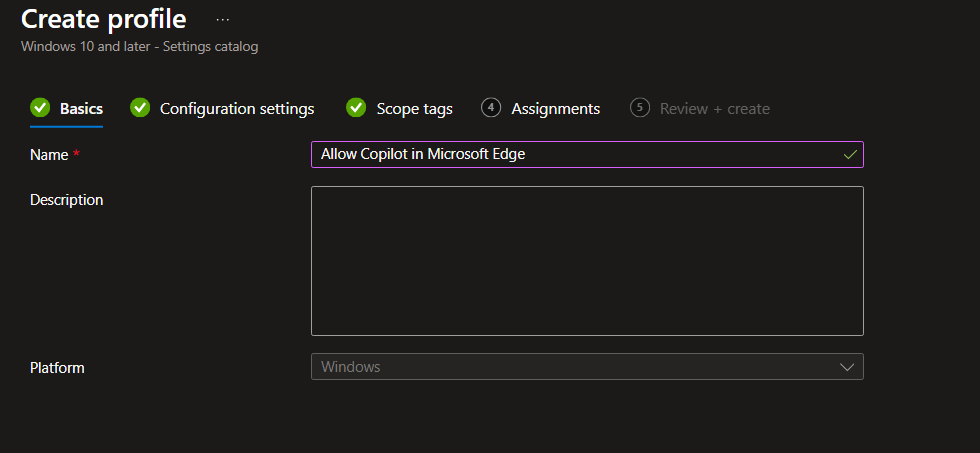
- Provide a profile Name, Description, and click on Next.
Step 2: Configure Edge Policy Settings
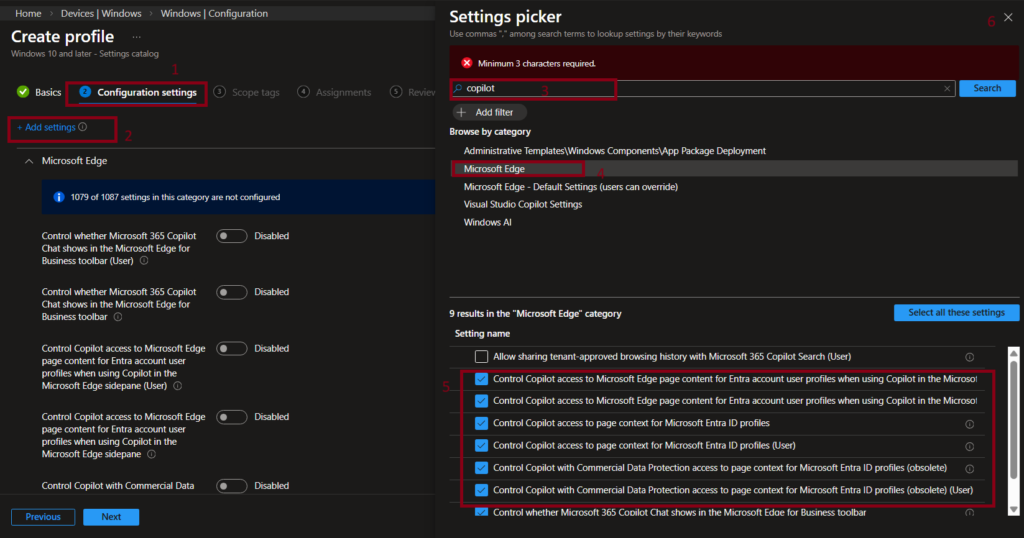
- In the settings catalog, search for Microsoft Edge.
- Add the following settings:
- Control whether Microsoft 365 Copilot Chat shows in the Microsoft Edge for Business toolbar
- Control Copilot access to Microsoft Edge page content for Entra account user profiles when using Copilot in the Microsoft Edge sidepane
- Control Copilot with Commercial Data Protection access to page context for Microsoft Entra ID profiles (obsolete)
- Control Copilot access to page context for Microsoft Entra ID profiles
- Close the settings picker window.
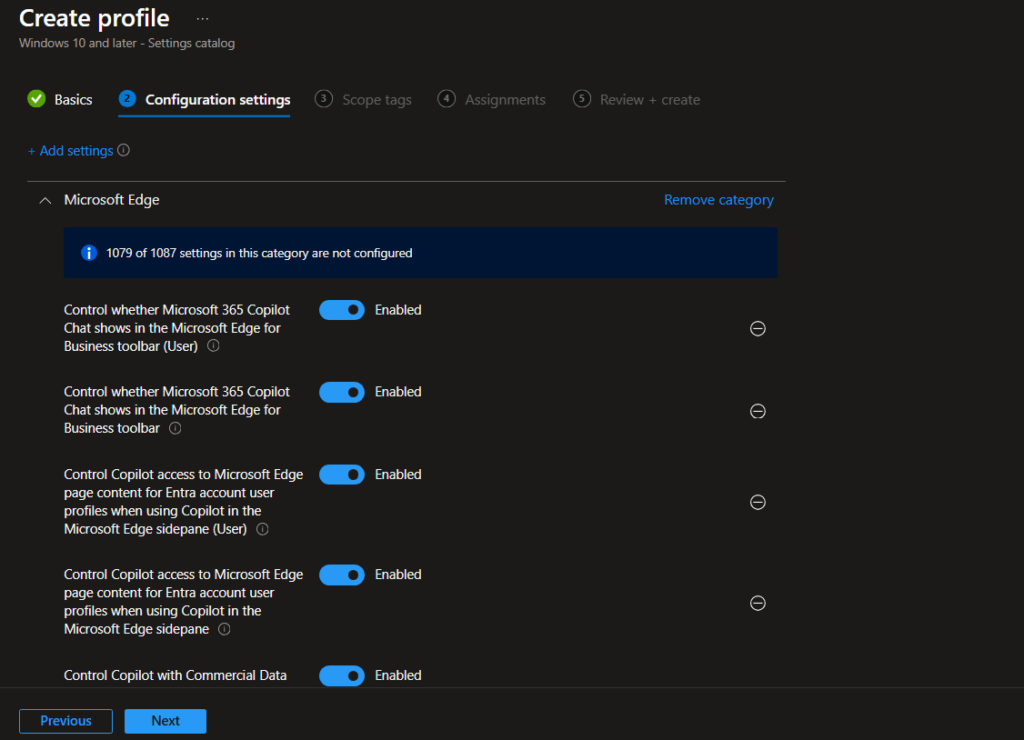
- You are now back on the Configuration settings page. Review the settings you added in the previous step and switch them to Enabled to apply the configuration
- Click Next to move to the Assignment page.
Step 3: Assign the Profile
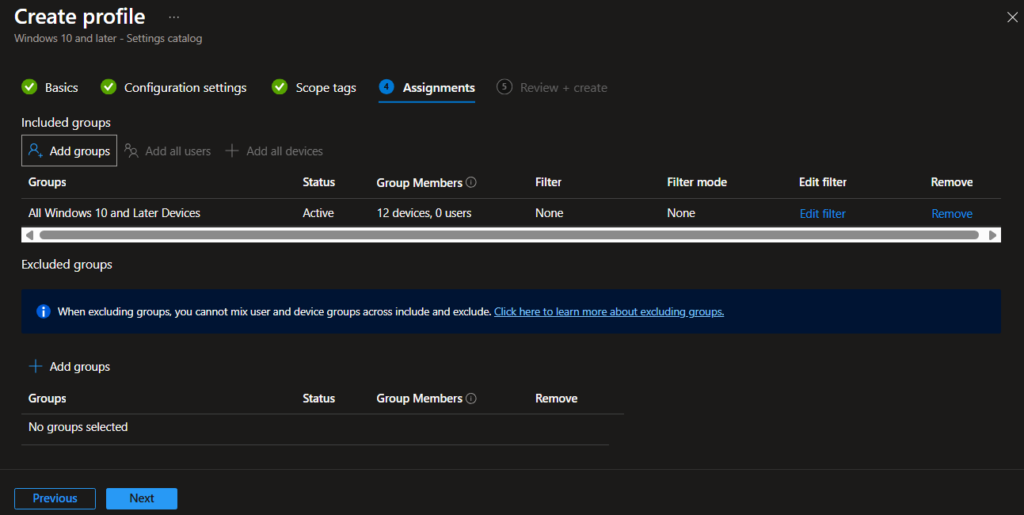
- On the Assignments page, assign the configuration profile to the relevant Azure AD user groups or device groups to ensure proper policy targeting and deployment scope. Once the appropriate groups are selected, click Next to continue with the profile configuration workflow
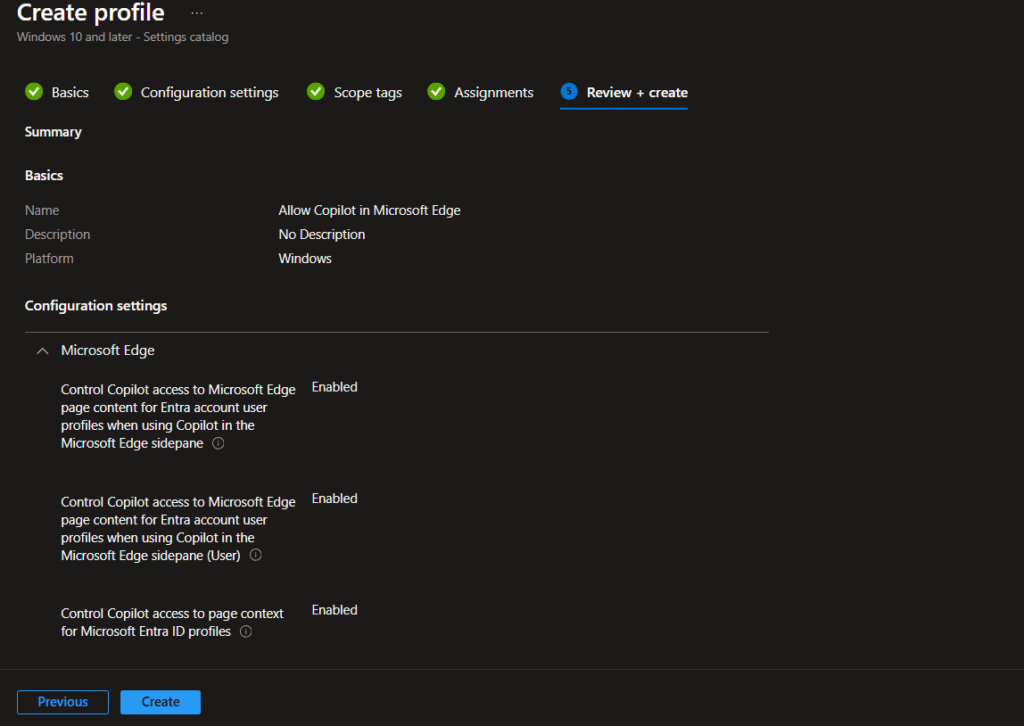
On the Review + Create page, carefully verify all configuration settings, assignments, and policy parameters to ensure accuracy and compliance with organizational requirements. Confirm that the Microsoft Edge Copilot policies, page context access, and automatic sign-in options are correctly enabled for the targeted Azure AD user groups or device groups. Once the configuration profile has been reviewed and validated, select Create to finalize the deployment and initiate policy enforcement across managed devices.
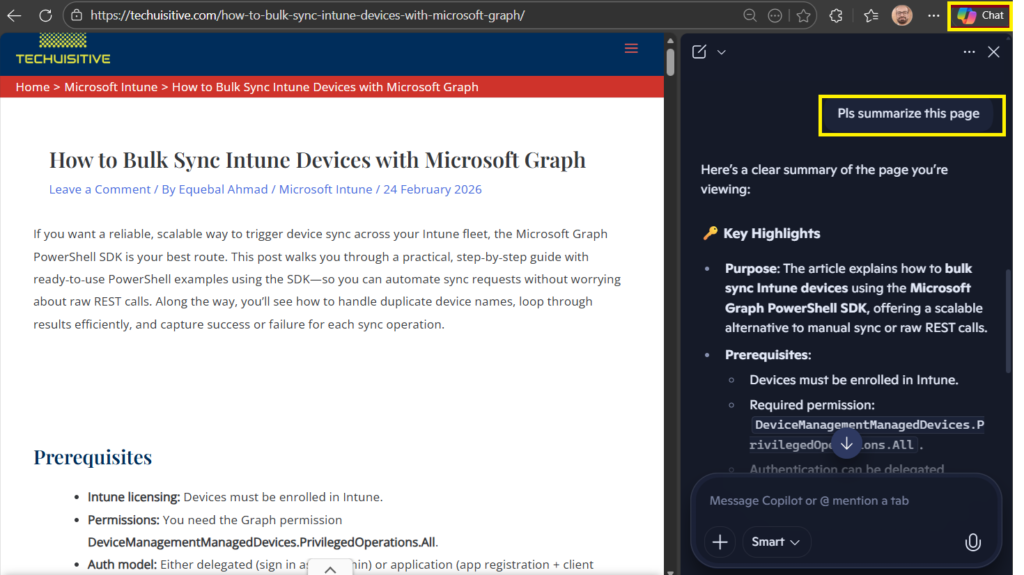
Once applied, users will see Copilot enabled in the Edge sidebar or new tab page.
Verification
- On a managed device, open Microsoft Edge.
- Sign in with your corporate account.
- Check the sidebar or new tab page for the Copilot icon.
- Test by asking Copilot to summarize a webpage or draft content.
Lessons Learned
- Boundary of access: Copilot respects organizational policies; enabling page context access is optional but powerful.
- Authentication matters: Seamless sign-in ensures users don’t face repeated login prompts.
- Security first: Always align Copilot policies with your corporate security team’s guidelines.
Conclusion
Turning on Copilot in Microsoft Edge through Intune is simple and very useful for organizations. With the right Intune policies, IT admins can quickly bring AI help into Edge across all managed devices.
This setup makes everyday work smoother: Copilot can summarize content, assist with searches, and even guide workflows—all inside the browser. At the same time, it respects company rules and keeps browsing secure, so users get smart help without breaking compliance.
For organizations, this means a good mix of AI-powered efficiency and enterprise security. Employees save time, tasks feel easier, and admins know policies are being followed. In short, enabling Copilot in Edge with Intune improves the user experience, boosts productivity, and keeps everything aligned with workplace standards.
Related Posts
- How to Enable Azure Single Sign-On in Google Chrome
- How to Allow Copilot in Microsoft Edge Using Intune
- Configure Microsoft Edge Sleeping Tabs using Microsoft Intune
- How to Configure Google Chrome settings using Administrative templates | Intune
- Manage Desktop Wallpaper with Microsoft Intune
- Manage Edge Chromium Favorites with Intune
Subscribe to Techuisitive Newsletter
Be the first to know about our new blog posts. Get our newsletters directly in your inbox and stay up to date about Modern Desktop Management technologies & news.