
Exporting Azure AD group members at scale is a common need for IT administrators, whether for auditing, reporting, or compliance. This PowerShell script uses the Microsoft Graph API to automate bulk group membership exports. By reading group names from a CSV file and generating individual CSV reports for each group, the script simplifies Azure Active Directory management and ensures accurate, repeatable results. With built‑in support for overwriting existing files, it’s ideal for scenarios like Azure AD reporting, bulk group membership export, and Microsoft Graph automation.
Prerequisites
Before running the script, ensure the following:
- PowerShell 5.1 or later (or PowerShell Core).
- Microsoft Graph PowerShell SDK installed:
- Permissions: You must have delegated or application permissions for:
Group.Read.AllUser.Read.All
- Input CSV file with a header
GroupNameand group display names listed. - Connectivity: Ability to authenticate to Microsoft Graph (interactive login or service principal).
Use Cases
This PowerShell script for Azure AD group export using the Microsoft Graph API is versatile and can support multiple IT and business needs:
- Auditing & Compliance: Generate CSV reports of Azure AD group members to meet security and compliance requirements.
- IT Administration: Quickly verify group membership details without navigating the Azure portal, saving time for admins.
- Reporting & Analytics: Provide HR, management, or security teams with bulk group membership exports for analysis.
- Migration Projects: Capture Azure Active Directory group members before restructuring or migrating workloads to ensure accuracy.
- Automation & Scheduling: Integrate into scheduled tasks to produce regular Azure AD reporting snapshots for ongoing monitoring.
- Troubleshooting Access Issues: Identify which users belong to specific groups to resolve Azure AD access problems faster.
PowerShell Script to Bulk Export Entra ID Group Members
<#
.SYNOPSIS
    Bulk exports Azure AD group members using Microsoft Graph API.
    Reads group names from an input CSV file and generates a separate
    CSV file for each group in the script directory containing member details.

.DESCRIPTION
    This script connects to Microsoft Graph with the required scopes,
    retrieves group objects by display name, and exports their members.
    Each group name listed in the input CSV (header: GroupName) is processed.
    The output is saved as GroupName.csv in the same directory as the script.
    Existing files are overwritten to ensure fresh exports.

.PARAMETER InputFile
    Path to the CSV file containing group names (default: .\Groups.csv).
    The CSV must have a header column named 'GroupName'.

.OUTPUTS
    For each group, a CSV file named <GroupName>.csv containing:
        - DisplayName
        - UserPrincipalName
        - Id
        - ObjectType

.EXAMPLE
    PS> .\Export-AADGroupMembers.ps1
    Exports members of all groups listed in Groups.csv to individual CSV files.

.NOTES
    Requires Microsoft.Graph PowerShell SDK.
    Install with: Install-Module Microsoft.Graph -Scope CurrentUser
    Permissions required: Group.Read.All, User.Read.All
#>


# Requires Microsoft.Graph PowerShell SDK
# Install if not already: Install-Module Microsoft.Graph -Scope CurrentUser

# Connect to Graph (interactive login)
Connect-MgGraph -Scopes "Group.Read.All","User.Read.All"

# Get the script directory
$scriptDir = Split-Path -Parent $MyInvocation.MyCommand.Path


# Input CSV file containing group names (one per line, header: GroupName)
$InputFile = Join-Path $scriptDir "Groups.csv"

# Read group names
$Groups = Import-Csv -Path $InputFile

foreach ($Group in $Groups) {
    $GroupName = $Group.GroupName

    Write-Host "Processing group: $GroupName" -ForegroundColor Cyan

    # Get group object by display name
    $GroupObj = Get-MgGroup -Filter "displayName eq '$GroupName'"

    if ($GroupObj) {
        # Get members of the group
        $Members = Get-MgGroupMember -GroupId $GroupObj.Id -All

        # Prepare export data
        $ExportData = $Members | Select-Object `
            @{Name="DisplayName";Expression={$_.AdditionalProperties.displayName}},
            @{Name="UserPrincipalName";Expression={$_.AdditionalProperties.userPrincipalName}},
            @{Name="Id";Expression={$_.Id}},
            @{Name="ObjectType";Expression={$_.ODataType}}

        # Output CSV file named after group
        $OutFile = Join-Path $scriptDir "${GroupName}.csv"

        if (Test-Path $OutFile) {
             Remove-Item $OutFile -Force}


        $ExportData | Export-Csv -Path $OutFile -NoTypeInformation -Encoding UTF8

        Write-Host "Exported $($ExportData.Count) members to $OutFile"
    }
    else {
        Write-Warning "Group '$GroupName' not found."
    }
}
Output & Reports
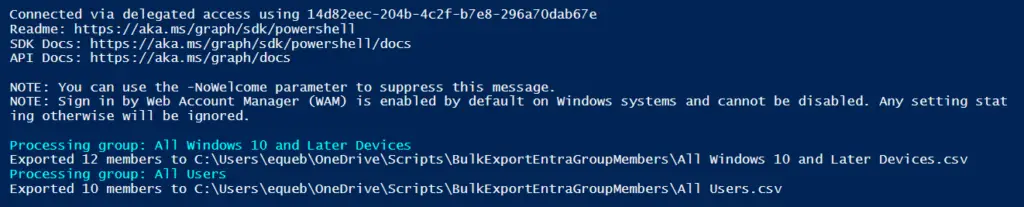
After execution, the script generates a separate CSV file for each Azure AD group listed in the input file. Each output file is named after the group (e.g., HR Team.csv) and contains member details such as DisplayName, UserPrincipalName, Id, and ObjectType. Existing files are overwritten to ensure the export always reflects the latest membership data. This provides administrators with clear, ready‑to‑use reports for auditing, compliance, or troubleshooting.
Download Bulk Group Export Script
Related Posts
- Bulk Export Entra ID Group Members with PowerShell & Microsoft Graph API
- How to Bulk Sync Intune Devices with Microsoft Graph
- Get AAD Group Members Details Using PowerShell SDK for Microsoft Intune Graph API
- How To Export Serial number of Multiple Devices using PowerShell SDK for Intune Graph API
- Install PowerShell SDK for Microsoft Intune Graph API
- How to Export Managed Device Details from Intune
Subscribe to Techuisitive Newsletter
Be the first to know about our new blog posts. Get our newsletters directly in your inbox and stay up to date about Modern Desktop Management technologies & news.