
Microsoft introduced Copilot with Windows 11. Copilot is a built‑in AI assistant that helps boost productivity and improve the user experience. While Copilot can be useful, some organizations may want to turn it off for reasons like compliance, security, or simply to keep the user experience consistent.
IT admins can centrally manage this setting through Microsoft Intune and apply policies across all enrolled devices. This guide shows you a step-by-step guide to disable Copilot in Windows 11 using Intune, giving you full control while staying aligned with organizational requirements.
Notes & Consideration
- Windows 11 23H2 and later: Copilot is integrated into the OS, so disabling requires the following settings.
- Windows 11 24H2: Copilot is packaged as a separate app. In this case, disabling may require removing or blocking the Copilot app in addition to the policy.
- Group Policy alternative: For hybrid environments, you can also use the GPO setting Turn off Windows Copilot with updated ADMX templates
What gets disabled
- The Copilot button on the Windows taskbar will no longer launch Copilot.
- The Win + C keyboard shortcut that normally opens Copilot will stop working.
- The Copilot sidebar experience in Windows (the panel that integrates with system settings, apps, and productivity features) is turned off
What is not affected
- This policy does not disable Copilot in Microsoft 365 apps (like Word, Excel, Outlook, Teams). Those are managed separately with their own policies.
- It does not affect Copilot web or mobile apps (Edge, iOS, Android, etc.).
- It does not block Bing Chat or Copilot in Edge — those are controlled by browser or service-specific policies
Create a Configuration Profile to Disable Copilot
Follow the steps below to create an Intune settings catalog policy to turn off Copilot in Windows 11.
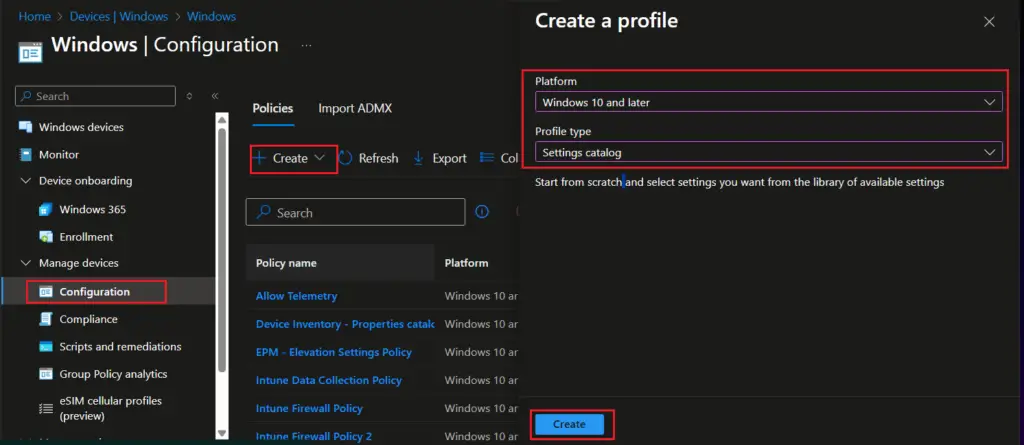
Go to the Intune Admin Center → Devices → Configuration profiles → Create profile and select the following details.
- Platform: Windows 10 and later.
- Profile type: Settings catalog
Click on Create.
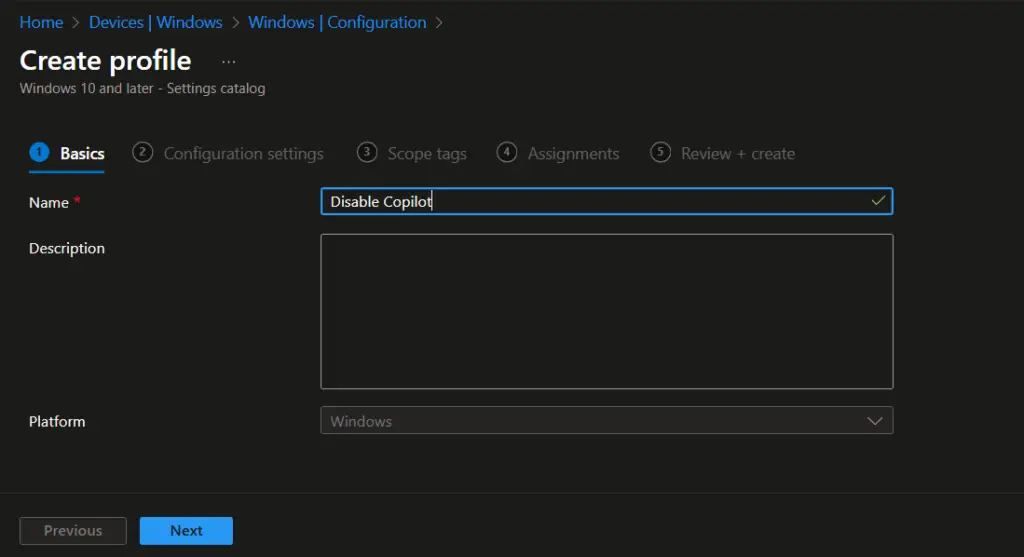
On the Create profile page, enter a profile name and description, and click on Next.
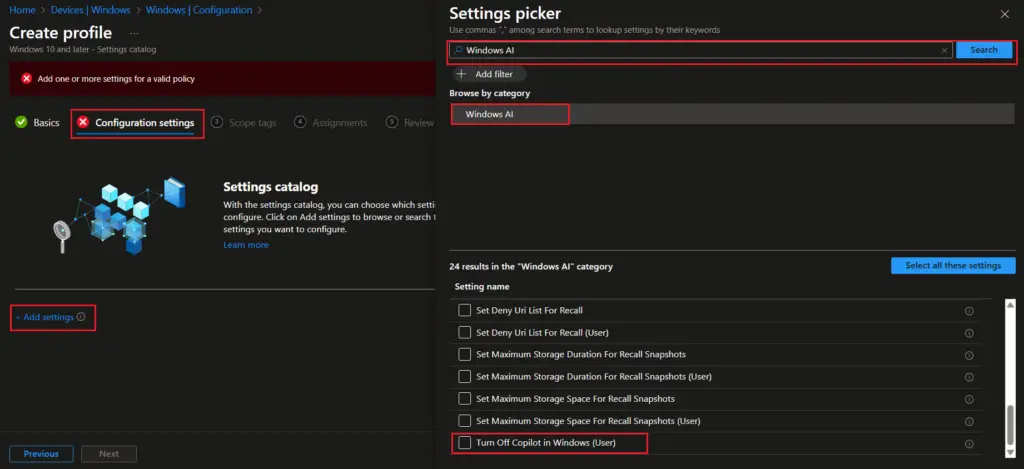
- On the Configuration settings tab, select Add settings
- On the Settings picker, search Windows AI and select Windows AI from the search results.
- Select “Turn off Copilot in Windows” settings from the list.
- Close the settings picker window.
The Windows AI section of the Intune Settings Catalog gives IT admins detailed controls to manage AI features in Windows 11. Key options include:
- Turn off Copilot in Windows – disables the built‑in AI assistant.
- Windows Recall controls – manage the feature that captures screen snapshots for timeline search.
- Other AI integrations – such as Image Creator in Paint.
By configuring these settings, organizations can decide whether to allow or restrict AI-driven experiences like Copilot, Recall, and future integrations. Intune helps in managing these settings centrally, and admins can enforce consistent policies across all devices. This helps in compliance, security, and user experience.
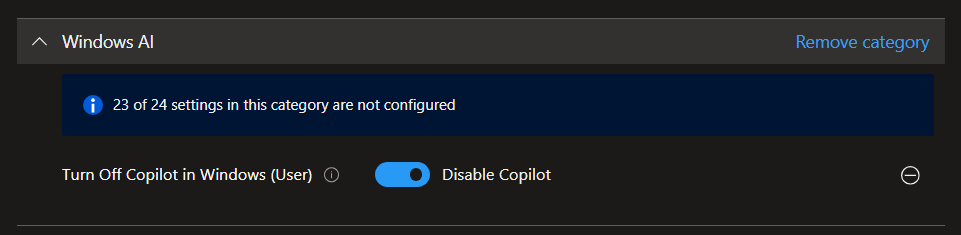
Toggle the configuration switch to Disable Copilot (or enabled, depending on the current UI layout). This action explicitly pushes the CSP (Configuration Service Provider) policy down to the Windows 11 device.
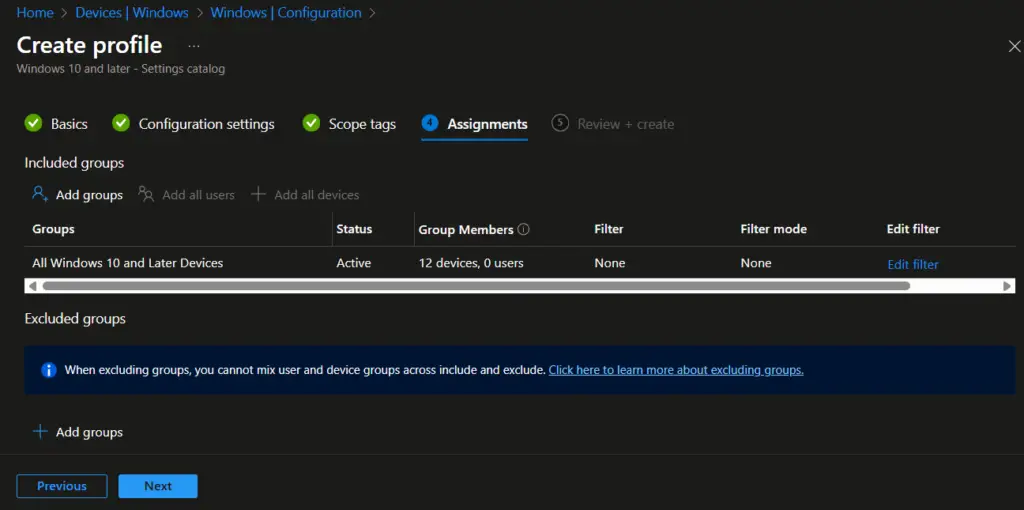
On the ‘Assignment’ page, assign the policy to the required group and click on Next.
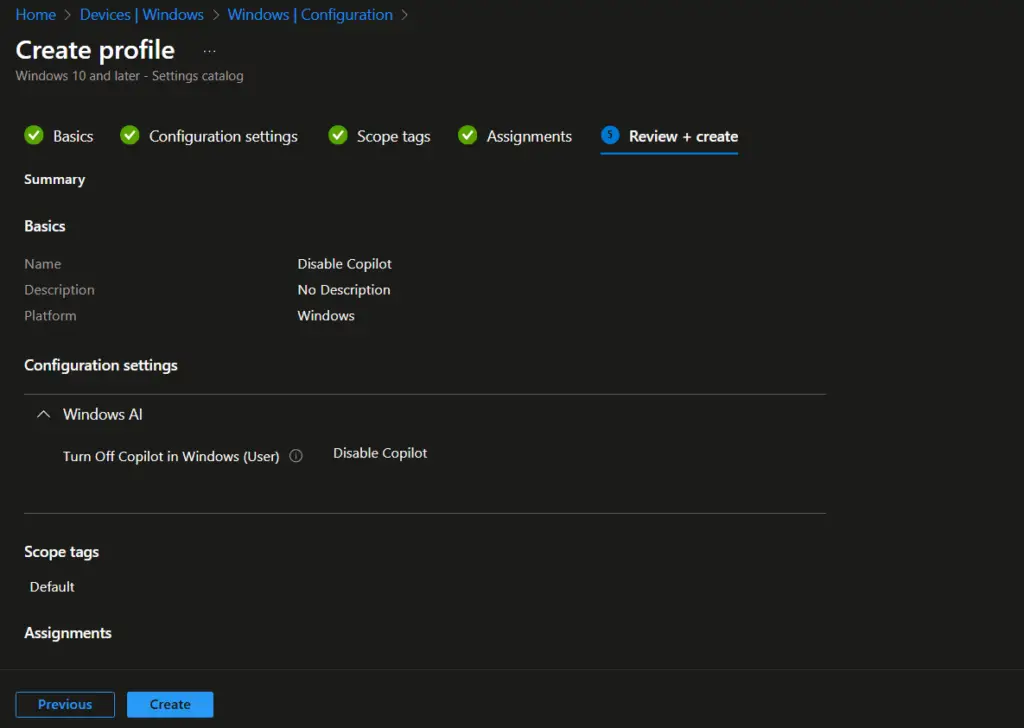
Review the policy details on the Review + create page and click on Create to complete policy creation.
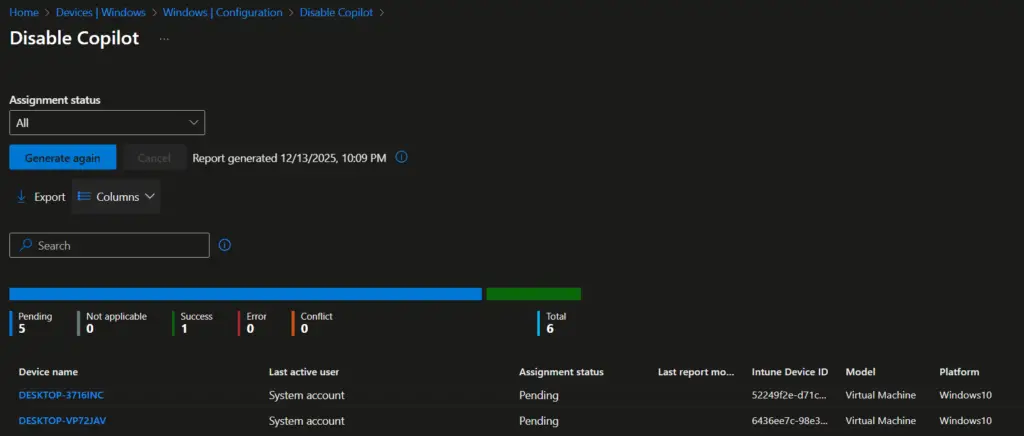
The policy is now created. You can check the assignment status from Windows Devices > Configuration > <Policy Name>
Conclusion
By turning off Copilot in Windows 11 through Microsoft Intune, organizations gain more control over the user experience and make sure devices stay aligned with corporate policies.
Whether the goal is to reduce distractions, meet compliance requirements, or keep a standardized environment, Intune gives IT admins a centralized and scalable way to enforce these settings across all managed endpoints.
For administrators already using Intune for device security and configuration management, this policy fits right into existing workflows. To strengthen your Intune strategy even further, explore related guides on:
- Configuring firewall rules
- Collecting device inventory
- Deploying security baselines
Together, these steps help build a secure, well‑managed, and compliant Windows 11 enterprise environment.
Frequently Asked Questions (FAQ)
Does disabling Copilot affect other Windows AI features?
No. The Intune policy specifically targets Copilot. Other AI features, like Recall or Paint Image Creator, must be managed separately through their own settings.
Can I re‑enable Copilot later if my organization changes its policy?
Yes. You can simply edit the Intune Settings Catalog profile and set Turn off Copilot in Windows to Disabled or remove the policy assignment.
Is this supported on Windows 10 devices?
No. Copilot is only integrated into Windows 11 (23H2 and later). Windows 10 devices are unaffected by this setting.
What happens if I apply the policy, but Copilot is still visible?
Check the OS version. On Windows 11 24H2, Copilot is packaged as a separate app, so you may also need to block or uninstall the Copilot app in addition to applying the Intune policy.
How long does it take for the policy to apply?
Policy application depends on Intune sync cycles. Typically, devices check in every 8 hours, but users can force a sync from the Company Portal or Settings app.
Related Posts
- Collect Device Inventory Using Intune Properties Catalog
- Windows Autopilot Device Preparation aka Autopilot v2 Step by Step Guide
- How to Reset Windows 11 PC to Factory Settings
- How to Block Built-in Apps on iOS Using Intune
- Dynamic Group Based on Enrollment Profile in Intune
- How to Export Device Configuration Profiles in Intune
- How to Rename Device from Intune
Explore More Intune Guides
Continue building your Microsoft Intune skills with step-by-step tutorials covering device management, application deployment, automation, and troubleshooting.
- Microsoft Intune Learning – Explore comprehensive guides on device enrollment, compliance policies, application deployment, Windows updates, and more.
- Device Configuration Guides – Explore practical Microsoft Intune guides for configuring Windows and other devices, including device restrictions, browser settings, user experience, security, and system configuration.
