
If you want a reliable, scalable way to trigger device sync across your Intune fleet, the Microsoft Graph PowerShell SDK is your best route. This post walks you through a practical, step‑by‑step guide with ready‑to‑use PowerShell examples using the SDK—so you can automate sync requests without worrying about raw REST calls. Along the way, you’ll see how to handle duplicate device names, loop through results efficiently, and capture success or failure for each sync operation.
Prerequisites
- Intune licensing: Devices must be enrolled in Intune.
- Permissions: You need the Graph permission DeviceManagementManagedDevices.PrivilegedOperations.All.
- Auth model: Either delegated (sign in as an admin) or application (app registration + client secret/cert).
- PowerShell environment: PowerShell 7+ recommended for better performance; 5.1 also works.
Method: PowerShell Microsoft Graph SDK
1. Install and sign in
- Install SDK:
Install-Module Microsoft.Graph -Scope CurrentUser - Connect with delegated permissions:
Connect-MgGraph -Scopes "DeviceManagementManagedDevices.PrivilegedOperations.All"
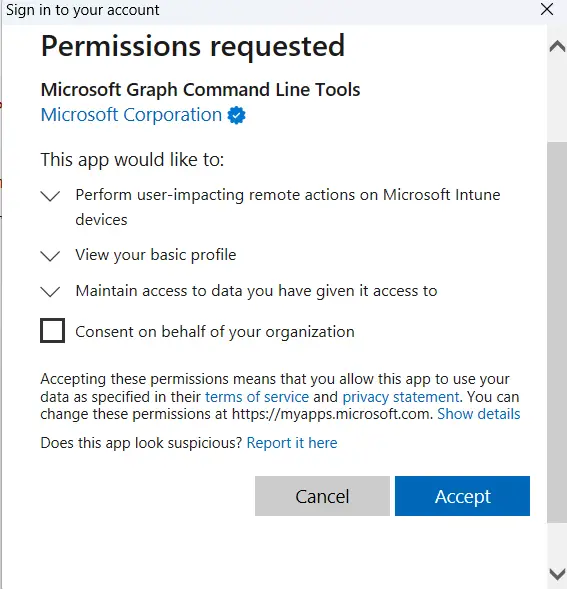
You will see a permission request prompt asking for consent on behalf of your organization. If you don’t have the required rights, contact a Global Administrator (or equivalent role) to grant admin consent for the DeviceManagementManagedDevices.PrivilegedOperations.All permission in the Microsoft Entra ID Graph Enterprise Application.
2. PowerShell Script to Trigger sync for each device
Use the script below to initiate bulk device sync. You need to enter the device name in the ‘Devices.csv’ file. The column header should be ‘DeviceName’.
<#
.SYNOPSIS
    Intune Device Sync Script

.DESCRIPTION
    This script reads a list of device names from a CSV file (Devices.csv),
    queries Microsoft Graph to find all managed devices matching each name,
    and invokes a sync operation for each device found. Results are collected
    and displayed in a table.

.AUTHOR
    Equebal Ahmad

.VERSION
    1.0
    - Initial version: Queries Graph by device name, handles duplicates,
      invokes sync for each device, and logs results.

.INPUTS
    Devices.csv
    - Location: Same directory as the script
    - Format: Single column header "DeviceName"
      Example:
        DeviceName
        LAPTOP-1234
        DESKTOP-5678
        SurfacePro9

.OUTPUTS
    Console table of sync results (DeviceName, Id, OS, Status, RequestedDateTime, LastSyncDateTime)

.REQUIREMENTS
    - PowerShell 5.1 or later
    - Microsoft.Graph PowerShell SDK
    - Delegated permissions: DeviceManagementManagedDevices.PrivilegedOperations.All

.NOTES
    - Uses Graph beta endpoint for device sync operations.
    - Duplicate device names are supported; sync is requested for each matching device.
    - Errors are captured and reported per device.
#>


# Get the script directory
$scriptDir = Split-Path -Parent $MyInvocation.MyCommand.Path

# Build the full path to Devices.csv
$csvPath = Join-Path $scriptDir "Devices.csv"

# Import the CSV into $devices (CSV has only DeviceName column)
$devices = Import-Csv -Path $csvPath

# Connect to Microsoft Graph with delegated permissions
Connect-MgGraph -Scopes "DeviceManagementManagedDevices.PrivilegedOperations.All"


# Initialize results array
$results = @()

# Loop through each device name in CSV
foreach ($d in $devices) {
    $deviceName = $d.DeviceName

    try {
        # Query Graph for all devices with this name (beta endpoint)
        $uri = "https://graph.microsoft.com/beta/deviceManagement/managedDevices?`$filter=deviceName eq '$deviceName'"
        $matchedDevices = Invoke-MgGraphRequest -Method GET -Uri $uri -ErrorAction Stop

        if ($matchedDevices.value.Count -eq 0) {
            Write-Host "No devices found with name: $deviceName" -ForegroundColor Red
            continue
        }

        foreach ($md in $matchedDevices.value) {
            $syncUri = "https://graph.microsoft.com/beta/deviceManagement/managedDevices/$($md.id)/syncDevice"
            Write-Host "Requesting sync for device: $($md.deviceName) (Id: $($md.id))" -ForegroundColor Cyan

            try {
                # POST request to Graph to trigger sync
                Invoke-MgGraphRequest -Method POST -Uri $syncUri -ErrorAction Stop

                # Build success object
                $results += [pscustomobject]@{
                    DeviceName        = $md.deviceName
                    Id                = $md.id
                    OperatingSystem   = $md.operatingSystem
                    Status            = "Requested"
                    RequestedDateTime = (Get-Date)
                    LastSyncDateTime  = $md.lastSyncDateTime
                }
            }
            catch {
                # Build failure object
                $results += [pscustomobject]@{
                    DeviceName = $md.deviceName
                    Id         = $md.id
                    Status     = "Failed"
                    Error      = $_.Exception.Message
                }
            }
        }
    }
    catch {
        Write-Host "Graph query failed for device name: $deviceName" -ForegroundColor Red
        $results += [pscustomobject]@{
            DeviceName = $deviceName
            Id         = $null
            Status     = "Failed"
            Error      = $_.Exception.Message
        }
    }
}

# Output results in table format
$results | Format-Table -AutoSize
3. Results
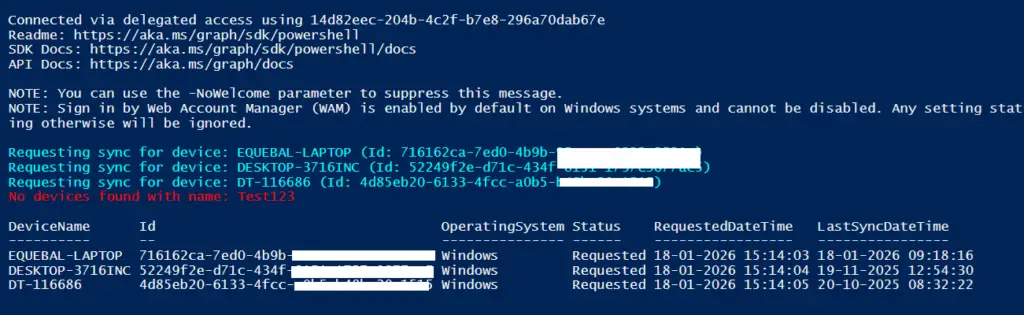
Once the script completes, you’ll see a clear table output showing each device name, its ID, operating system, and the sync status. Successful requests are marked as Requested along with the timestamp, while any failures are flagged with the error message for quick troubleshooting. This makes it easy to confirm which devices were synced and identify any that need further attention.
4. Download Bulk Device Sync Script
Practical tips
- Graph profile: If your tenant exposes the endpoint on v1.0, use it; otherwise, use
betawith caution. - Least privilege: Grant only the needed permission and consent appropriately.
- Device readiness: Offline devices will queue the sync and execute on the next check-in.
- Error visibility: Review
IntuneManagementExtension.logon clients if you suspect issues with policy/app processing after sync.
Related Posts
- Bulk Export Entra ID Group Members with PowerShell & Microsoft Graph API
- How to Bulk Sync Intune Devices with Microsoft Graph
- Get AAD Group Members Details Using PowerShell SDK for Microsoft Intune Graph API
- How To Export Serial number of Multiple Devices using PowerShell SDK for Intune Graph API
- Install PowerShell SDK for Microsoft Intune Graph API
- How to Export Managed Device Details from Intune
Subscribe to Techuisitive Newsletter
Be the first to know about our new blog posts. Get our newsletters directly in your inbox and stay up to date about Modern Desktop Management technologies & news.