
App Control for Business is one of the strongest security features available in Windows. Instead of relying only on antivirus software to block malicious applications, App Control uses an allow-listing approach that determines exactly which applications are permitted to run on corporate devices.
Only trusted applications that satisfy your organization’s policy are allowed to execute. Unknown or unauthorized applications—including malware, ransomware, and unwanted software—are blocked before they can run.
In this guide, you’ll learn:
- What App Control for Business is
- How it works
- Benefits and limitations
- Planning your deployment
- Deploying in Audit mode
- Reviewing audit events
- Moving to production (Enforced mode)
- Best practices for enterprise deployment
What is App Control for Business?
App Control for Business is Microsoft’s modern application control solution for Windows 10 and Windows 11. It uses Windows code integrity policies to decide whether an executable is trusted before Windows allows it to start. Instead of detecting malicious software after it begins running, App Control prevents unapproved software from launching in the first place.
This makes it one of the most effective security controls against:
- Ransomware
- Malware
- Unauthorized applications
- Scripts
- Unknown executables
- Credential theft tools
- Living-off-the-land attacks
How App Control Works
The process is straightforward:
- A user attempts to run an application.
- Windows checks the App Control policy.
- Windows validates the application’s trust.
- If trusted, the application launches.
- If not trusted, Windows blocks execution.
Unlike antivirus solutions that inspect behavior after execution, App Control stops unauthorized applications before they start.
Supported File Types
App Control for Business can control:
- Executables:
.exe,.com - DLLs:
.dll,.rll,.ocx - Windows Installer:
.msi,.mst,.msp - Scripts:
.ps1,.vbs,.js - Drivers:
.sys - Packaged applications:
.appxand related packaged application formats
Why Use App Control?
Organizations implement App Control to:
- Prevent ransomware
- Block unauthorized software
- Meet security compliance requirements
- Reduce attack surface
- Protect privileged devices
- Secure kiosks
- Protect shared devices
App Control Deployment Modes
There are two deployment modes.
Audit Mode
Audit mode doesn’t block applications. Instead, Windows records every application that would have been blocked. This allows administrators to evaluate the impact before enforcement.
Benefits of Audit Mode
- Minimize deployment disruption – Applications continue to run normally while App Control records what would have been blocked.
- Collect real-world data – Capture actual application usage across your environment instead of relying on assumptions.
- Identify business-critical applications – Discover line-of-business and legacy applications that need to be allowed before enforcement.
- Fine-tune policies – Reduce false positives and adjust allow rules based on real audit events.
- Safer production rollout – Validate the policy with pilot devices and users before switching to Enforced mode.
Recommended for every new deployment.
Enforced Mode
Once you’re confident the policy won’t impact users, switch to Enforced mode.
In this mode:
- Applications that violate the enforced policy are blocked.
- Code Integrity events are recorded.
- Administrators can investigate blocked applications through event logs and supported monitoring solutions.
Planning Before Deployment
Before deploying App Control:
Inventory applications
Understand which applications users actually need.
Examples:
- Microsoft Office
- Edge
- Google Chrome
- Adobe Reader
- VPN client
- Remote support tools
- Line-of-business applications
Identify critical devices
Start with:
- IT administrators
- Test devices
- Pilot users
Avoid deploying directly to all production devices.
Create pilot groups
Recommended deployment rings:
- IT Team
- Pilot Users
- Department Pilot
- Production
Deploy App Control in Audit Mode using Intune
Step 1 – Create a Policy
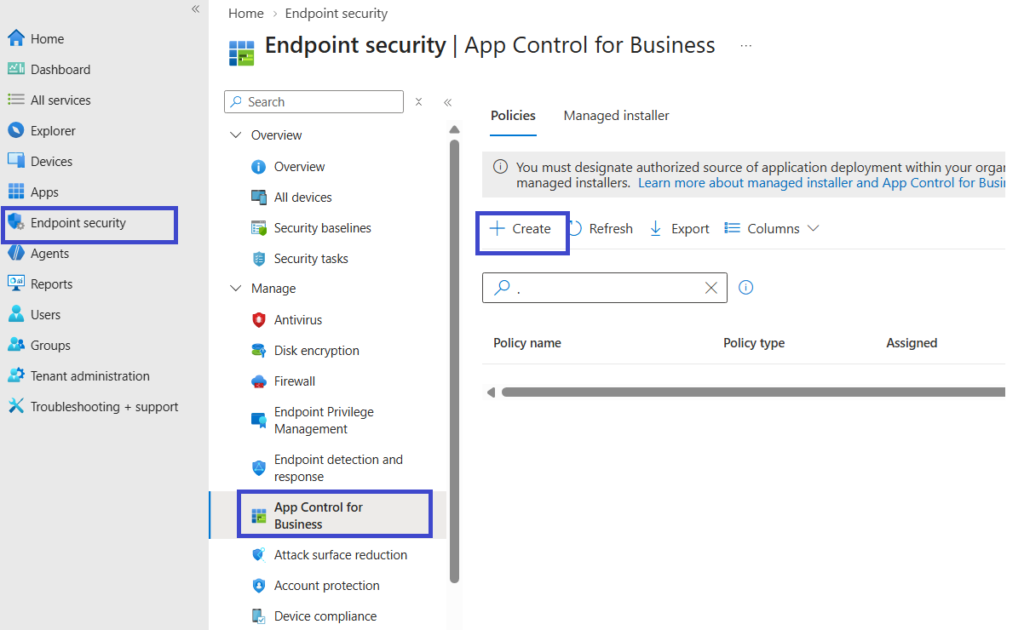
- Open Microsoft Intune Admin Center
- Navigate to Endpoint Security > App Control for Business
- Click on Create
- On the Basic page, provide a policy name and description, and click on Next
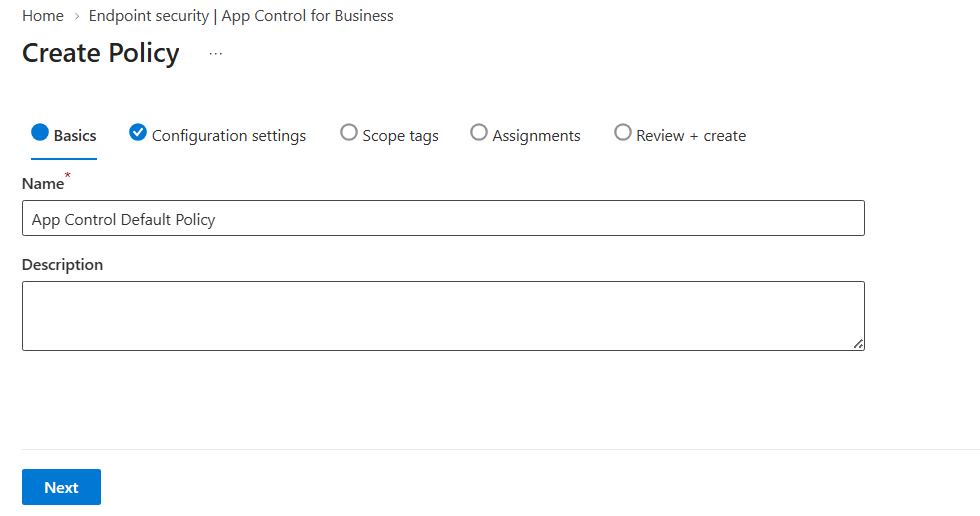
On the Basics page, provide Policy name, and Description. Select Next.
Step 2 – Select a Base Policy
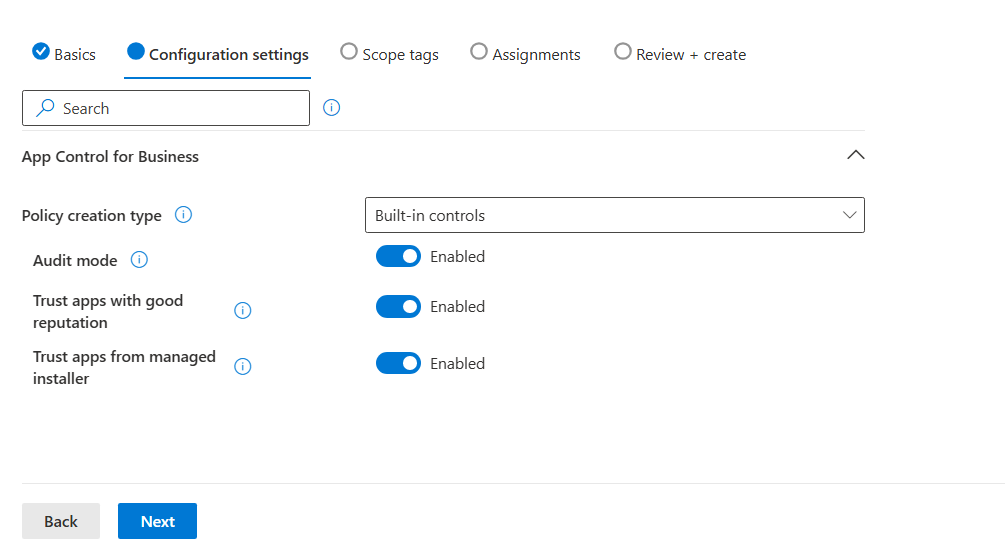
The Configuration settings page lets you define how App Control for Business will evaluate and trust applications on managed Windows devices. For most organizations, the built-in controls provide a quick way to get started with Microsoft-recommended settings. If you require more granular control, you can instead deploy a custom App Control policy by uploading an XML policy file.
Policy creation type
Choose how you want to create the App Control policy. Select Built-in controls for a Microsoft-recommended baseline, or XML file upload to deploy a custom WDAC policy with advanced configuration options.
Built-in controls provide a simplified configuration experience. Custom XML policies provide more granular control over application trust rules. XML-based deployment requires administrators to understand WDAC policy creation, validation, and maintenance.
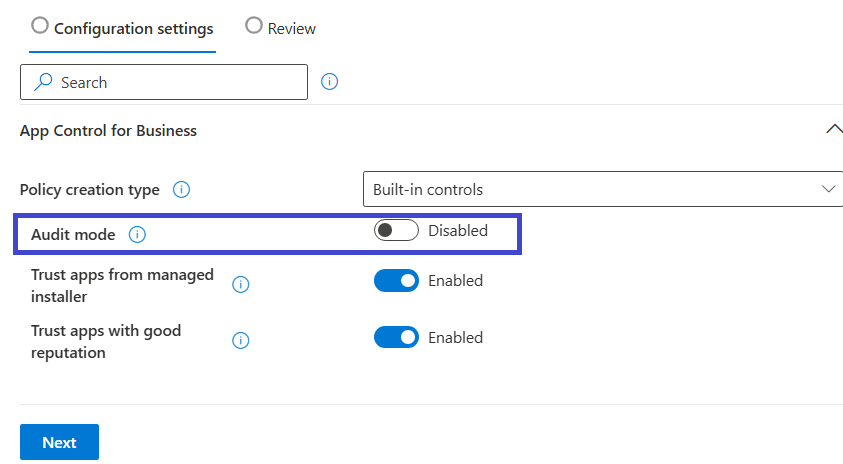
Audit mode
When enabled, applications continue to run normally, but Windows logs any apps that would have been blocked. This allows you to validate the policy before enforcing it.
Trust apps with good reputation
Allows applications that have a trusted reputation based on Microsoft’s Intelligent Security Graph (ISG). This helps reduce unnecessary application blocks during deployment.
Trust apps from managed installer
Automatically trusts applications installed by a configured Managed Installer, such as Microsoft Intune or Configuration Manager. This setting does not enforce the policy; it simply adds another trusted source for installed applications.
When configured as a Managed Installer, the Intune Management Extension can identify applications installed through Intune as trusted. App Control for Business can then use this installation origin to authorize those applications. This capability requires additional configuration and is not enabled automatically for every Intune-managed device.
Step 3 – Assign & Create the Policy
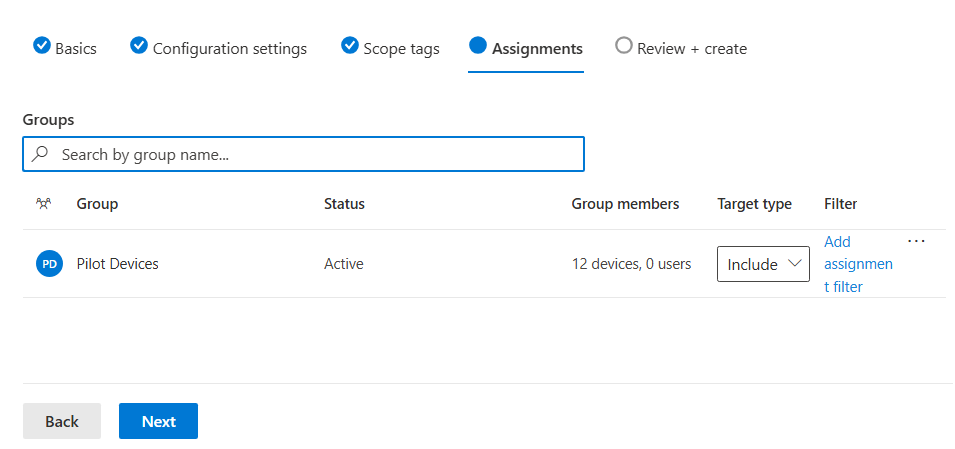
Assign the policy to your pilot device group. Do not assign the policy to all users or devices initially.
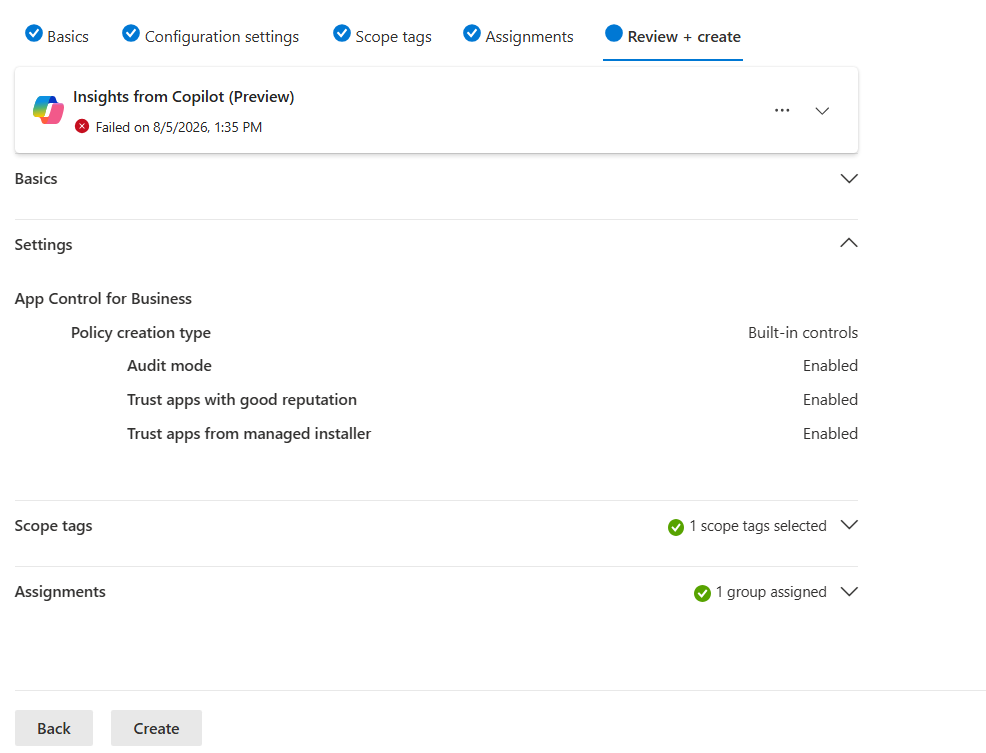
Review the settings on the Review + create page, then select Create to finish creating the policy.
Step 4 – Monitor Deployment
Wait for devices to receive the policy.
Verify:
- Device synchronization
- Policy status
- Event logs
Reviewing Audit Events
Audit events are stored in Event Viewer.
Navigate to:
Applications and Services Logs > Microsoft > Windows > CodeIntegrity > Operational
Look for events indicating:
- Application allowed
- Application would have been blocked
- Unsigned executable detected
- Unknown publisher
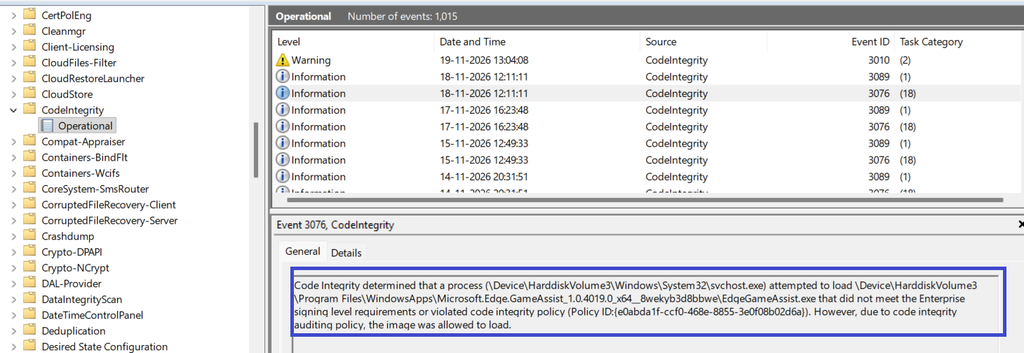
These events help identify applications that require additional allow rules. The administrators should pay particular attention to the relevant Code Integrity audit events when identifying applications that would be blocked.
Event IDs for App Control for Business
| Event ID | Purpose |
|---|---|
| 3076 | Application would have been blocked in Audit mode |
| 3077 | Application was blocked in Enforced mode |
| 3089 | Signing information associated with a file validation event |
| 3091 | File lacked ISG or Managed Installer authorization in Audit mode |
| 3092 | Enforcement equivalent of event 3091 |
Analyze Audit Results
Review:
- Frequently blocked applications
- Business-critical software
- Unsigned applications
- Legacy applications
- Scripts
- Custom executables
If required, update the App Control policy to allow trusted applications before moving to enforcement.
Move to Production (Enforced Mode)
Do not switch to enforcement simply because the policy has been deployed successfully. Before enforcement, administrators should:
- Review audit events across representative devices.
- Identify legitimate applications that would be blocked.
- Validate business-critical applications, scripts, drivers, and line-of-business software.
- Update and test the policy before expanding deployment.
After validating the audit logs:
- Edit the existing policy.
- Change Policy Mode from Audit to Enforced.
- Assign the updated policy to the same pilot group.
- Validate application behavior.
- Expand deployment gradually.
Recommended rollout:
- IT
- Pilot
- Department
- Entire organization
Advanced: Deploy a Custom XML Policy
If you require granular control over application trust, you can deploy a custom App Control policy by uploading a WDAC XML file in Intune. XML policies let you define custom publisher, file hash, file path, and supplemental rules that aren’t available with the built-in controls.
Note: Creating and maintaining XML policies is an advanced scenario and is recommended for organizations with complex application control requirements.
Best Practices
- Always start in Audit mode.
- Deploy to a small pilot group first.
- Review Code Integrity events regularly.
- Avoid allowing applications based on file paths when more secure trust methods are available.
- Prefer trusted publishers and signed applications.
- Document approved business applications.
- Test Windows updates before broad deployment.
- Keep App Control policies updated as new applications are introduced.
Troubleshooting
If applications are unexpectedly blocked:
- Verify the policy is in Audit or Enforced mode as intended.
- Review Code Integrity Operational logs.
- Confirm the application is digitally signed.
- Check whether the executable matches an existing allow rule.
- Sync the device from Intune and verify policy deployment status.
- Update the policy to include additional trusted applications if necessary.
Conclusion
App Control for Business is one of the most effective security controls available for Windows devices. By allowing only trusted applications to run, it significantly reduces the risk of malware, ransomware, and unauthorized software. A successful deployment starts with Audit mode, where you can observe application behavior without affecting users, and then transitions to Enforced mode once the policy has been validated. Using a phased rollout through Microsoft Intune helps minimize disruption while strengthening endpoint security across the organization.
Frequently Asked Questions
Is App Control the same as Microsoft Defender Antivirus?
No. Defender Antivirus detects and removes malicious software, while App Control prevents unapproved applications from running at all.
Should I deploy directly in Enforced mode?
No. Microsoft recommends starting with Audit mode to understand the impact on your environment before enforcing the policy.
Can App Control block PowerShell scripts?
Yes. Depending on your policy configuration, App Control can restrict PowerShell scripts, MSI packages, DLLs, and other executable content.
Does App Control replace antivirus?
No. It complements antivirus by reducing the attack surface through application allow-listing.
