
When deploying Win32 applications through Microsoft Intune, you may sometimes encounter the following error:
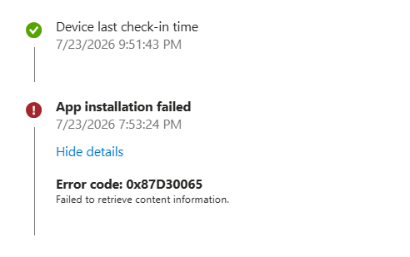
Failed to retrieve content information – Error code 0x87D30065
This error can appear in the Intune application installation status when a Windows device fails to process the application content required for deployment.
In this guide, we will look at how to investigate this error, identify possible causes, and troubleshoot the application deployment.
1. What does error 0x87D30065 mean?
Error 0x87D30065 is reported in connection with Intune application deployment, with the message: Failed to retrieve content information
The message indicates that the application deployment process could not retrieve or process the required content information.
However, the error message alone does not identify the exact reason for the failure. We need to check the Intune Management Extension (IME) logs and device configuration to understand what went wrong.
2. Where does this error occur?
You may encounter this error while deploying Win32 applications through Microsoft Intune.
To check the application installation status:
- Sign in to the Microsoft Intune admin center.
- Navigate to Apps > All apps.
- Select the application that you are deploying.
- Open Device install status.
- Select the affected device and review the installation status and error details.
Check whether the issue affects a single device or multiple devices.
- If only one device is affected, investigate its local configuration, network connectivity, and Intune Management Extension.
- If multiple devices are affected, investigate the application package, content availability, and any recent changes to the deployment configuration.
This helps narrow down the troubleshooting scope.
3. Possible causes of error 0x87D30065
There can be several reasons behind an application content retrieval failure. Some areas worth investigating include:
1. Network connectivity issues
The device may be unable to communicate with the required Microsoft Intune services or retrieve application content. This can happen due to proxy configuration, firewall restrictions, or network connectivity issues.
2. Intune Management Extension issues
The Intune Management Extension handles Win32 application deployment on Windows devices. If the extension is not functioning correctly, application processing and content retrieval may fail.
3. Application content or packaging issues
An issue with the uploaded Win32 application package or its content may affect deployment. If the application package was recently updated, verify that the uploaded content and application configuration are correct.
4. Local content processing issues
A problem with the local application content cache or a previous incomplete deployment may also be worth investigating. Do not clear the cache without first checking the logs and confirming that no installation is in progress.
5. Incorrect or invalid application content
An issue with the uploaded Win32 application package may also be worth investigating. For example:
- The wrong
.intunewinpackage was uploaded. - The source application files were incomplete.
- The package was generated using an incorrect source folder.
- The application content was modified or repackaged incorrectly.
Verify the package and consider uploading a freshly generated .intunewin file if you identify a packaging issue.
4. How to troubleshoot error 0x87D30065
Let’s go through the troubleshooting steps.
Step 1: Check the Intune Management Extension service
First, verify whether the Intune Management Extension service is running on the affected device.
- Log in to the affected Windows device.
- Open the Run dialog and type
services.msc. - Locate Microsoft Intune Management Extension.
- Check its current status.
Alternatively, run the following PowerShell command:
Get-Service -Name IntuneManagementExtension
If the service is stopped, investigate why it stopped before starting it.
You can start the service using:
Start-Service -Name IntuneManagementExtension
If the service is already running, continue with the next step.
Step 2: Review Intune Management Extension logs
The Intune Management Extension logs are one of the most useful sources of information when troubleshooting Win32 application deployment failures.
Navigate to the following location on the affected device:
C:\ProgramData\Microsoft\IntuneManagementExtension\Logs
Review the following log files:
| Log file | Purpose |
|---|---|
| IntuneManagementExtension.log | General IME activity and application processing |
| AppWorkload.log | Win32 application deployment and workload processing |
| AppActionProcessor.log | Application action processing |
| AgentExecutor.log | Script execution activity |
Start by reviewing IntuneManagementExtension.log and AppWorkload.log.
Search for the following:
0x87D30065Failed to retrieve content information- Application name or application ID
- Content download or processing failures
- Any related error messages immediately before the failure
Pay attention to the timestamp of the failed deployment.
The error message immediately before the reported failure may provide more information about the actual issue.
Step 3: Verify network connectivity
If the device is unable to retrieve application content, check its network connectivity.
Make sure the device can communicate with the required Microsoft Intune services and content delivery endpoints.
Check the following:
- Internet connectivity on the affected device.
- Proxy configuration and authentication.
- Firewall rules that may block required Microsoft services.
- Whether the issue occurs only on a corporate network or also on another permitted network.
You can also check basic connectivity using PowerShell:
Test-NetConnection login.microsoftonline.com -Port 443
A successful result confirms connectivity to that particular endpoint. It does not confirm that all Intune application content endpoints are accessible.
For the complete list of required network endpoints, refer to Microsoft’s Intune network endpoints documentation.
Step 4: Verify the Win32 application package
If the issue affects a particular application, review its deployment configuration.
Navigate to:
Intune admin center > Apps > All apps > Select the application
Review the following:
- Confirm that the correct
.intunewinpackage was uploaded. - Check whether the application package was recently modified.
- Verify that the installation and uninstallation commands are correct.
- Review the application requirements.
- Check detection rules and dependencies.
- Confirm that the application is assigned to the intended user or device group.
If you recently modified the application package, consider repackaging the application using the Microsoft Win32 Content Prep Tool and uploading the updated package.
Avoid changing detection rules or installation commands unless you have identified a problem with the existing configuration.
Step 5: Check the local Intune application content
If the issue continues on a particular device, investigate the local Intune Management Extension content processing.
The IME maintains local folders for processing application content. You can start by reviewing the following location:
C:\Program Files (x86)\Microsoft Intune Management Extension\Content
Look for any related download or processing activity in the IME logs.
If you suspect an incomplete or corrupted local content download, collect the relevant logs before making any changes.
Avoid manually deleting the entire content folder. This may interrupt an ongoing deployment or affect other application installations.
If necessary, consider restarting the Intune Management Extension service during a maintenance window after confirming that no installation is in progress.
Step 6: Collect Intune diagnostic logs
If none of the above steps identifies the issue, collect the Intune Management Extension diagnostic logs.
You can use the following steps:
- Open the Company Portal application on the affected device.
- Navigate to Settings.
- Locate the diagnostic log collection option.
- Collect the diagnostic logs.
- Review the logs or share them with Microsoft Support for further investigation.
You can also review the relevant Windows Event Viewer logs if the application deployment process generates additional errors.
5. Recommended troubleshooting checklist
Before retrying the application deployment, verify the following:
- Intune Management Extension service is running.
- Device has internet connectivity.
- Required Microsoft endpoints are accessible.
- No proxy or firewall restriction is blocking content retrieval.
- Win32 application package is valid.
- Application installation command is correct.
- Application assignments are correct.
- Detection rules and dependencies are configured correctly.
- IME logs do not show additional content processing errors.
Once the identified issue is resolved, retry the application deployment and monitor its installation status in the Intune admin center.
6. Final thoughts
The error 0x87D30065 – Failed to retrieve content information can make Win32 application deployment troubleshooting difficult because the displayed error does not provide enough information to identify the exact cause.
Start by checking the Intune Management Extension logs, particularly IntuneManagementExtension.log and AppWorkload.log.
If the issue affects multiple devices, investigate the application package and content delivery configuration. If it is limited to a single device, focus on its local IME service, network connectivity, and content processing.
Collecting the logs around the time of failure is important before making any changes to the device or application configuration.
