
A consistent browser experience helps organizations direct users to corporate portals, intranet sites, service desks, or business applications immediately after launching the browser. Microsoft Intune Settings Catalog allows administrators to configure browser settings without creating custom OMA-URI policies. In this guide, you’ll learn how to configure the Home Page and Startup Page for Microsoft Edge and Google Chrome using Intune Settings Catalog.
By the end of this guide, you’ll know how to:
- Configure the Home button URL
- Configure startup pages
- Open a specific website when the browser launches
- Apply the settings to Windows devices
- Verify the policy deployment
Browsers Covered in This Guide
This guide explains how to configure the Home Page and Startup Page for the following browsers using Microsoft Intune Settings Catalog:
- Microsoft Edge (native Settings Catalog policies)
- Google Chrome (requires importing the Google Chrome ADMX templates before Chrome settings become available)
Note: Mozilla Firefox browser policies are configured using Imported Administrative Templates rather than the Intune Settings Catalog. For Firefox-specific instructions, refer to our dedicated guide: Configure Firefox Home Page and Startup Page using Intune Imported Administrative Templates (Upcoming)
Prerequisites
Before you begin, ensure:
- Microsoft Intune Administrator permissions
- Windows 10/11 managed devices
- Latest Microsoft Edge
- Google Chrome installed (for Chrome settings)
- Mozilla Firefox installed (for Firefox settings)
- Devices synchronized with Intune
Browser Settings Explained
The following settings are usually configured to control the Home Page and Startup Page.
| Setting | Purpose |
|---|---|
| Home Button | Opens a webpage when users click the Home button |
| Homepage | Website assigned to the Home button |
| Startup Page | Website opened automatically when the browser starts |
| New Tab | Opens a blank/new tab instead of a website |
Configure Browser Homepage & Startup Page
Create the Settings Catalog Policy
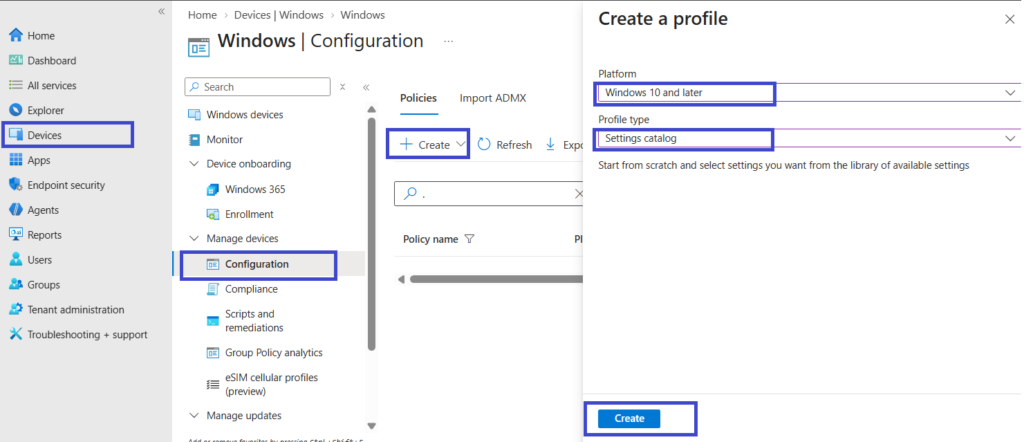
- Navigate to Intune Admin Center > Devices > Configuration
- Select Create > Create Policy
- Select the following
- Platform: Windows 10 and later
- Profile type: Settings catalog
- On the Basic Page, enter the profile Name: Browser Homepage and Startup Configuration
- Click Next
Configure Microsoft Edge Homepage & Startup page
Add the following settings on the Configuration Settings to configure the Microsoft Edge Homepage and Startup page.
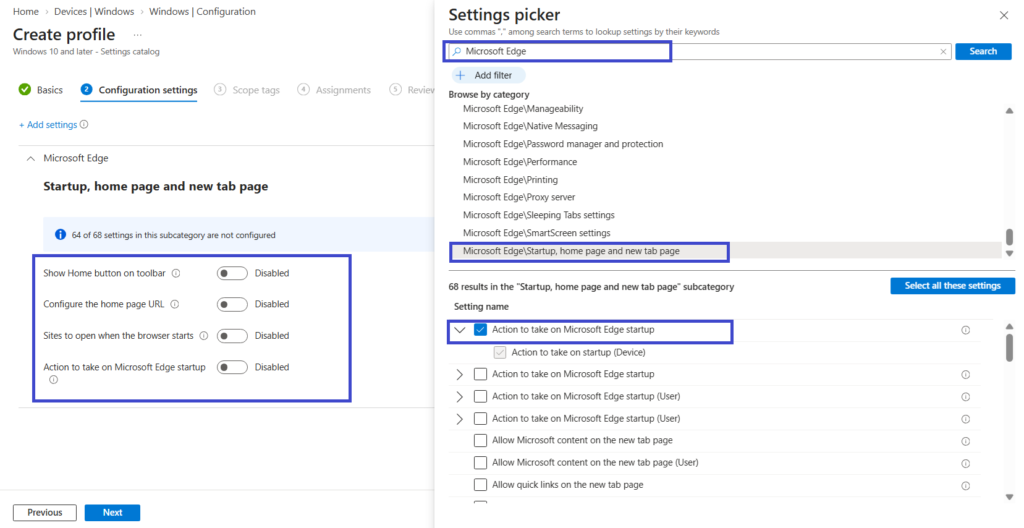
- On the Configuration settings page, select +Add settings
- On the Settings picker window, search for Microsoft Edge and then select Microsoft Edge/Startup, Homepage, and New tab page
- Select the following settings
- Show Home button
- Configure Home button URL
- Set the new tab page as the home page
- Action to take on Microsoft Edge startup
- Sites to open when browser starts
- Close the Settings picker window to return to the Configuration settings page.
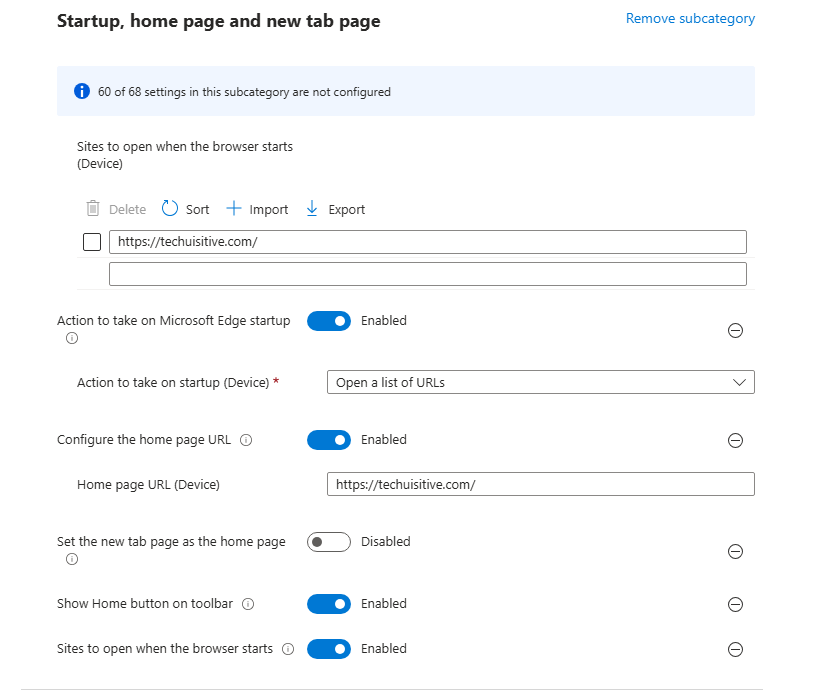
- Configure the settings added to the configuration settings page.
- Action to take on Microsoft Edge Startup: Enabled
- Action to take on startup: Open a list of URLs
- Show Home button on toolbar: Enabled
- Configure the home page URL: Enabled
- Home page URL: Your home page URL
- Site to open when the browser starts: Enabled
- Site to open when browser starts: List of URL’s to launch when the browser starts
- Set the new tab page as the home page: Disabled
- Action to take on Microsoft Edge Startup: Enabled
Configure Google Chrome
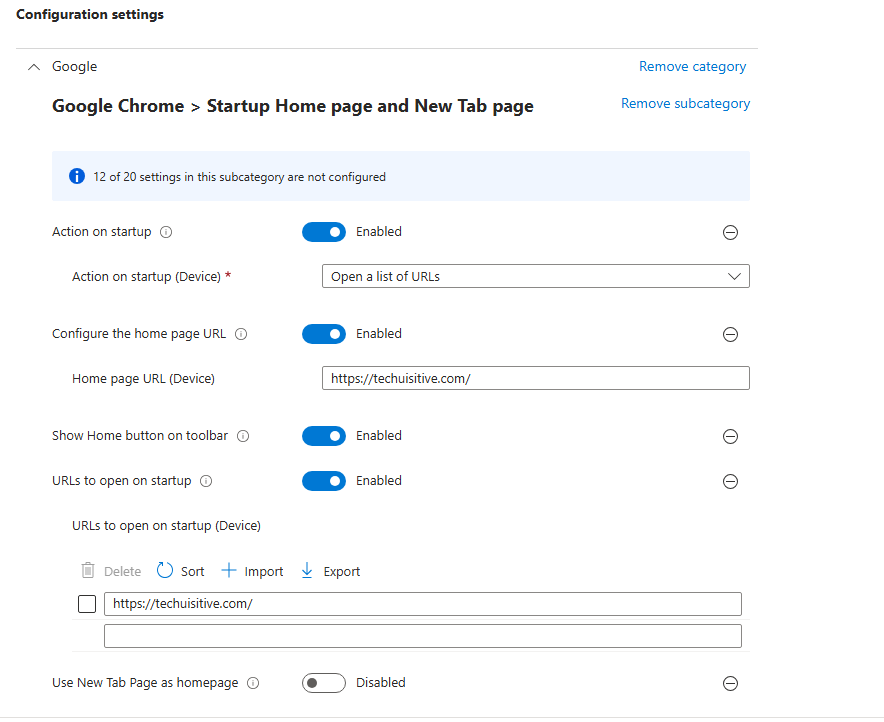
Add the below Browser settings for Google Chrome by following the steps provided above for Microsoft Edge. The settings will be available under Google Chrome > Startup Home page and New Tab page
| Setting | Value |
|---|---|
| Restore On Startup | Open a list of URLs |
| URLs to Open on Startup | List of URL’s to open |
| Homepage Location | Homepage URL |
| Show Home Button | Enabled |
Back to Configuration Settings page, enable the required settings and configure the values.
Assign the Policy
Assign the Settings Catalog profile to a small group of Pilot Users or Pilot Devices before deploying it organization-wide. This allows you to verify that the browser homepage is applied correctly, identify any policy conflicts, and ensure the expected user experience. If required, use Assignment Filters to further target or exclude specific devices based on attributes such as operating system version, device ownership, or enrollment profile. After successful validation, expand the deployment to your production groups.
Sync the Device
After assigning the policy, you can expedite testing by manually triggering a device synchronization instead of waiting for the next scheduled Intune sync. On the client device, open Settings > Accounts > Access work or school, select the connected work or school account, choose Info, and then click Sync. Alternatively, you can initiate a remote sync from the Intune admin center by navigating to Devices, selecting the target device, and clicking Sync. Once synchronization completes, verify that the configured browser homepage has been applied successfully on the test device.
Verify the Policy
After deploying the browser configuration policy, verify that the policy has been successfully assigned and applied to the target devices. You can use Microsoft Intune to confirm the deployment status and check the browser on the client device to ensure the configured settings are applied as expected.
Verify Deployment Status in Microsoft Intune
- Sign in to the Microsoft Intune admin center.
- Go to Devices → Configuration → Policies.
- Select the browser configuration policy you deployed.
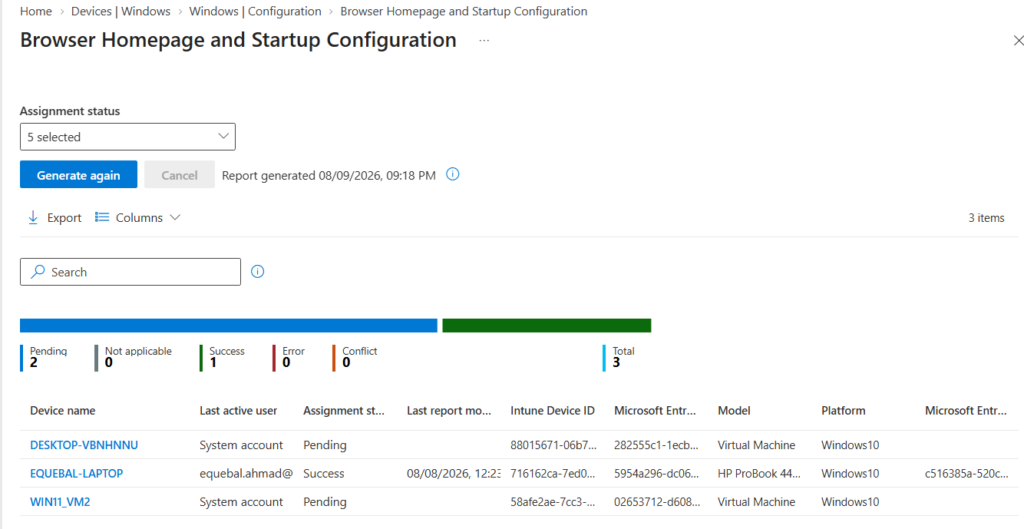
- On the policy overview page, select the Device assignment status.
- Select Generate Report
- Verify that the target device appears under Succeeded and that there are no errors or conflicts.
Verify the Homepage in Microsoft Edge
Launch Microsoft Edge and check the following.
- Startup URL opens when the browser is launched
- Home button is visible
- Clicking Home opens the configured URL
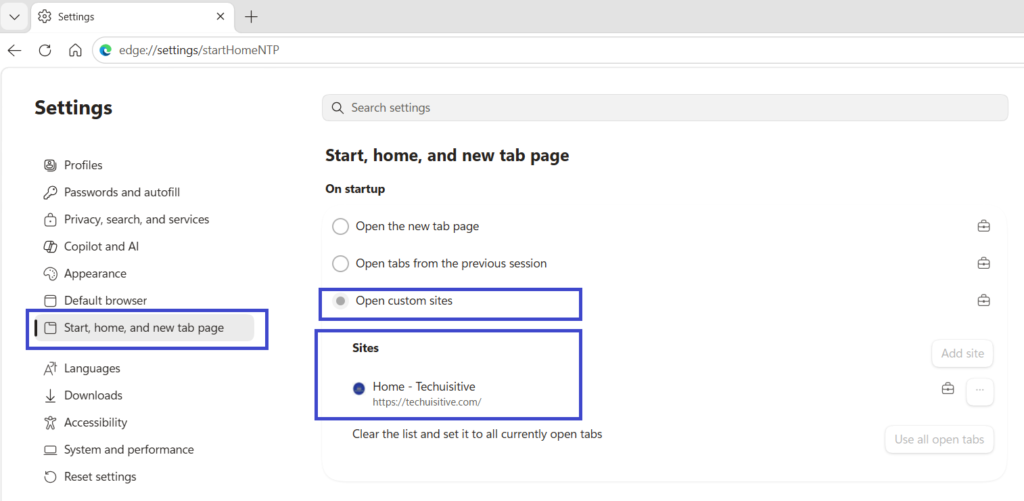
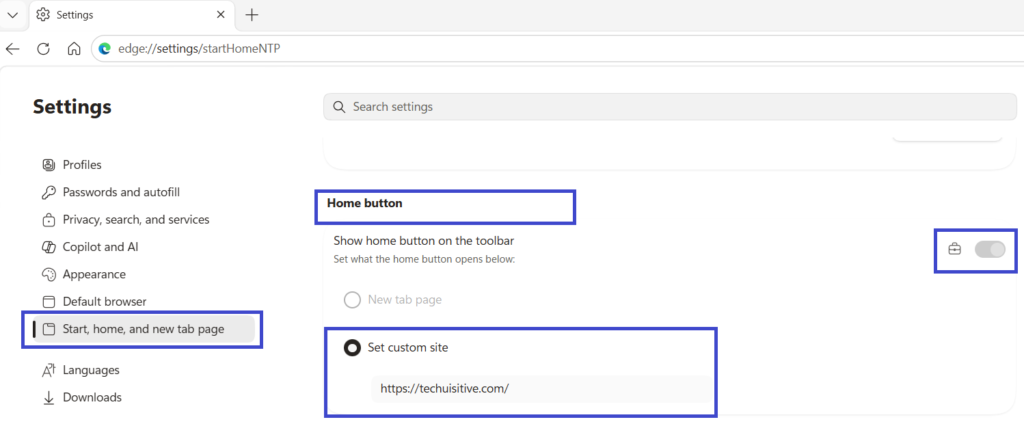
You can also verify that the policy has been applied successfully on the device by opening edge://settings in Microsoft Edge.
On Startup:
Home Button & Home page:
Verify the Homepage in Google Chrome
Launch Google Chrome on the device and check the following.
- Browser starts with the configured startup page
- Home button is visible
- Home button opens the configured URL
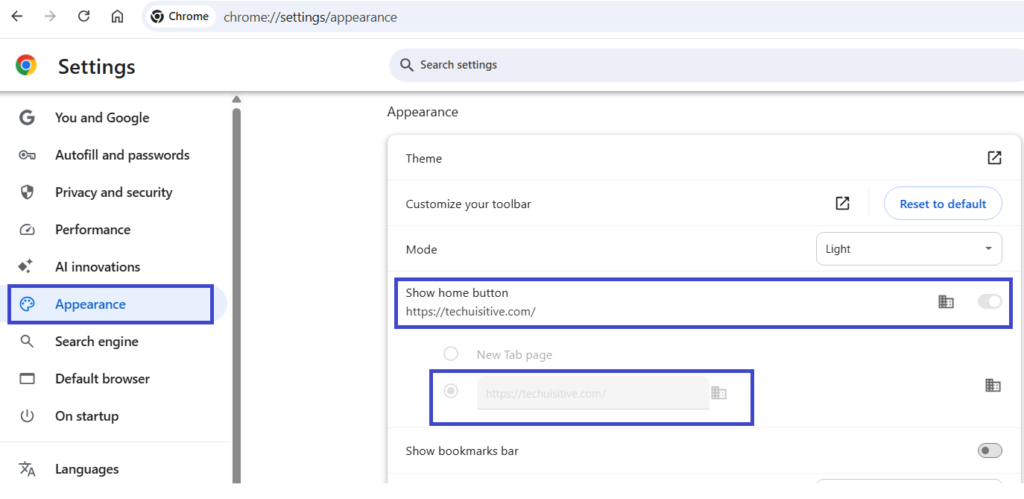
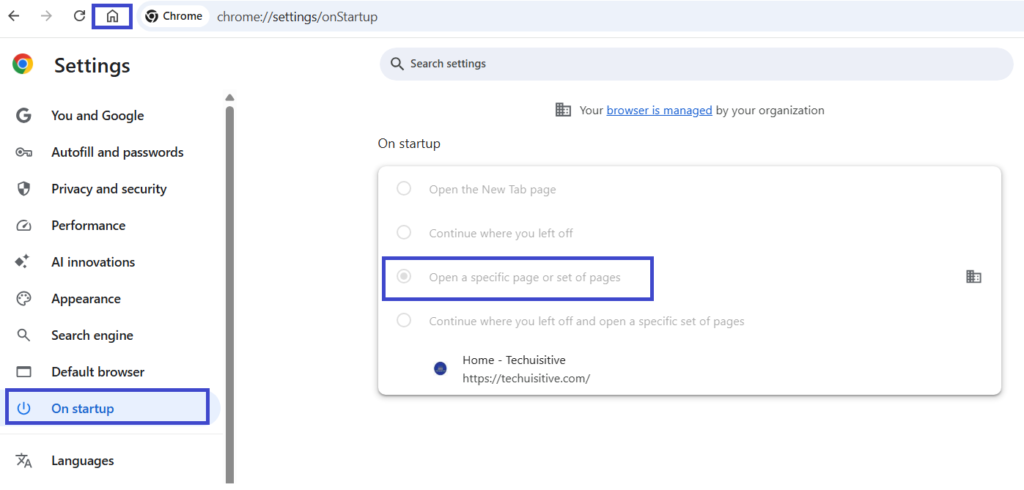
You can also verify that the policy has been applied successfully on the device by opening chrome://settings in Google Chrome.
Home Button & Home Page:
On Startup:
Troubleshooting
Homepage isn’t applied
Verify:
- Device has received the policy.
- Browser version supports policy management.
- Settings Catalog profile shows Succeeded.
Chrome settings not appearing
Chrome settings require the Google Chrome ADMX administrative templates to be imported into Intune if they aren’t already available in your tenant.
Startup page not opening
Check that:
- Restore on Startup is configured correctly.
- Startup URL is valid.
- No conflicting policy exists.
Best Practices
- Use a pilot group before production deployment.
- Use HTTPS URLs.
- Configure only one homepage policy per browser.
- Avoid conflicting Administrative Template and Settings Catalog policies.
- Document browser configuration standards.
- Test after every browser update.
Frequently Asked Questions
Can I configure different homepages for different departments?
Yes. Assign separate Settings Catalog policies to different Microsoft Entra ID groups.
Can users change the homepage?
It depends on whether the setting is configured as mandatory or recommended. Mandatory policies prevent users from changing the setting. If you want to allow users to change the policy, then use Default Settings (users can override) for Microsoft Edge and Google Chrome.
Can I configure multiple startup pages?
Yes. Edge and Chrome support opening multiple URLs at startup.
Which is better: Settings Catalog or Administrative Templates?
Settings Catalog is generally preferred because it provides a centralized experience, supports search, and receives new policy settings over time. However, some browser-specific policies may still require Administrative Templates depending on the browser and the available ADMX templates.
Conclusion
Microsoft Intune Settings Catalog makes it straightforward to standardize browser behavior across Microsoft Edge, Google Chrome, and Mozilla Firefox. By configuring homepage and startup page settings, organizations can ensure users are directed to important business resources immediately after launching their browser, creating a consistent and managed browsing experience.
Related Posts
- Enabling Azure Single Sign-On in Google Chrome with Intune: Don’t Miss This Key Setting
- How to Allow Copilot in Microsoft Edge Using Intune
- Configure Microsoft Edge Sleeping Tabs using Microsoft Intune
Explore More Intune Guides
Continue building your Microsoft Intune skills with step-by-step tutorials covering device management, application deployment, automation, and troubleshooting.
- Microsoft Intune Learning – Explore comprehensive guides on device enrollment, compliance policies, application deployment, Windows updates, and more.
- Device Configuration Guides – Explore practical Microsoft Intune guides for configuring Windows and other devices, including device restrictions, browser settings, user experience, security, and system configuration.
