
Microsoft Intune can manage Mozilla Firefox settings on Windows devices by using Firefox’s enterprise ADMX and ADML administrative templates. Once the templates are imported, administrators can configure Firefox settings through an Intune Imported Administrative Templates profile.
In this guide, we will configure the Firefox Home Page and Startup Page using Intune.
This approach is useful when you want to centrally configure a standard corporate homepage and control what Firefox displays when users launch the browser.
Note: This guide focuses on configuring Firefox after the administrative templates have been imported into Intune. For the complete ADMX/ADML import process, including prerequisites and dependency handling, see How to Import ADMX and ADML Templates into Microsoft Intune.
Home Page vs Startup Page in Firefox
The Home Page and Startup Page control different aspects of the Firefox experience.
Home Page
The Home Page is the webpage Firefox displays when the user opens Firefox. For example, an organization might configure its corporate intranet as the Firefox Home Page: https://www.example.com
The Home Page can also be locked so that users cannot change the organization-configured URL.
Startup Page
The Startup Page determines what Firefox displays when the browser starts.
Firefox can be configured to:
- Open a blank page
- Open the configured Home Page
- Restore the previous browsing session
- Always open the configured Home Page
Therefore, configuring the Home Page alone does not necessarily determine what Firefox displays when it starts.
Prerequisites
Before creating the Firefox policy, make sure:
- Firefox is installed on the managed Windows devices.
- The Firefox ADMX and ADML templates are available.
- The Firefox administrative templates have been successfully imported into Intune.
Mozilla’s Firefox template has an associated Mozilla ADMX dependency, so make sure the required templates have been imported successfully before creating the configuration profile.
Already imported the Firefox ADMX?
If you have not yet imported the Firefox administrative templates, follow the detailed guide below:
How to Import ADMX and ADML Templates into Microsoft Intune
That guide covers:
- ADMX and ADML files
- ADMX dependencies
- Importing templates into Intune
- Verifying the import
- Troubleshooting common ADMX import errors
Once the Firefox template shows as Available, continue with the steps below.
Create a Firefox Administrative Template Profile
After importing the Firefox ADMX template, create an Intune configuration profile to configure the Firefox policies.
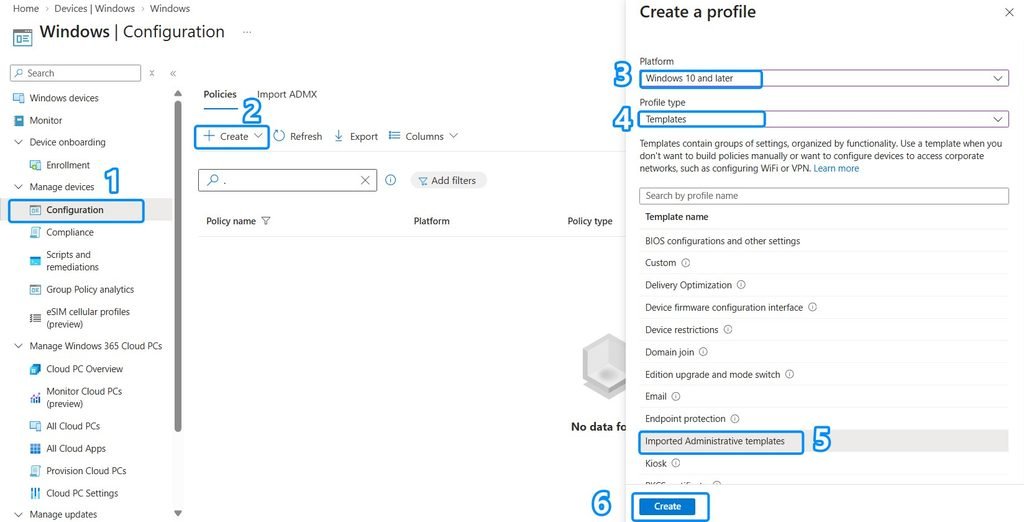
- Sign in to the Microsoft Intune admin center
- Select Devices > Configuration > Create > New policy
- Select Platform: Windows 10 and later
- For the profile type, select: Templates > Imported Administrative templates
Select Create.
Configure the Firefox Policy Name & Description
Enter a descriptive name for the configuration profile.
For example: Firefox – Home Page and Startup
You can optionally add a description such as: Configures the Mozilla Firefox Home Page and Startup Page on managed Windows devices.
Select Next.
Configure Firefox Home Page & Startup Page
The Firefox administrative template provides settings for configuring the homepage URL and controlling how users can modify the homepage.
Under Configuration settings,
- locate the Firefox administrative template settings. You can find them under Computer configuration > Mozilla > Firefox
- Expand the Firefox policy categories and locate the settings related to the Home Page.
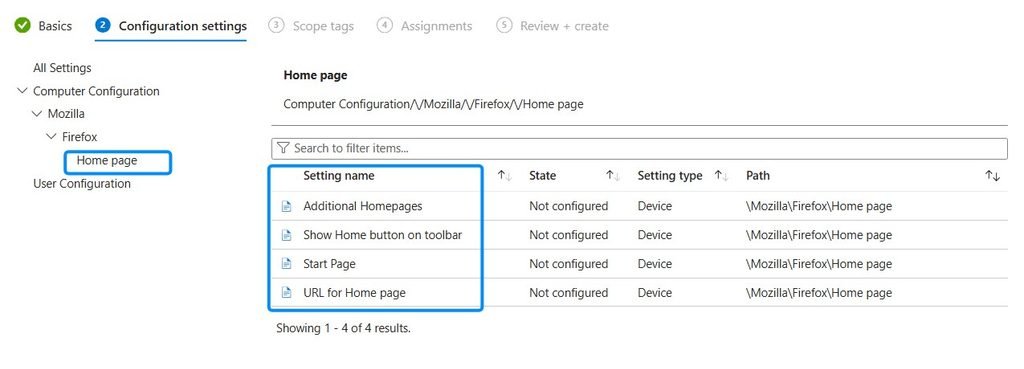
Configure the Home Page
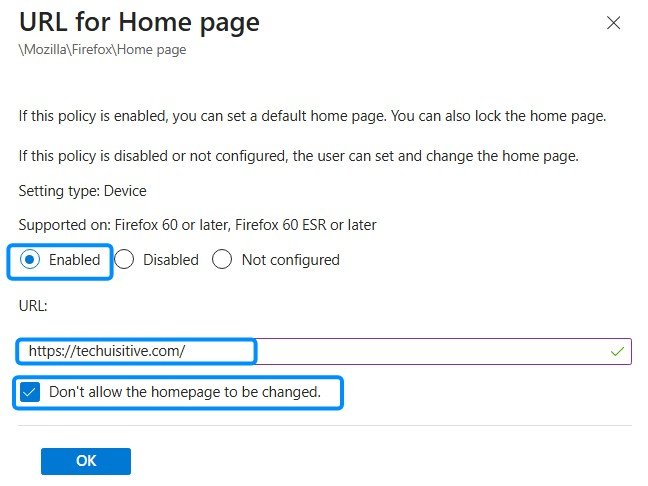
URL for Home Page
Enable the setting URL for Home Page that configures the Firefox Home Page URL. Enter the URL that you want Firefox to use as the organization’s homepage.
For example: https://techuisitive.com/
Replace the example URL with the website required by your organization.
If your organization doesn’t allow users to change the homepage URL, then select the Don’t allow the homepage to be changed checkbox.
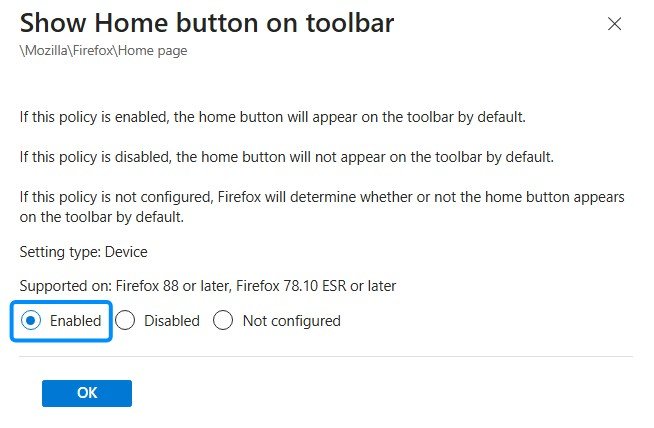
Show Home button on toolbar
Additional Homepages
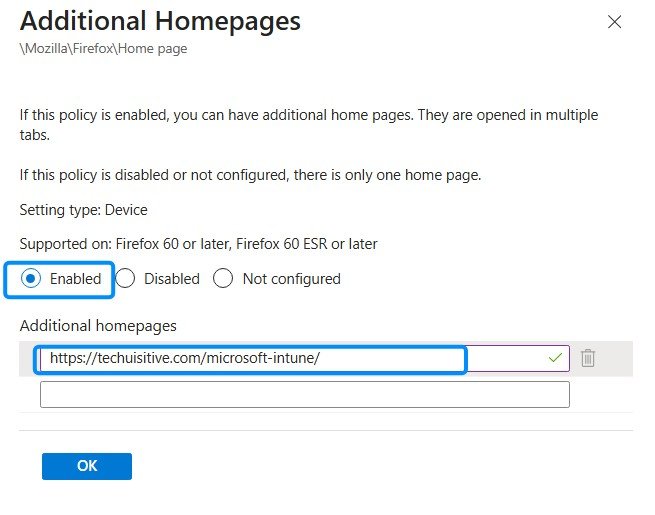
Configure Firefox Startup Page
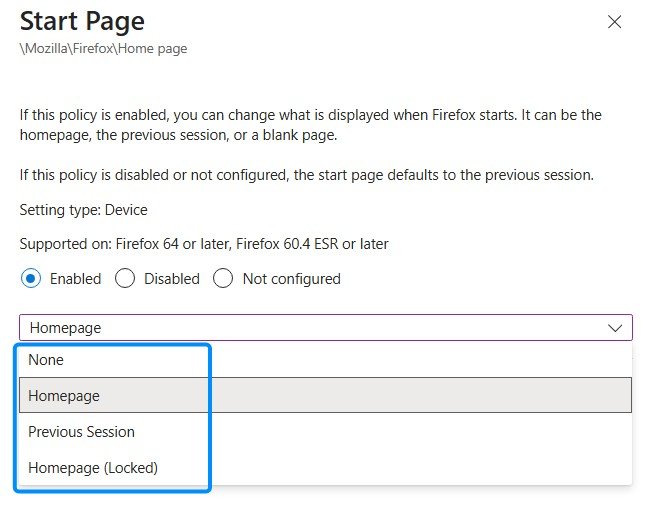
Next, configure the Firefox Start Page setting.
This setting determines what Firefox displays when the browser starts.
The available options include:
| Option | Description |
|---|---|
| None | Starts Firefox with a blank page |
| Home Page | Opens the configured Home Page |
| Previous Session | Restores the user’s previous browsing session |
| Home Page Locked | Always opens the configured Home Page and prevents the user from changing the startup behavior |
The exact setting names displayed in Intune may vary slightly depending on the version of the Firefox ADMX template that you imported.
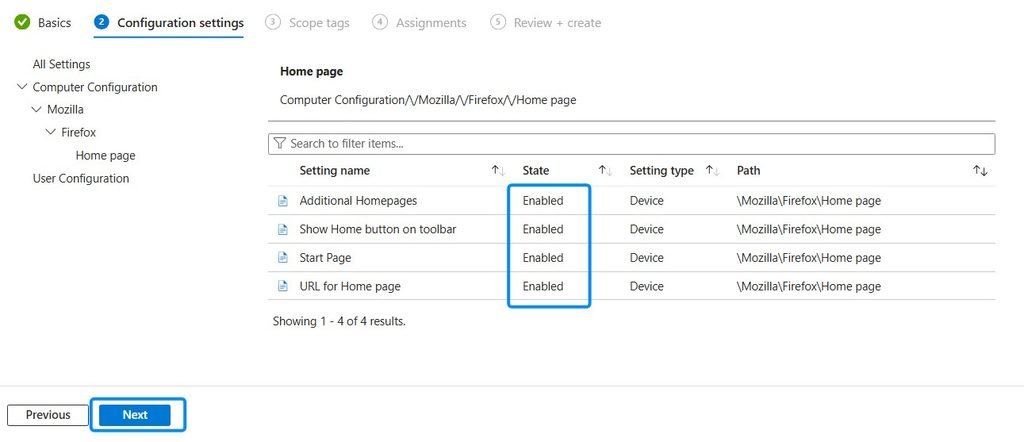
Review Settings
You can now revalidate if all required settings are enabled and then click on Next.
Configure Scope Tags
On the Scope Tags page, configure scope tags if they are required in your Intune environment. Otherwise, select Next.
Assign the Firefox Policy
On the Assignments page, assign the policy to the appropriate Microsoft Entra ID user or device group.
For example:
Included groups:Firefox Managed Devices
For an initial deployment, consider assigning the policy to a small test group before expanding the assignment to all managed devices.
Select Next.
Review and Create
On the Review + Create page, review the configuration.
Confirm that:
- The correct Firefox settings are configured.
- The Home Page URL is correct.
- The locking option is configured as required.
- The correct groups are assigned.
Select Create.
Intune will deploy the Firefox configuration to the assigned Windows devices.
Verify Firefox Policy on End User Device
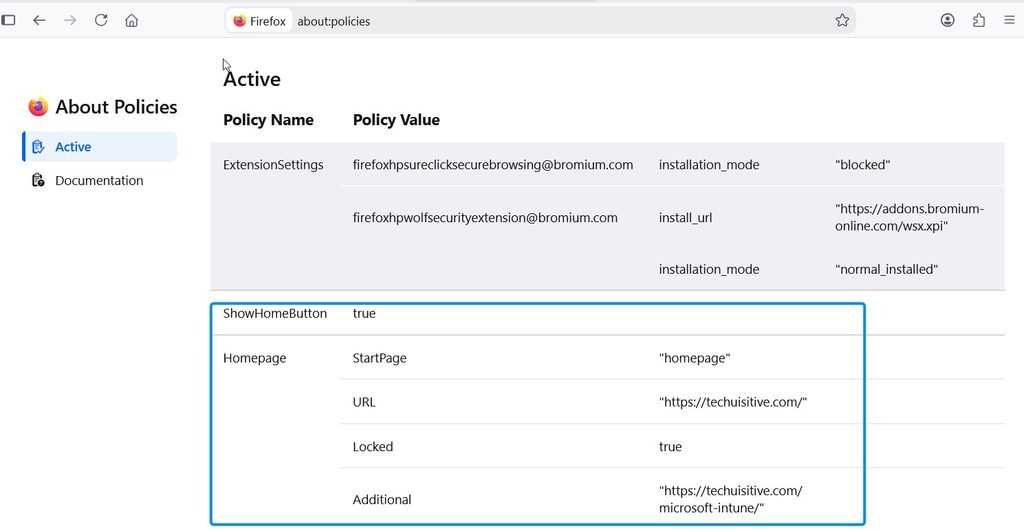
Firefox provides a built-in page that can be used to view enterprise policies applied to the browser. After the policy has been applied to a Windows device, open Firefox.
In the Firefox address bar, enter:
about:policies
Select the Active tab.
Look for the homepage-related policy settings.
This is one of the most useful ways to determine whether Firefox has actually received the policy from Intune.
Verify the Home Page
Open Firefox settings and check the Home settings.
The configured URL should be displayed as the organization-defined Home Page.
If the Home Page has been locked, the user should not be able to change the managed setting.
Verify the Startup Page
Close Firefox and start it again.
Confirm that Firefox opens according to the configured startup policy.
For example, if the policy is configured to use the locked Home Page, Firefox should open the configured corporate website when it starts.
Troubleshooting
Firefox policy is not visible under about:policies
If the expected policy does not appear under:
about:policies
Check the following:
- Confirm that the device is included in the Intune policy assignment.
- Synchronize the device with Intune.
- Restart Firefox.
- Check the Active policies again.
- Verify that the Firefox ADMX template was imported successfully.
- Check the Intune device configuration status for the policy.
User can change the Home Page
If users can still change the homepage, verify that the Lock Home Page setting is enabled.
Configuring the Home Page URL and preventing users from changing it are separate policy settings.
Firefox starts with the previous session
If Firefox restores the previous browsing session instead of opening the configured Home Page, check the Start Page configuration.
Make sure the startup behavior is configured to use the Home Page rather than the previous session.
Also verify the applied policy under:
about:policies
Firefox ADMX template cannot be imported
If the Firefox ADMX template has not yet been imported, refer to the detailed ADMX import guide:
How to Import ADMX and ADML Templates into Microsoft Intune
The guide covers ADMX dependencies and common import errors, so there is no need to duplicate those troubleshooting steps here.
Best Practices
When managing Firefox Home Page and Startup settings through Intune, consider the following:
Use a dedicated Firefox policy
Keep homepage and startup configuration in a dedicated policy such as:
Firefox - Home Page and Startup
This makes the configuration easier to identify and troubleshoot.
Avoid conflicting Firefox policies
Avoid configuring the same Firefox settings across multiple Intune profiles.
Multiple policies targeting the same setting can make it difficult to determine which configuration is responsible for the final browser behavior.
Test with a pilot group
Before assigning the policy to all Windows devices, deploy it to a small test group.
Verify the Home Page, Startup Page, and locking behavior before expanding the assignment.
Keep the Firefox ADMX template updated
Mozilla periodically updates its enterprise policy templates.
When updating the ADMX template, review the available policies and test the updated template before using it for production configuration.
Conclusion
Microsoft Intune imported administrative templates provide a convenient way to centrally manage Mozilla Firefox settings on Windows devices.
By configuring the Firefox Home Page, Home Page locking, and Startup Page policies, administrators can standardize the browser experience across managed devices while controlling whether users can modify these settings.
If you are managing multiple browsers in your environment, the same approach can be used to centrally configure supported Firefox policies alongside Microsoft Edge and Google Chrome.
