
Administrative Template settings are commonly used to configure applications and Windows features through Group Policy. When managing Windows devices with Microsoft Intune, you can use built-in Administrative Template settings through the Settings Catalog or import custom and third-party ADMX templates when the required settings aren’t available natively.
This guide explains how to import ADMX and ADML templates into Microsoft Intune, including the required prerequisites, Windows.admx dependencies.
What are ADMX and ADML files?
ADMX files define the policy settings, including their names, descriptions, categories, and registry mappings.
ADML files contain the language-specific strings displayed when you configure those settings. An ADMX template normally requires a corresponding ADML file.
For example:
firefox.admx— defines Firefox policy settingsfirefox.adml— contains the localized text for those settings
When importing a template into Intune, you upload both the ADMX and its corresponding ADML file.
When should you import an ADMX template?
You don’t necessarily need to import an ADMX template for every policy. The Intune Settings Catalog already includes many Windows and application settings. For example, Microsoft recommends using the Settings Catalog for settings that are already available there rather than importing the corresponding Windows ADMX files.
You need to import an ADMX template when:
- The required setting isn’t available in the Settings Catalog.
- A software vendor provides an ADMX template for configuring its application.
- You need to configure custom application policies through ADMX.
- A third-party ADMX template is required by another template as a dependency.
Examples include ADMX templates for applications such as Firefox, Adobe applications, Zoom, and other third-party software.
Prerequisites
Before importing an ADMX template, make sure you have the required ADMX and ADML files and understand any dependencies between them.
1. Intune permissions
The account used to import ADMX templates should have the required Intune configuration permissions. Microsoft documents the Policy and Profile Manager built-in role as one of the roles that can perform this operation.
2. ADMX and ADML files
You have to obtain the ADMX and corresponding ADML files from the software vendor or another trusted source.
For example:
- Firefox.admx and Firefox.adm
- Zoommeetings admx and adml
Microsoft currently supports one ADML language file for each imported ADMX, with en-US being the supported language for this import experience.
3. Check for ADMX dependencies
Some ADMX files reference other ADMX files. These dependencies must be imported before the ADMX template that depends on them.
For example, the ZoomMeetings ADMX template has Microsoft.Policies.Windows as a dependency. Therefore, the Windows.admx template must be imported into Intune before importing the ZoomMeetings ADMX template.
  <policyNamespaces>
    <target prefix="fullarmor" namespace="ZoomMeetings_HKLM_7_1" />
    <using prefix="windows" namespace="Microsoft.Policies.Windows" />
  </policyNamespaces>
The entry below indicates that the template depends on another namespace.
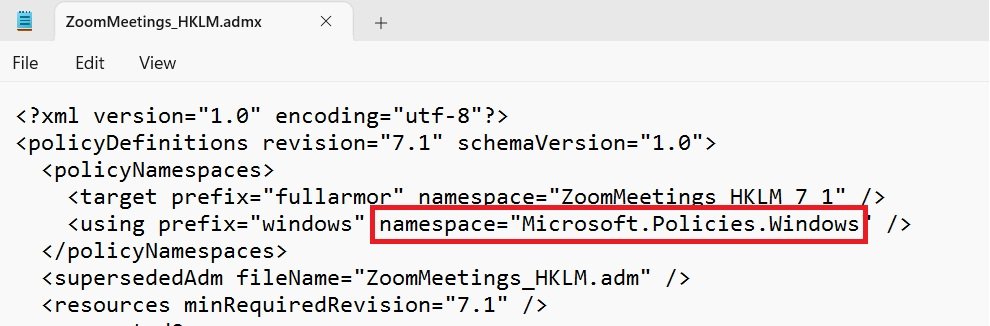
If the template references the Windows namespace, Windows.admx must be imported first.
4. Locate Microsoft Policy Definitions
The Microsoft Policy Definitions (ADMX) templates installed with Windows are located on a Windows computer under:
C:\Windows\PolicyDefinitions
The corresponding language file is normally located under the language folder:
C:\Windows\PolicyDefinitions\en-US\Windows.adml
For example:
C:\Windows\PolicyDefinitions\
│
├── Windows.admx
│
└── en-US\
    └── Windows.adml
Microsoft specifically notes that some custom ADMX files require Windows.admx as a prerequisite. In that situation, import Windows.admx before importing the dependent template.
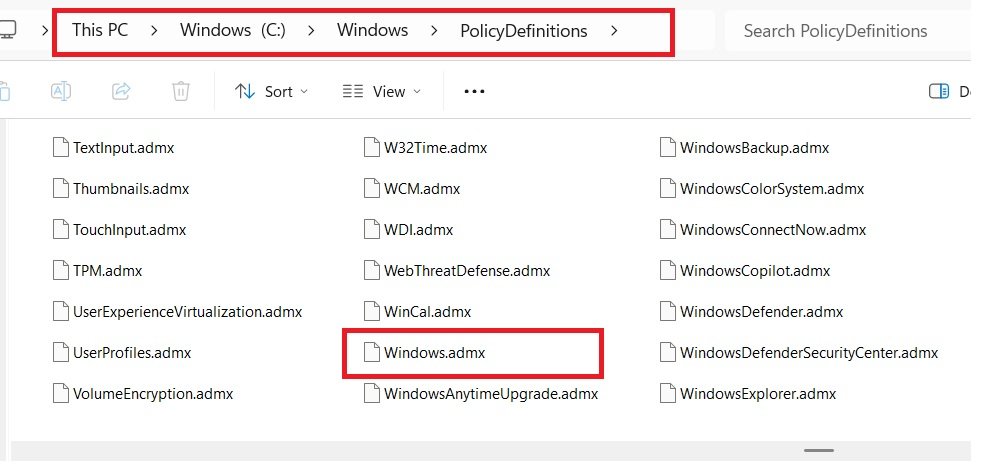
Important: Don’t import
Windows.admxsimply to configure Windows settings that are already available through Intune. Windows ADMX-backed settings are generally exposed through the Settings Catalog. ImportWindows.admxwhen it is required as a dependency for another ADMX template.
5. Prepare the files
For convenience, copy the required files to a local folder before starting the import.
For example:
C:\ADMXTemplates\
│
├── Windows.admx
├── Windows.adml
├── firefox.admx
└── firefox.adml
You don’t need to upload the files from this exact location. It is simply a convenient way to keep the templates organized.
Import ADMX and ADML Templates into Intune
Once the prerequisites are ready, you can import the templates. Import the dependency first and wait until its status shows Available before importing the dependent ADMX file.
When an ADMX template has dependencies, always import them in dependency order. We will import Windows.admx and ZoomMeeting.admx in this demonstration. The Zoom Meeting ADMX files are required for managing Zoom Meeting policies from Intune.
The same principle applies when a template requires Windows.admx:
Windows.admx
    ↓
Third-party ADMX
Step 1: Open the Intune admin center
- Sign in to the Microsoft Intune admin center and navigate to Devices > Configuration > Import ADMX
- Select +Import
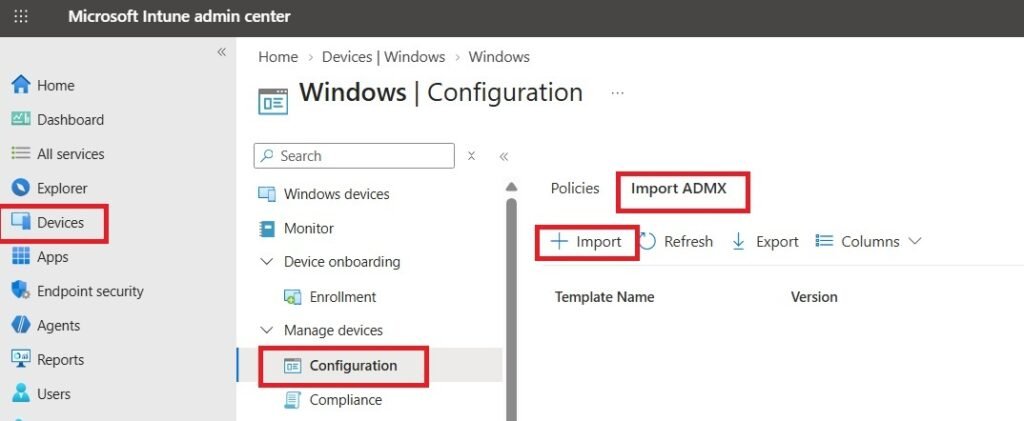
You will be prompted to upload the ADMX and ADML files.
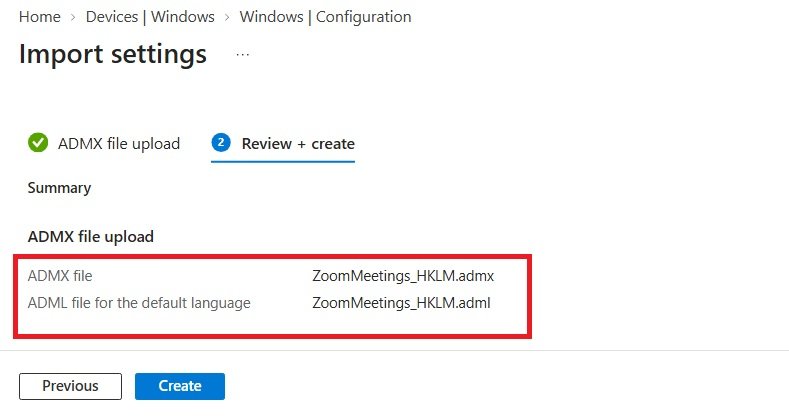
Step 2: Upload the ADMX file & ADML Files
- Under ADMX file, select the required
.admxfile. i.e ZoomMeetings_hklm.admx in this case. - Under ADML file for the default language, select the corresponding
.admlfile. i.e ZoomMeetings_hkml.adml in this case. - Click Next
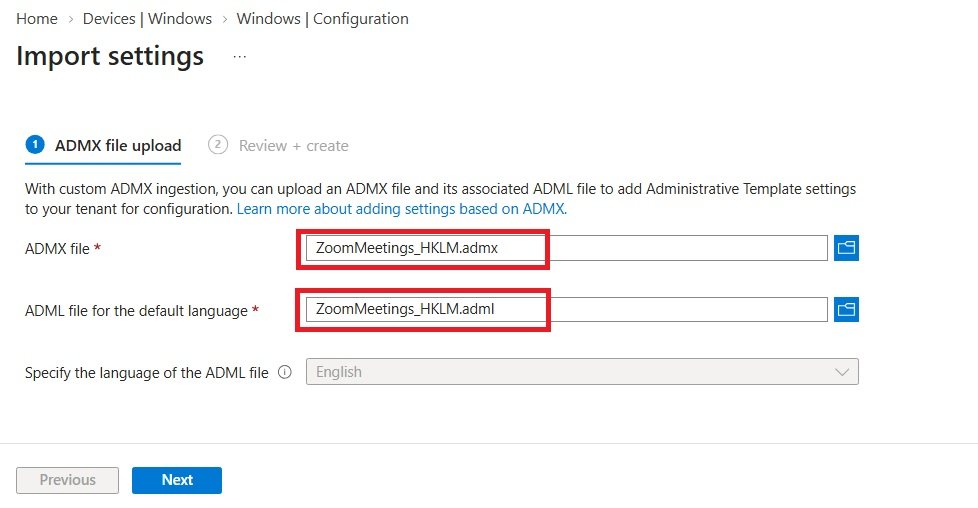
Step 3: Review and import
Review the information displayed by Intune on the Review + Create page, and select Create to start the import.
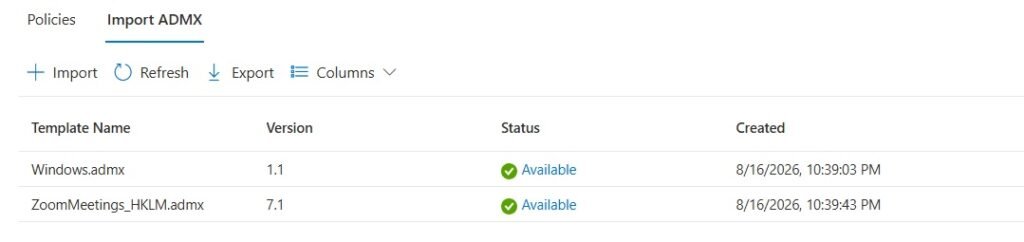
The imported template will appear under the Import ADMX section. It may take a short time for the status to become Available.
Verify the ADMX Import
Before troubleshooting policy deployment, verify that the template itself was imported successfully. To verify,
- Go to: Devices → Configuration → Import ADMX
- Locate the imported template and confirm that its status is: Available
If the status indicates an error, review the import details and check whether the template has an unresolved dependency.
Common ADMX Import Problems
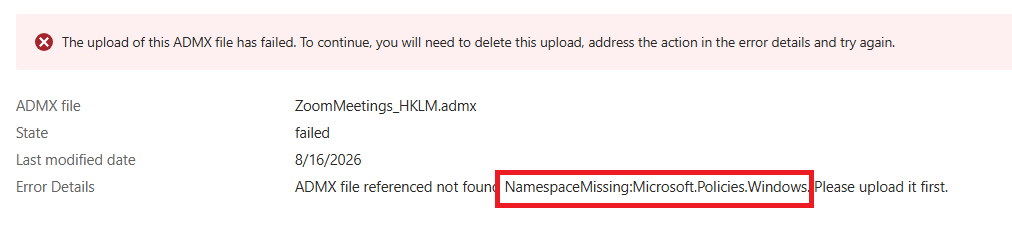
ADMX dependency is missing
Error:
ADMX file referenced not found NamespaceMissing:Microsoft.Policies.Windows. Please upload it first.
Cause:
The ADMX file references the Windows namespace, but Windows.admx hasn’t been imported.
Solution:
Import Windows.admx and Windows.adml first, wait for the status to become Available, and then import the dependent ADMX template.
ADMX already exists
If an ADMX containing the same settings or namespace has already been imported, uploading another version can fail.
To replace an existing template, Microsoft recommends deleting profiles that use the existing template, deleting the existing ADMX, and then importing the new version.
ADMX template contains unsupported settings
Not every ADMX feature is supported by the Intune custom ADMX import mechanism. For example, Microsoft currently documents limitations around certain setting types, including combo box settings.
Check the vendor’s template documentation and Microsoft’s current ADMX import limitations before troubleshooting the Windows client.
ADMX Import Best Practices
Keep these recommendations in mind when working with imported ADMX templates:
- Use the latest supported ADMX template from the software vendor.
- Always download the corresponding ADML file.
- Check the ADMX file for dependencies before importing it.
- Import dependencies before dependent templates.
- Use
Windows.admxonly when it is required as a dependency. - Test imported policies on a small group before production deployment.
- Avoid importing Windows ADMX files when the required setting is already available in the Settings Catalog.
- Keep a record of the ADMX template version used in your environment.
- Review vendor documentation before upgrading an existing ADMX template.
Conclusion
Importing ADMX and ADML templates allows Intune administrators to configure settings that aren’t available through the standard Settings Catalog. The process is straightforward, but understanding ADMX dependencies is important, particularly when a third-party template references Windows.admx or another vendor-specific template.
Before importing a template, check its policyNamespaces section, identify any dependencies, and import those dependencies first. Once the template shows Available, you can create an imported Administrative Template profile and deploy the settings to Windows devices.
Related Posts
- How to Enable Windows SSO in Firefox Using Microsoft Intune
- Configure Browser Home & Startup Page Using Intune Settings Catalog
- Configure Microsoft Edge Sleeping Tabs using Intune
Explore More Intune Guides
Continue building your Microsoft Intune skills with step-by-step tutorials covering device management, application deployment, automation, and troubleshooting.
- Microsoft Intune Learning – Explore comprehensive guides on device enrollment, compliance policies, application deployment, Windows updates, and more.
- Device Configuration Guides – Explore practical Microsoft Intune guides for configuring Windows and other devices, including device restrictions, browser settings, user experience, security, and system configuration.
