
The Windows Autopilot Device Preparation streamlines the device provisioning. However, sometimes things don’t go as planned, and you may encounter different issues. One common issue you may encounter is Error code: 0x80090010. This error often points to issues with the device’s TPM or cryptographic services. In this post, we will discuss the issues and possible solutions.
When Error 0x80090010 Appears During Windows Hello Setup
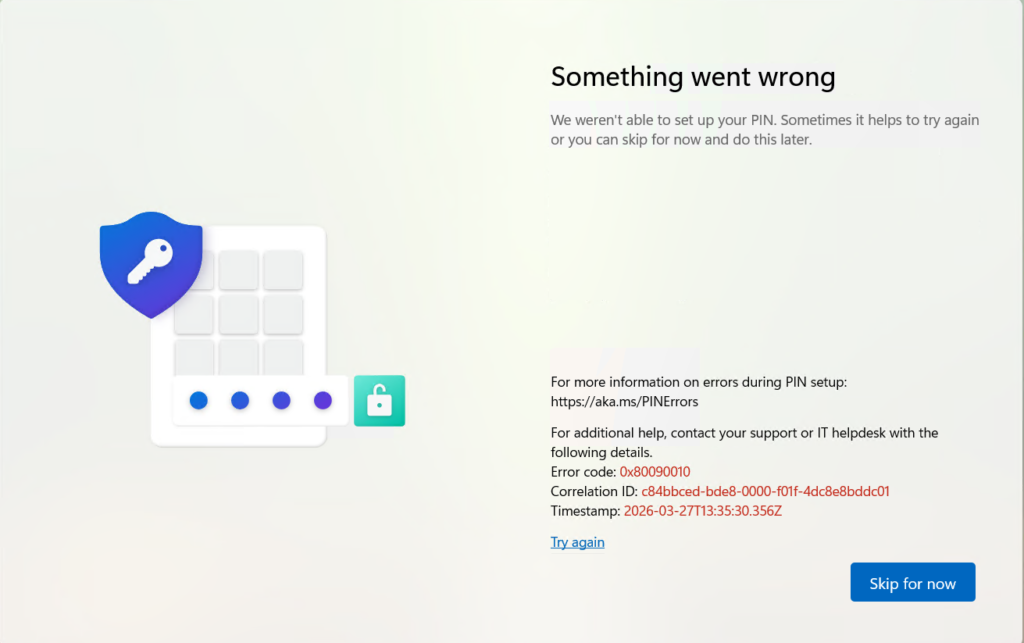
This error usually appears at the point where Windows Hello tries to create a PIN during Autopilot device preparation. Instead of completing the setup, the process fails and throws Error code: 0x80090010.
- Device enrollment or device preparation completes successfully.
- User is prompted to configure Windows Hello PIN (after MFA/2FA authentication).
- Authentication succeeds.
- During PIN provisioning, the process fails with the Something went wrong error 0x80090010.
Cause for Windows Hello for Business Error 0x80090010
The error 0x80090010 (NTE_PERM) is related to a permission or cryptographic key issue. In this case, it indicates a failure in Windows Hello for Business (WHfB) key provisioning, often due to TPM or Credential Manager access.
Common Causes for PIN Setup Failure
- TPM is not ready or inaccessible during WHfB provisioning.
- Corrupted existing PIN/credentials stored locally.
- Policy conflicts (e.g., Intune/Group Policy enforcing WHfB incorrectly).
- AAD/Hybrid join state mismatch – device is joined, but WHfB cannot finalize key binding.
- Residual enrollment artifacts from previous attempts.
- No TPM present – Standard Virtual Machines (VMs) don’t expose a hardware TPM to the guest OS.
- No vTPM configured – Even Hyper‑V, VMware, or Azure VMs need vTPM enabled to support WHfB.
Step-by-Step Fix for Error 0x80090010
Virtual Machines (VMs)
The standard virtual machines don’t expose a hardware TPM to the guest OS. Even Hyperv-V, vMware, or Azure VMs need a vTPM to support WHfB.
If you’re testing Intune/Autopilot enrollment flows in a VM, disable the WHfB policy for that test group. Otherwise, you’ll consistently hit 0x80090010 during PIN setup because the VM cannot provision the required keys.
If you have VMs in production, then enable the vTPM if supported. Otherwise, the VMs should be excluded from the policy to avoid inconvenience to the users.
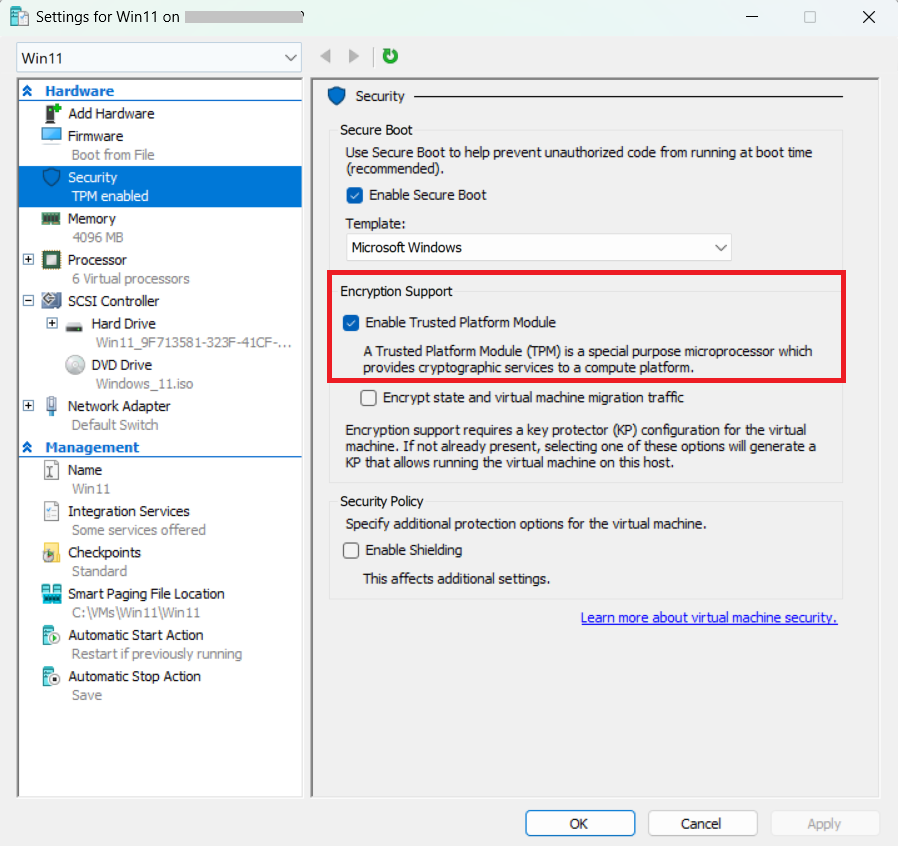
- Hyper‑V: Configure Shielded VM with vTPM.
- VMware: Add a Virtual Trusted Platform Module device.
- Azure: Use Generation 2 VMs with vTPM enabled.
The screenshot below shows how you can enable vTPM in HyperV.
Policy Validation
- Review Intune/Group Policy settings for WHfB.
- Temporarily disable the WHfB policy or exclude the device to confirm if PIN setup succeeds without enforcement.
Check TPM Health
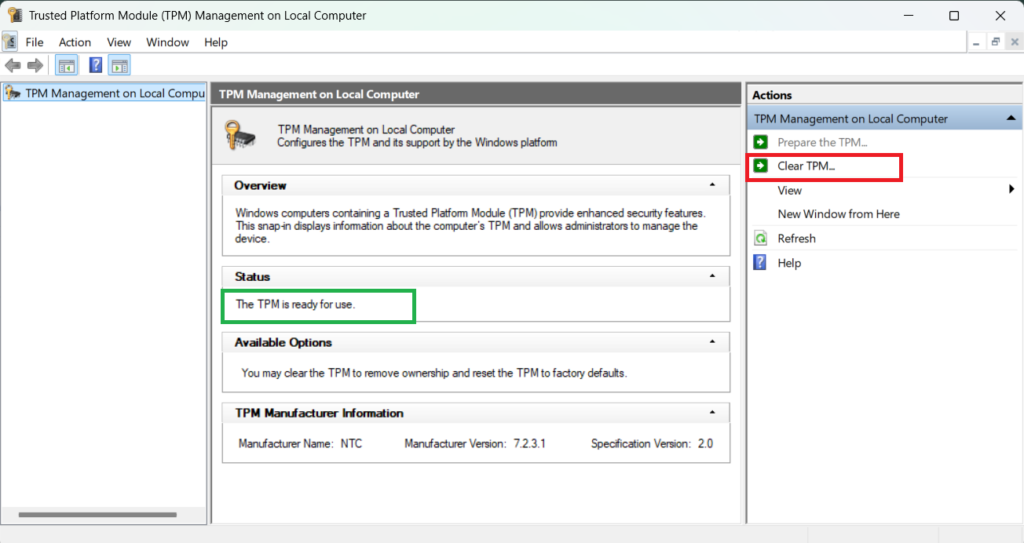
The issue may happen due to TPM corruption. Follow the steps below to check TPM health on a physical device (Laptop/Desktop).
- Run
tpm.mscand confirm TPM is enabled, ready, and owned. - If misconfigured, clear TPM and retry PIN setup.
Reset Windows Hello Credentials
Reset Windows Hello Credential from Settings Apps
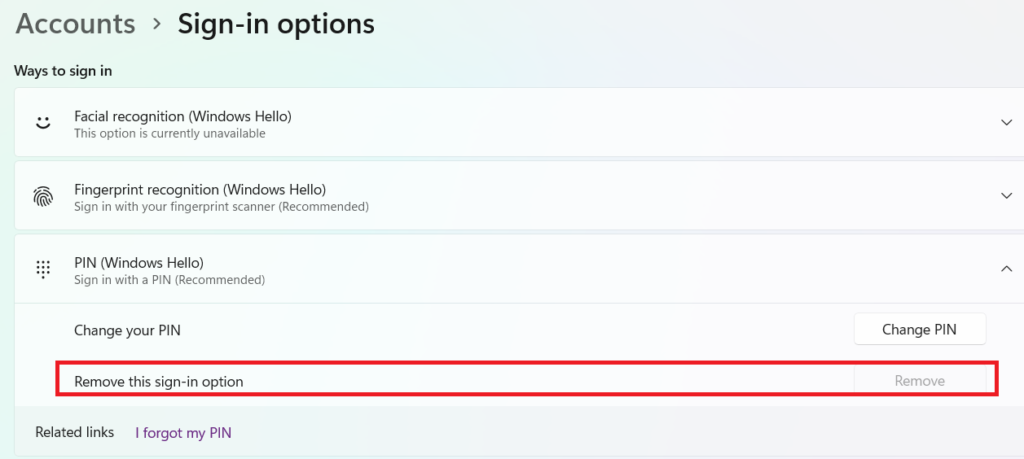
Follow the steps below to reset the Windows Hello credentials from the Settings app.
- Navigate to Settings > Accounts > Sign-in options.
- Remove existing PIN/Hello credentials.
- Reboot and reattempt PIN setup.
The Hard Reset
If removing the Windows Hello PIN from the Settings app does not work, this method clears the physical database where the credentials are stored.
Deleting the NGC (Next Generation Credentials) folder in Windows can fix issues with Windows Hello PIN login, such as errors saying “Something went wrong”, “your PIN isn’t available”. If you are unable to set, remove, or use a PIN. It essentially resets stored PIN and biometric credentials, forcing Windows to recreate them.
Steps to remove the NGC folder.
- Open File Explorer and go to:
C:\Windows\ServiceProfiles\LocalService\AppData\Local\Microsoft. - Right-click the Ngc folder and select Properties > Security > Advanced.
- Click Change next to the Owner, type
Everyone, and click OK. - Check the box “Replace owner on subcontainers and objects” and click Apply.
- Now, Delete everything inside the Ngc folder.
- Restart your PC and go to Settings > Accounts > Sign-in options to set up a new PIN.
Force Entra ID Rejoin for Device
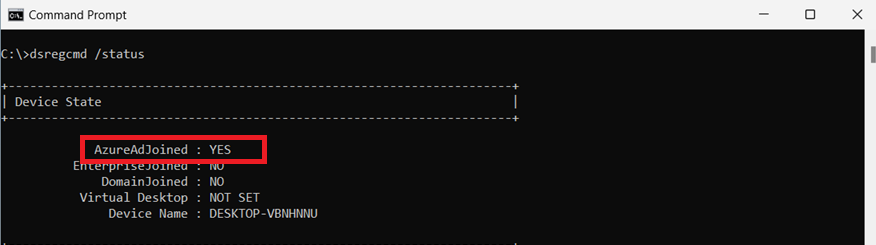
When a device shows inconsistent Azure AD/Entra ID join states, a forced rejoin often resolves authentication and token issues. By using the dsregcmd tool, administrators can quickly verify the join status, remove stale registrations, and re-establish a clean connection to Entra ID.
- Run
dsregcmd /statusto check the join state. - If inconsistent, run
dsregcmd /leave, and reboot the device. - Run dsregcmd /join to rejoin the device to Entra ID.
Check Event Logs
User Device Registration Logs (Entra ID Join Events)
For Windows Hello for Business (WHfB), the Microsoft > Windows > User Device Registration log in Event Viewer captures events tied to the device’s registration and trust establishment with Entra ID. These logs track the provisioning of WHfB keys, certificate issuance, and registration status, helping administrators diagnose why PIN or biometric setup may fail, or why a device isn’t properly recognized for WHfB authentication.
- Path: Event Viewer > Applications and Services Logs > Microsoft > Windows > User Device Registration > Admin
- Logs device registration events with Azure AD/Entra ID.
- Useful for troubleshooting WHfB provisioning and join issues.
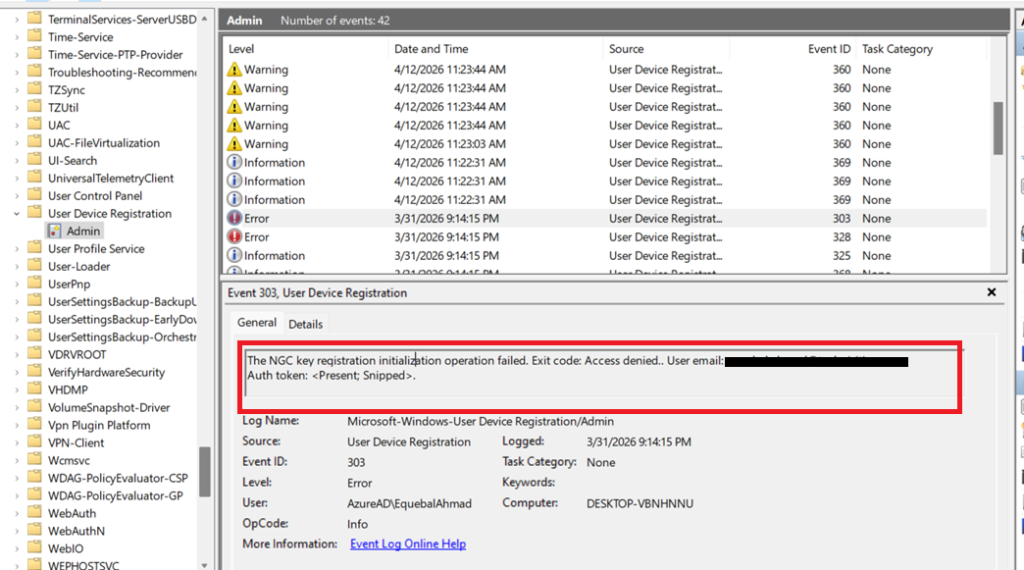
The event logs show the error below in this case:
The NGC key registration initialization operation failed. Exit code: Access denied.. User email: xyz@domain.com. Auth token: .<present,snipped>.
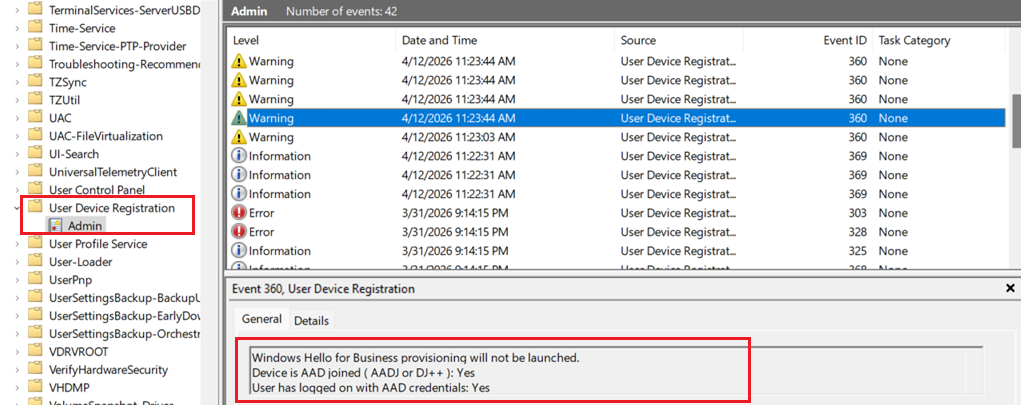
Another event log shows that WHfB provisioning was not launched.
Windows Hello for Business provisioning will not be launched.
Device is AAD joined ( AADJ or DJ++ ): Yes
User has logged on with AAD credentials: Yes
Windows Hello for Business policy is enabled: Yes
Windows Hello for Business post-logon provisioning is enabled: Yes
Local computer meets Windows hello for business hardware requirements: No
User is not connected to the machine via Remote Desktop: No
User certificate for on premise auth policy is enabled: No
Machine is governed by none policy.
Cloud trust for on premise auth policy is enabled: No
User account has Cloud TGT: Not Tested
Windows Hello for Business Logs (PIN & Key Provisioning)
- Path: Event Viewer > Applications and Services Logs > Microsoft > Windows > Hello-For-Business > Operational
- Dedicated WHfB log.
- Shows PIN setup, key generation, and authentication events.
- Best place to check if WHfB provisioning succeeded or failed.
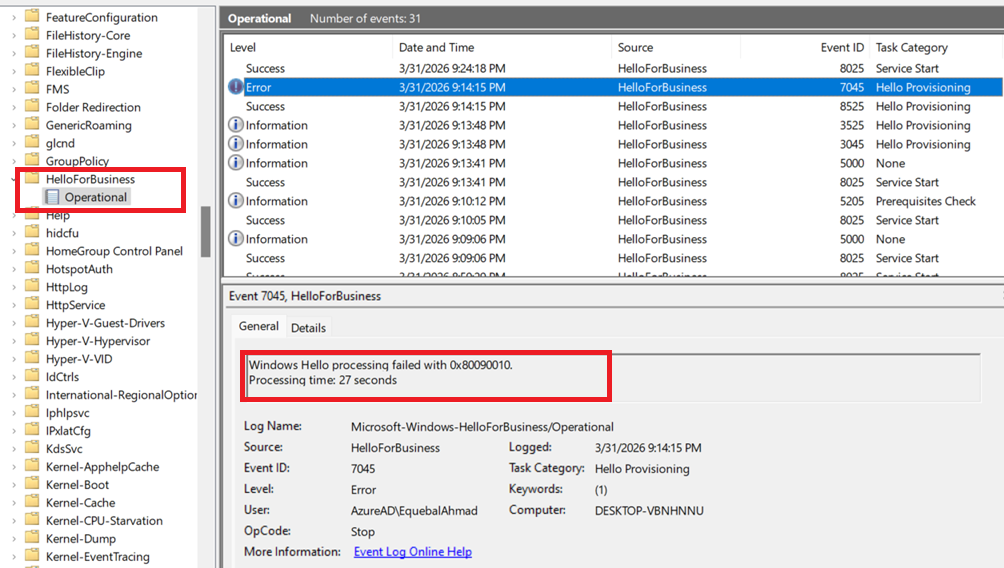
The logs show that Windows Hello provisioning failed.
Windows Hello processing failed with 0x80090010.
Azure AD Authentication Logs (PRT & Token Events)
- Path: Event Viewer > Applications and Services Logs > Microsoft > Windows > AAD > Operational
- Logs Azure AD authentication and token events.
- Helpful when WHfB sign-in fails due to Entra ID issues.
Authentication Logs (Sign‑in Attempts & Credential Use)
- Path: Event Viewer > Security > Authentication
- General authentication logs.
- Can show WHfB sign-in attempts alongside password or smart card logins.
Frequently Asked Questions (FAQs)
Why does Windows Hello fail with error 0x80090010 during Autopilot?
Windows Hello error 0x80090010 (NTE_PERM) usually occurs due to permission issues with the NGC folder, TPM-related problems, or misconfigured policies in Intune. During Windows Autopilot deployment, these issues can prevent successful PIN provisioning and cause Windows Hello setup to fail.
Can Intune policies cause Windows Hello error 0x80090010?
Yes, incorrect or conflicting Microsoft Intune policies are a common cause. Misconfigured Windows Hello for Business settings—especially when assigned at both user and device levels—can lead to provisioning failures and trigger the 0x80090010 error during Autopilot.
Related Posts
- Autopilot Device Preparation Error 80180003
- BitLocker : The encryption method of the OS volume doesn’t match the BitLocker policy
- Intune Bulk Enrollment with Provisional Package failed with Error 0xCAA2000C
- Fixing Windows Autopilot Error 0x80090010 During Windows Hello Setup
Explore More Intune Guides
Continue building your Microsoft Intune skills with step-by-step tutorials covering device management, application deployment, automation, and troubleshooting.
- Microsoft Intune Learning – Explore comprehensive guides on device enrollment, compliance policies, application deployment, Windows updates, and more.
- Windows Autopilot Guides – Continue exploring Windows Autopilot with related guides covering device enrollment, provisioning, deployment, troubleshooting, and post-deployment management.
