
This PowerShell script adds devices to an Entra ID group via a CSV file, streamlining device management. It reads a CSV containing device name, authenticates to Entra ID, and processes each entry, assigning devices to the specified group.
For an Intune admin, this script eliminates manual data entry, reducing errors and saving valuable time. It ensures consistency in device grouping, enhances policy enforcement, and simplifies large-scale deployments. By automating routine tasks, admins can focus on strategic IT initiatives rather than tedious administrative work.
Use Cases
This script is especially useful in scenarios where automation and scale matter:
- Bulk Group Assignment:
Add hundreds of devices to a security or configuration group without manually retrieving Object IDs. - Simplified CSV Input:
Instead of requiring Object IDs (as in the Intune portal import option), admins can simply provide device names in the CSV file. This makes preparation faster and less error-prone. - Policy Targeting:
Automatically assign devices to groups for conditional access, compliance policies, or application deployments. - Dynamic Onboarding:
New devices can be added to the CSV and rerun through the script, ensuring they are grouped correctly during onboarding.
Prerequisites
Before running the PowerShell script to add devices to an Entra ID group from a CSV file, ensure the following:
- Permissions:
- You must have Global Administrator, Intune Administrator, or Privileged Role Administrator rights in Entra ID.
- Modules:
- Install and import the Microsoft Graph PowerShell SDK (
Microsoft.Graphmodule).
- Install and import the Microsoft Graph PowerShell SDK (
- Authentication:
- Sign in to Microsoft Graph with sufficient privileges (
Connect-MgGraph).
- Sign in to Microsoft Graph with sufficient privileges (
- CSV File:
- Prepare a CSV file with a header row (
DeviceName) and the list of device names.
- Prepare a CSV file with a header row (
- Consistent Naming Convention:
- Ensure device names match exactly with those registered in Intune/Entra ID.
- Execution Policy:
- PowerShell execution policy should allow running custom scripts (
Set-ExecutionPolicy RemoteSigned).
- PowerShell execution policy should allow running custom scripts (
CSV File
The CSV file should contain the list of device names that you want to add to the Entra ID group. Make sure the file includes a header row and that each device name is listed on a separate line. Keep the CSV file in the script directory.
Example format:
DeviceName
EQUEBAL-LAPTOP
DT-430882
WIN11_VM2
PowerShell Script to Add Devices to Entra ID Group
Use the PowerShell script below to seamlessly add devices to an Entra ID group by referencing their names from a CSV file. This approach eliminates the need to manually look up and provide Object IDs, making bulk group assignments faster, more intuitive, and less error-prone. By preparing a simple CSV with device names, administrators can automate group membership updates and ensure consistent policy targeting across large environments.
$csvFilePath    = "$PSScriptRoot\devices.csv"
$groupName      = "Test-Group"
$logFilePath    = "$PSScriptRoot\DeviceGroupAdd.log"
$transcriptPath = "$PSScriptRoot\Transcript.log"

# Start transcript
Start-Transcript -Path $transcriptPath -Append

# Check if required module is installed
$graphModule = Get-Module -ListAvailable -Name Microsoft.Graph

if (-not $graphModule) {
    Write-Host "Required module is missing:" -ForegroundColor Red
    Write-Host " - Microsoft.Graph" -ForegroundColor Yellow
    Write-Host "`nPlease install the missing module before running this script." -ForegroundColor Cyan
    Write-Host "Example:" -ForegroundColor Cyan
    Write-Host " Install-Module Microsoft.Graph -Scope CurrentUser" -ForegroundColor Green
    Stop-Transcript
    Exit
}

Write-Host "Microsoft.Graph module is installed. Proceeding..." -ForegroundColor Green

# Connect to Microsoft Graph with required scopes
Connect-MgGraph -Scopes "Group.ReadWrite.All","Device.Read.All"

$devices = Import-Csv -Path $csvFilePath

# Get group by display name
$group = Get-MgGroup -Filter "displayName eq '$groupName'"
if (-not $group) {
    Write-Host "Error: Group '$groupName' not found in Entra ID." -ForegroundColor Red
    Stop-Transcript
    Exit
}
$groupId = $group.Id

$totalDevices = ($devices).Count
$sn = 1

Write-Host "Total Devices: $totalDevices" -ForegroundColor Yellow

# Initialize log file
"=== Device Group Assignment Log ===" | Out-File -FilePath $logFilePath

foreach ($device in $devices) {
    try {
        $deviceName = $device.DeviceName

        # Get all devices with same display name (handles duplicates)
        $deviceInfo = Get-MgDevice -Filter "displayName eq '$deviceName'" | Select-Object Id

        if ($deviceInfo) {
            foreach ($d in $deviceInfo) {
                $deviceGUID = $d.Id

                Write-Host -NoNewline "Device:$sn of $totalDevices, Device Name: $deviceName, ObjectID: $deviceGUID, Group Name: $groupName, ObjectID: $groupId, Status:" -ForegroundColor Cyan

                # Add device to group
                New-MgGroupMember -GroupId $groupId -DirectoryObjectId $deviceGUID
                Write-Host "Success" -ForegroundColor Green

                # Log success
                "SUCCESS: DeviceName=$deviceName, ObjectID=$deviceGUID added to Group=$groupName" | Out-File -FilePath $logFilePath -Append
            }
        }
        else {
            Write-Host "Error: Device not found - $deviceName" -ForegroundColor Red
            "ERROR: DeviceName=$deviceName not found in Entra ID" | Out-File -FilePath $logFilePath -Append
        }
    }
    catch {
        $message = $_.Exception.Message
        Write-Host "Error: $message" -ForegroundColor Red
        "ERROR: DeviceName=$deviceName failed with message: $message" | Out-File -FilePath $logFilePath -Append
    }

    $sn += 1
}

# Stop transcript
Stop-Transcript
Script Output & Logs
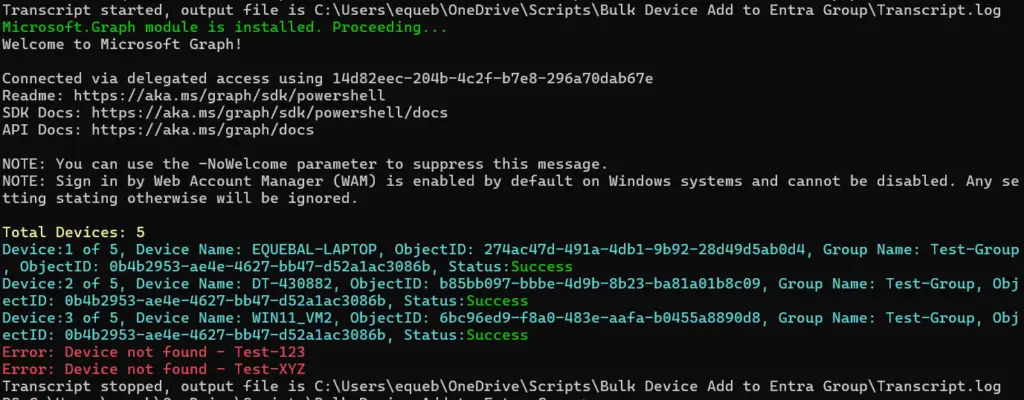
The Add Devices to Entra Group script produces clear, user‑friendly output that indicates whether a device was successfully added, already a member, or encountered an unexpected error. All execution details—including timestamps, group and device IDs, and success or failure messages—are captured in both a log file and a PowerShell transcript stored in the script folder. These records provide a complete trail of activity, making it easy to verify results and troubleshoot any issues by reviewing the saved logs and transcripts.
Download Script
Related Posts
- Powershell – Get System up time
- Powershell Script : List AD Organizational Unit and GPOs linked to them
- Powershell – Compare hardware and software details on two computers
- Powershell Script : Retrieve AD Computers Properties
- Powershell – Merge CSV files & Insert file name as a column
- Powershell Script: Validate if Computer account exists in Active Directory
- Powershell remote – WinRM cannot complete the operation
- Powershell script to Add bulk users / computers to AD Group
- PowerShell Script : Copy AD Group Membership
- Using PowerShell Behind a Proxy Server
Subscribe to Techuisitive Newsletter
Be the first to know about our new blog posts. Get our newsletters directly in your inbox and stay up to date about Modern Desktop Management technologies & news.