
In today’s fast‑moving digital world, keeping devices secure and updated is critical. But manually patching Windows and Microsoft 365 apps can be a heavy burden for IT teams. That’s where Windows Autopatch comes in. It’s a cloud-based service built into Microsoft Intune that automates updates and makes patch management simple.
This guide will cover:
- The key features of Windows Autopatch
- How it change the way patching is done
- The essential configuration steps to set it up
- Tips for monitoring and troubleshooting to keep everything running smoothly
What is Windows Autopatch?
Windows Autopatch is a “set-and-forget” service that leverages Microsoft’s expertise to deliver timely updates for:
- Windows 10/11 Quality Updates: Monthly security and non-security fixes.
- Windows 10/11 Feature Updates: Annual releases that bring new features and improvements.
- Microsoft 365 Apps for enterprise: Updates for Word, Excel, PowerPoint, Outlook, etc.
- Microsoft Edge: The latest browser updates.
- Microsoft Teams: Ensuring your collaboration tools are always current.
- Drivers and Firmware: Crucial updates for device stability and performance.
The core idea is to offload the heavy lifting of update management to Microsoft, allowing your IT team to focus on more strategic initiatives.
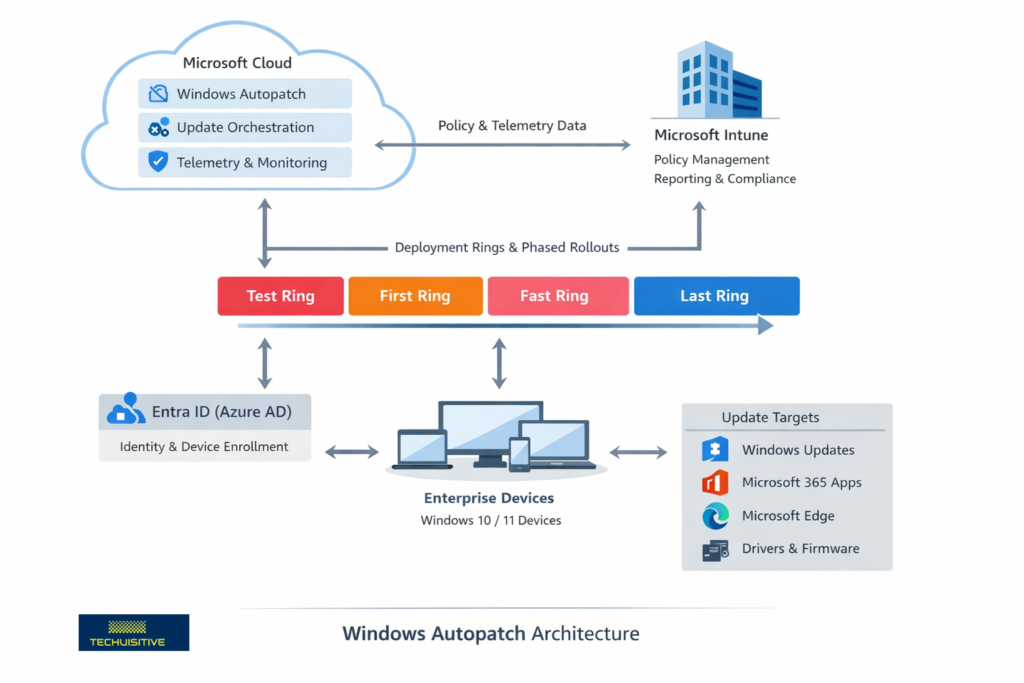
How Does Windows Autopatch Improve the Patching Process?
Windows Autopatch brings a host of benefits that significantly enhance your patching strategy:
Automated Patch Deployment
No more manual scheduling or pushing updates. Windows Autopatch takes care of the whole process—from testing to deployment—covering different update types automatically.
Phased Rollouts with Deployment Rings
Autopatch uses “deployment rings” (Test, First, Fast, Last by default) to roll out updates step by step. Updates go to a small group first, issues are monitored, and only then are they expanded to the wider organization. If problems appear, Autopatch can pause the rollout automatically.
Reduced IT Overhead
By automating patch cycles, Autopatch saves IT teams time and effort. This lets them focus on innovation and higher‑value projects instead of routine update management.
Improved Security and Compliance
Devices stay up to date with the latest security patches, closing vulnerabilities quickly and helping organizations meet compliance requirements. Microsoft aims to keep at least 95% of devices on the latest quality update.
Minimized End‑User Disruption
Autopatch respects active hours and handles reboots intelligently, so updates have minimal impact on productivity. With Hotpatch for Windows 11, many quality updates can be applied without a reboot.
Built‑in Intelligence and Telemetry
Microsoft uses telemetry from millions of devices to detect and pause problematic updates, preventing issues from spreading across your environment.
Centralized Management and Reporting via Intune
While Microsoft manages the orchestration, admins still have full visibility in the Intune admin center, with detailed reports on update status, compliance, and device health.
Prerequisites
Before you can use Windows Autopatch, ensure your environment meets the prerequisites and follow these key configuration steps:
- Licensing: Your users must have eligible licenses, such as Windows 10/11 Enterprise E3 (or higher), F3, or Microsoft 365 Business Premium, A3, or A5.
- Microsoft Entra ID P1 or P2.
- Microsoft Intune: Devices must be enrolled in Intune, and Intune must be set as the Mobile Device Management (MDM) authority, or co-management must be enabled.
- Corporate-Owned Devices: Autopatch primarily supports corporate-owned devices.
- Network Connectivity: Devices require connectivity to various Microsoft service endpoints. Ensure your firewalls and proxies allow the necessary traffic.
- Device Health: Devices must be powered on, have network access, and check in with Intune regularly.
Step-by-Step Guide to Create Autopatch Policies
Create Entra ID Group for Autopatch Device Registration
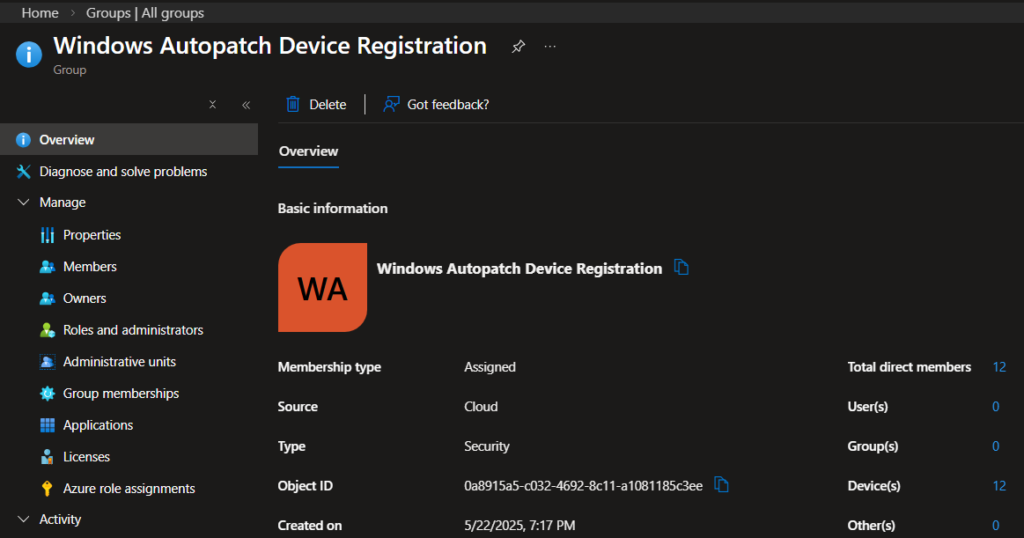
An Entra ID group is required to register Windows devices to the Windows Autopatch service. The group can be either assigned or Dynamic. Windows Autopatch scans these groups to discover eligible devices, automatically enrolling them for management and applying relevant update policies.
While you can have a dynamic group, the assigned group offers more flexibility, as you can add the device directly or add another dynamic group as a member.
Create a group and give it a meaningful name, such as “Windows Autopatch Device Registration”.
Enable Windows Autopatch
To start using the service, you must create an update policy owned by Windows Autopatch. The update policy can be one of the following:
- Update rings
- Windows quality updates
- Windows feature updates
- Driver and firmware updates
Follow the steps below to create a Windows Autopatch policy.
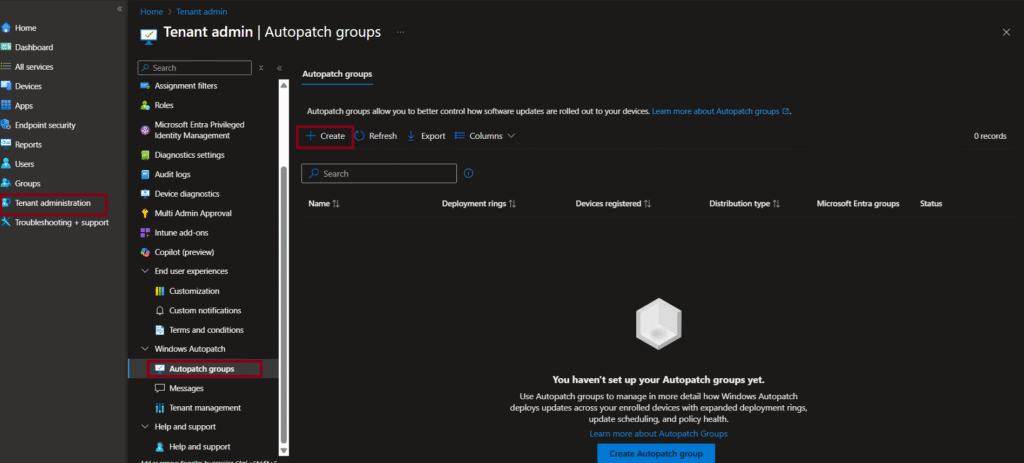
- On the Intune Admin Center, navigate to Tenant administration/Windows Autopatch/Autopatch groups.
- Select +Create to create a Windows autopatch policy.
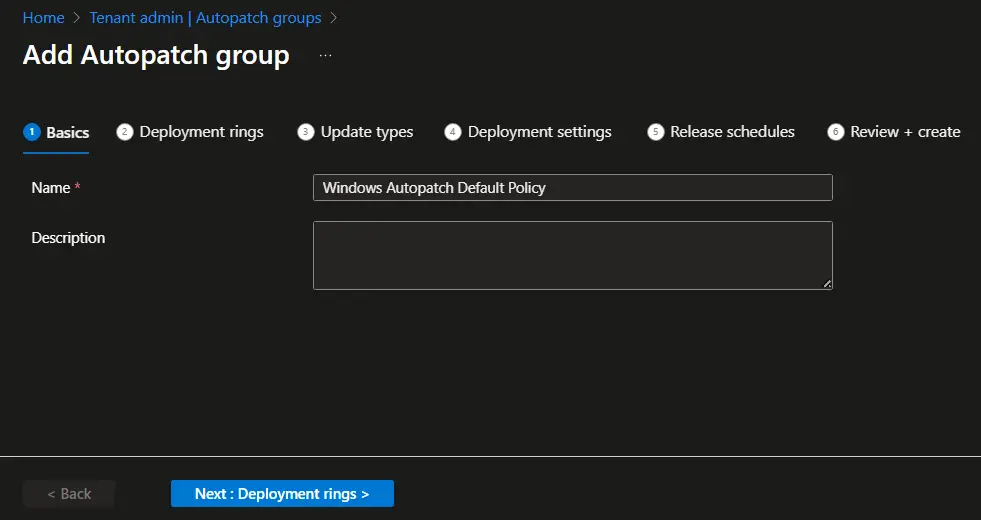
- On the Basics page, enter the policy name and description. Please note that the policy name will be used in the deployment rings, configuration policies, and groups created by Autopatch. Hence, use a meaningful name to avoid misunderstanding at a later stage.
- Perform the following steps on the Deployment rings page.
- Select Add group and select the autopatch device registration group you created earlier.
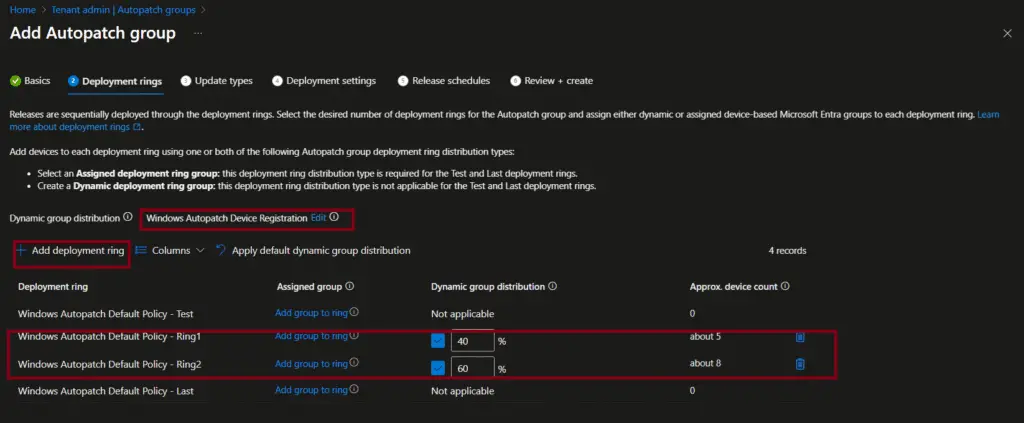
- Click on Add deployment ring to add additional deployment rings. The Test and Last deployment rings are created by default. You can manually add the device to the Test and Last rings. Other ring memberships will be managed automatically by Windows Autopatch.

- You should now see a screen similar to the one below. The sum of the Dynamic group distribution field must be 100 percent. You can see that we have configured to distribute 40% of the devices on the first ring and the remaining 60% in the second ring. You may start with even a much lower percentage in a production environment.
- Click ‘Next’ to proceed to the Update Types page.
On the Update Types page, select the additional update types. The Quality update is selected by default and cannot be unchecked. Choose additional update types, such as feature updates, driver updates, Microsoft 365 App updates, and Microsoft Edge updates.”

On the Deployment Settings page, you can adjust the available settings. The Quality update settings can be modified on the next page. For the Feature updates, select the target Windows version you want to make available.

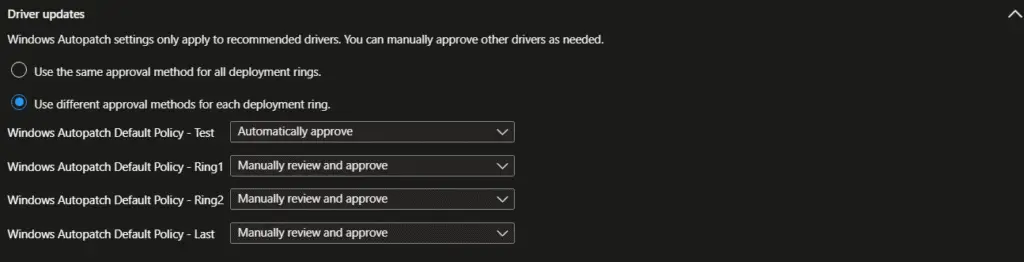
The Driver updates settings can be updated if required. You can either have the same approval method for all deployment rings or configure different options for each deployment ring.
The configuration for Microsoft 365 apps updates cannot be configured on this page. You can make the adjustments on the next page.

For Microsoft Edge updates, you can either have the same channel for all deployment rings or configure a different channel.

On the Release Schedules page, you can apply different release schedule presets. The settings will be updated based on the release schedule preset you selected. The following release schedule presets are available.
- Informational worker
- Shared device
- Kiosks and Billboards
- Reboot – Sensitive device

On the Review + create page, review the settings and click on the Create button to create the autopatch policies and groups.

Review the policies and Groups created by Windows AutoPatch
Windows Autopatch sets up various policies, groups, and configuration profiles to automate and streamline the process of updating Windows and Microsoft 365 applications. Let’s review these policies, groups, and configuration profiles that were created by Windows Autopatch.
Let’s see the Update rings first. Windows Autopatch created four update rings based on the configuration we selected earlier. The policies are:
- Windows Autopatch Update Policy – Windows Autopatch Default Policy – Test
- Windows Autopatch Update Policy – Windows Autopatch Default Policy – Ring1
- Windows Autopatch Update Policy – Windows Autopatch Default Policy – Ring2
- Windows Autopatch Update Policy – Windows Autopatch Default Policy – Last

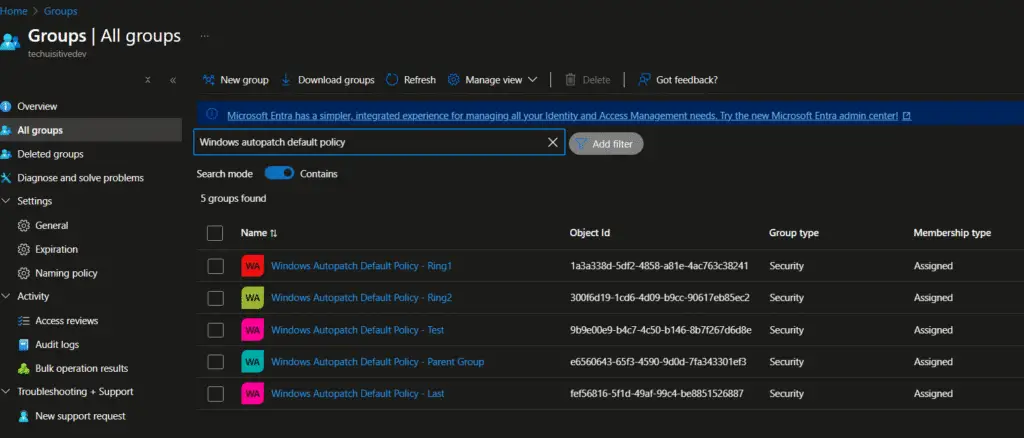
Windows Autopatch also created corresponding Entra ID groups for each update ring.
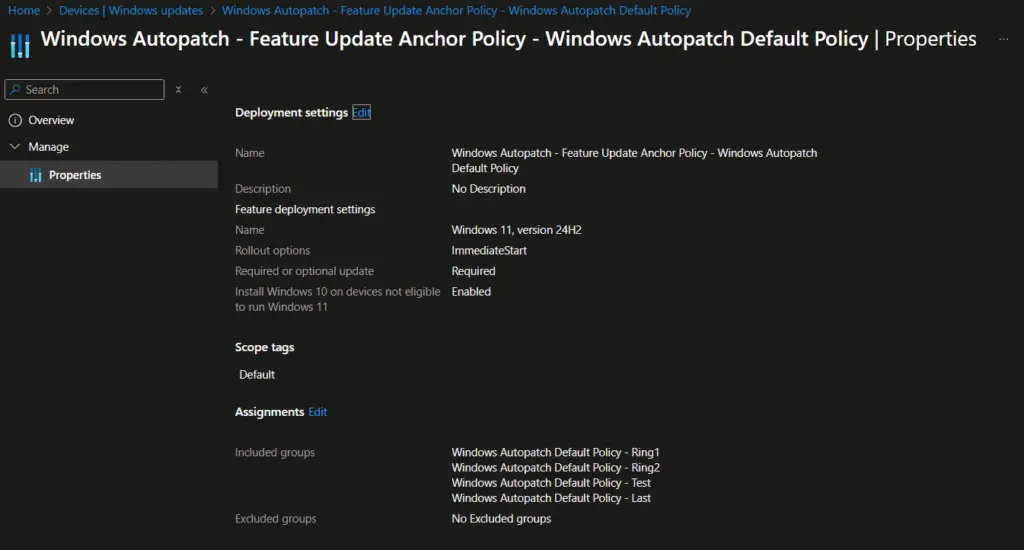
A policy to enable Feature update deployment was also created with the settings configured earlier.
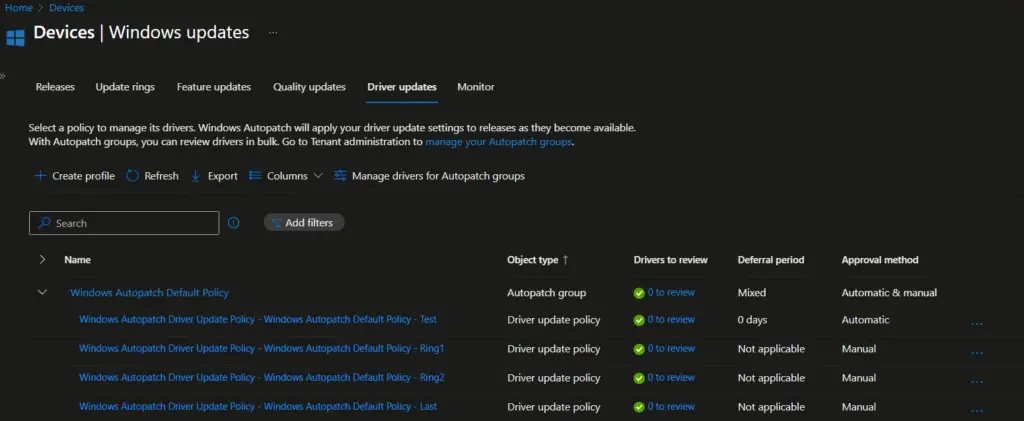
The next one is driver update policies. Similar to the updated rings, the four drivers’ update policies were created to automate driver management through Intune.
We have selected Microsoft Edge and Microsoft 365 apps updates as well during the Windows Autopatch configuration. Hence, the policies for Microsoft Edge and M365 Apps are also created. However, these updates are managed through Device configuration/Setting catalog policies.
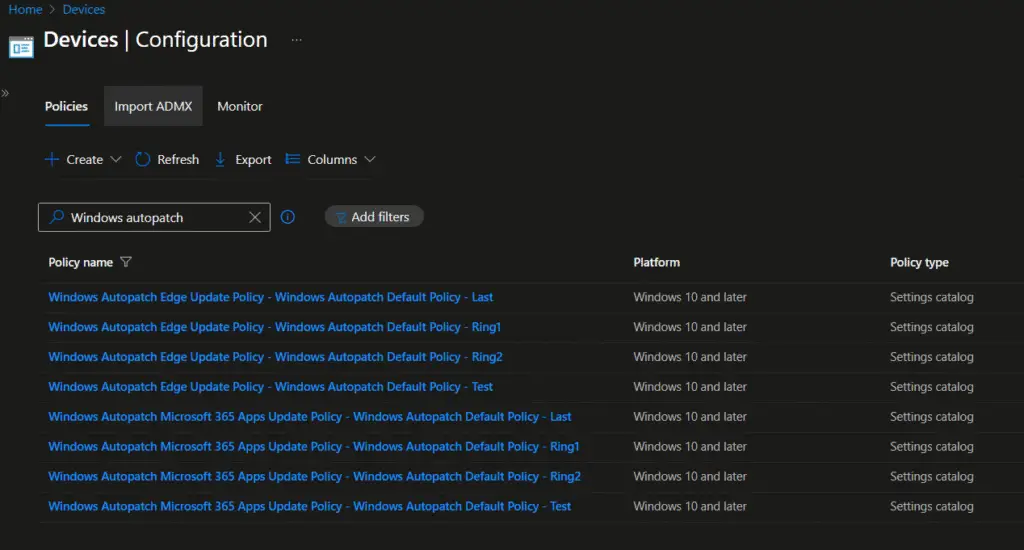
The following settings are configured in Microsoft Edge update policies.
MDM Win over GPO: This setting overrides the GPO settings to avoid policy conflicts.
Target Channel (Device) : Stable
Target Channel Override: Enabled

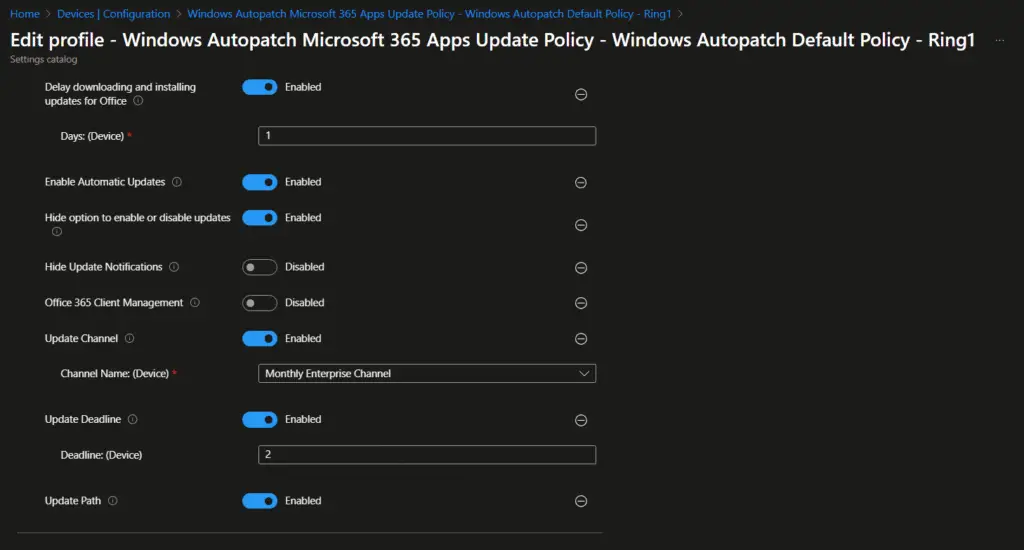
Similarly, the following settings have been configured for the Microsoft 365 Apps update policy.
MDM Win over GPO: This setting overrides the GPO settings to avoid policy conflicts.
Device downloading and installing updates for office: Enabled
Enable Automatic Update: Enabled

- Hide option to enable or disable updates: Enabled
- Hide Update Notification: Disabled
- Office 365 Client Management: Disabled
- Update channel: Enabled
- Channel Name: Monthly Enterprise Channel
- Updated deadline: Enabled
- Deadline: 2 days
- Update path: Enabled
Your Intune environment is now configured for Windows Autopatch. You can follow this guide to understand how to monitor and troubleshoot Windows Autopatch-related issues: How to Monitor and Troubleshoot Windows Autopatch Issues
Conclusion
Windows Autopatch with Intune makes patch management easier by automating updates for Windows, Microsoft 365 apps, Edge, Teams, and even drivers. Instead of relying on manual scheduling, Autopatch uses deployment rings (Test, First, Fast, Last) to roll out updates step by step. This phased approach reduces risk, improves security, and ensures devices stay compliant.
For IT teams, Autopatch means less routine work and more focus on innovation. Microsoft leverages telemetry from millions of devices to detect and pause problematic updates, keeping environments stable. At the same time, admins retain full visibility through the Intune admin center, with detailed reporting on update status, compliance, and device health. In short, Autopatch delivers a balance of automation, security, and productivity, making it a valuable tool for modern endpoint management.
Frequently Asked Questions (FAQs)
What is Windows Autopatch?
Windows Autopatch is a cloud-based service from Microsoft that automates updates for Windows, Microsoft 365 apps, Edge, Teams, and drivers/firmware. It’s integrated with Intune, so IT admins can manage updates centrally without manual patching.
How does Autopatch improve patch management?
Autopatch uses deployment rings (Test, First, Fast, Last) to roll out updates gradually. This phased rollout reduces risk, ensures devices stay secure, and minimizes disruption for end users. Updates can even be paused automatically if issues are detected.
What are the requirements for using Autopatch?
Devices must be enrolled in Microsoft Intune, registered with Microsoft Entra ID (Azure AD), and meet Windows 10/11 compatibility. Proper licensing such as Microsoft 365 E3/E5 or equivalent is also required.
How does Autopatch benefit IT teams?
By automating patch cycles, Autopatch reduces IT overhead. Admins spend less time on routine updates and more time on innovation. They also retain full visibility through the Intune admin center, with detailed reporting on update status, compliance, and device health.
How does Autopatch improve security and compliance?
Autopatch ensures devices are consistently updated with the latest security patches, closing vulnerabilities quickly. Microsoft aims to keep at least 95% of devices on the latest quality update, helping organizations meet compliance requirements while maintaining a secure environment.
Related Posts
- Understanding Windows Autopatch with Intune
- Manage Edge Chromium favorites with Endpoint Manager | Intune
- Configure Edge Chromium Homepage & Startup Page
- Configure Microsoft Edge Sleeping Tabs using Intune
- Configure Google Chrome settings using Administrative templates | Intune | Endpoint Manager
- Block USB Device with Exception
- Deny Write Access to USB Devices Using Intune Catalog Settings
- Manage Windows 10 /11 Desktop Wallpaper with Microsoft Intune
- Manage Local Admin Password with Intune & Windows LAPS
- How to Create a Custom RBAC Role in Intune for LAPS Password Administrator
Explore More Intune Guides
Continue building your Microsoft Intune skills with step-by-step tutorials covering device management, application deployment, automation, and troubleshooting.
- Microsoft Intune Learning – Explore comprehensive guides on device enrollment, compliance policies, application deployment, Windows updates, and more.
- Device Configuration Guides – Explore practical Microsoft Intune guides for configuring Windows and other devices, including device restrictions, browser settings, user experience, security, and system configuration.
