
Windows Driver Update Management in Microsoft Intune allows you to manage the drivers for Windows devices. You can review, approve, and pause the deployment of driver updates on managed Windows 10 and Windows 11 devices. Microsoft Intune and Windows Update for Business deployment service identify the required drivers for the devices based on the driver update policy assigned. These Intune features simplify driver update management, reduce manual effort, and enhance control over device updates.
Windows Driver Update Management is available with Intune Plan 1. Driver updates are supported for Windows 10/11 Enterprise, Education, and Microsoft 365 Business Premium devices.
Key Takeaways
Centralized driver control – Intune lets admins manage Windows driver updates directly, reducing manual effort.
Approval flexibility – Policies can be set for manual or automatic driver approvals, balancing safety and efficiency.
Pilot-first strategy – Separate pilot and production policies to ensure updates are tested before broad rollout.
Visibility through reporting – Built-in driver update reports provide clear insights into approvals, installations, and issues.
Allow Windows driver updates through Software Updates Ring
Before you create a driver update policy, you need to ensure that the Windows drivers update option is set to Allow in the Update ring settings.

Create Drivers Update Policy
The next step is to create a driver update policy. The driver update policy determines which drivers would be deployed on the devices. You can create more than one driver update policy. For example, you want to test the driver update on a small number of devices before the production rollout. You can have a separate policy for pilot and production deployment.
Follow the steps below to create a driver update policy.
- On the Intune admin center, navigate to the Devices > Windows Updates blade
- Select the Driver Updates tab, and then select Create profile
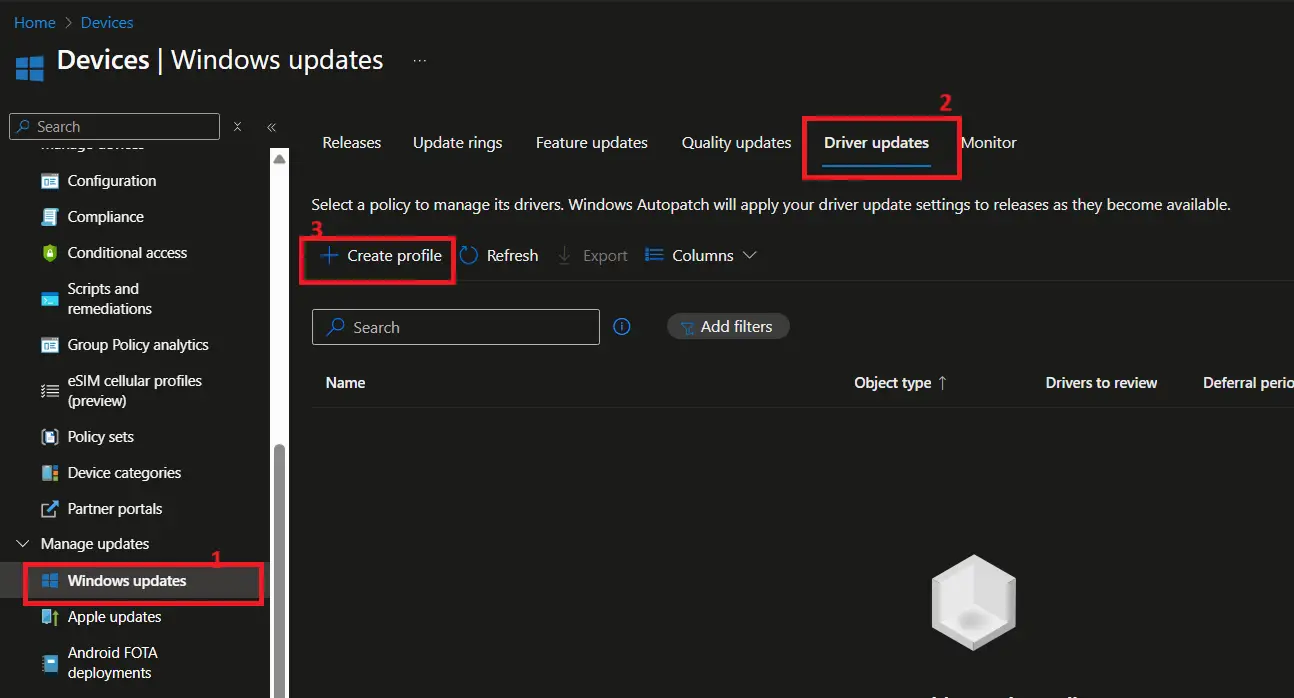
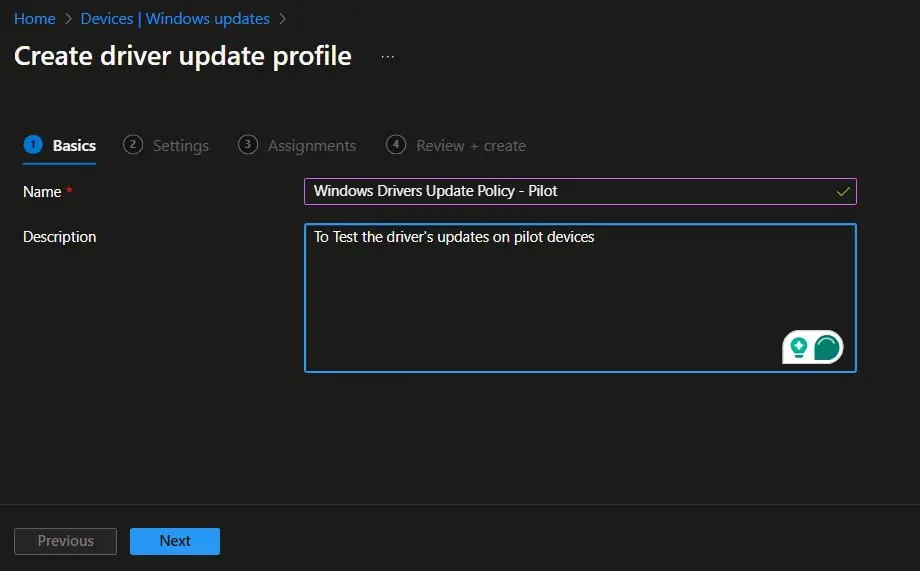
On the Create Driver update profile > Basics page, enter a suitable name and description for the profile and click on Next.
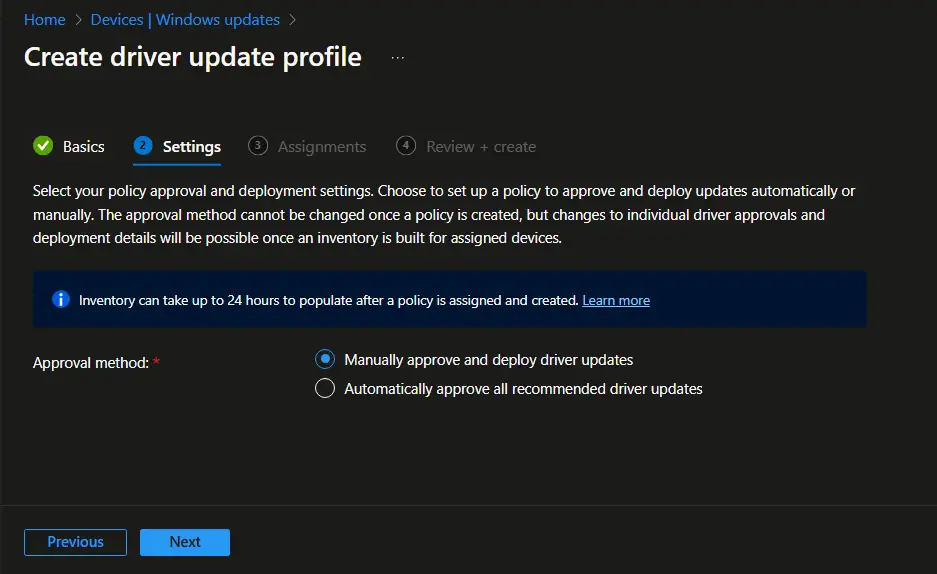
Select one of the options on the Settings page. These options determine whether you approve each driver manually or allow Intune to deploy recommended drivers automatically. The approval method cannot be changed once the policy is created. However, you can change the approval state of individual drivers. If you want to change the approval method for a policy, then you need to create a new driver update policy.
- Manually approve and deploy driver updates
- Automatically approve all recommended driver updates
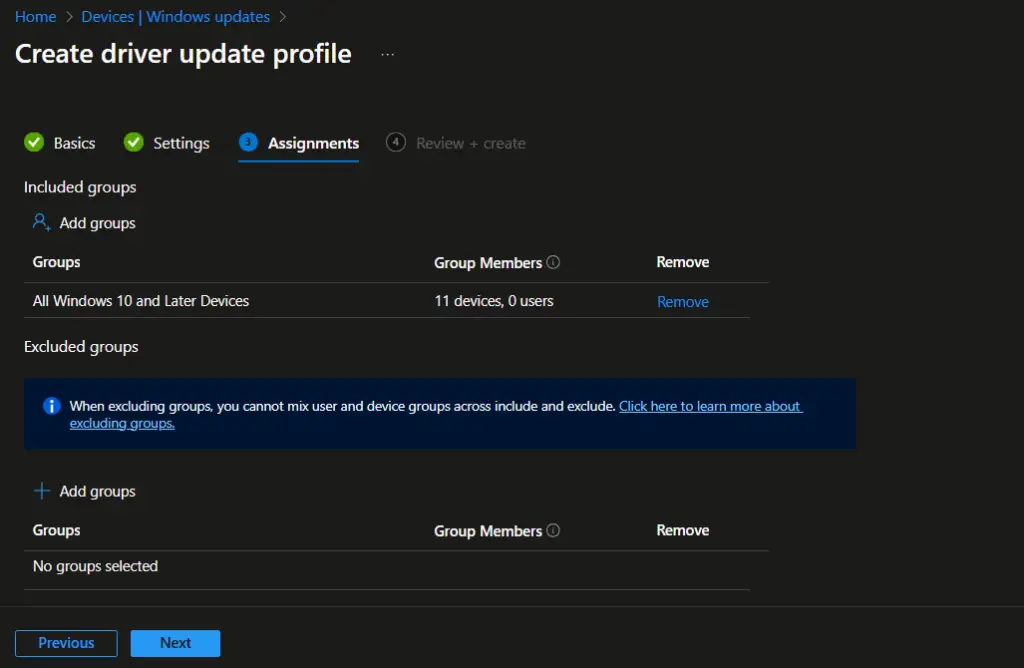
On the Assignment page, assign the policy to an Entra ID group. Select Next to move to the Review page.
You can also exclude the groups from the assignment.
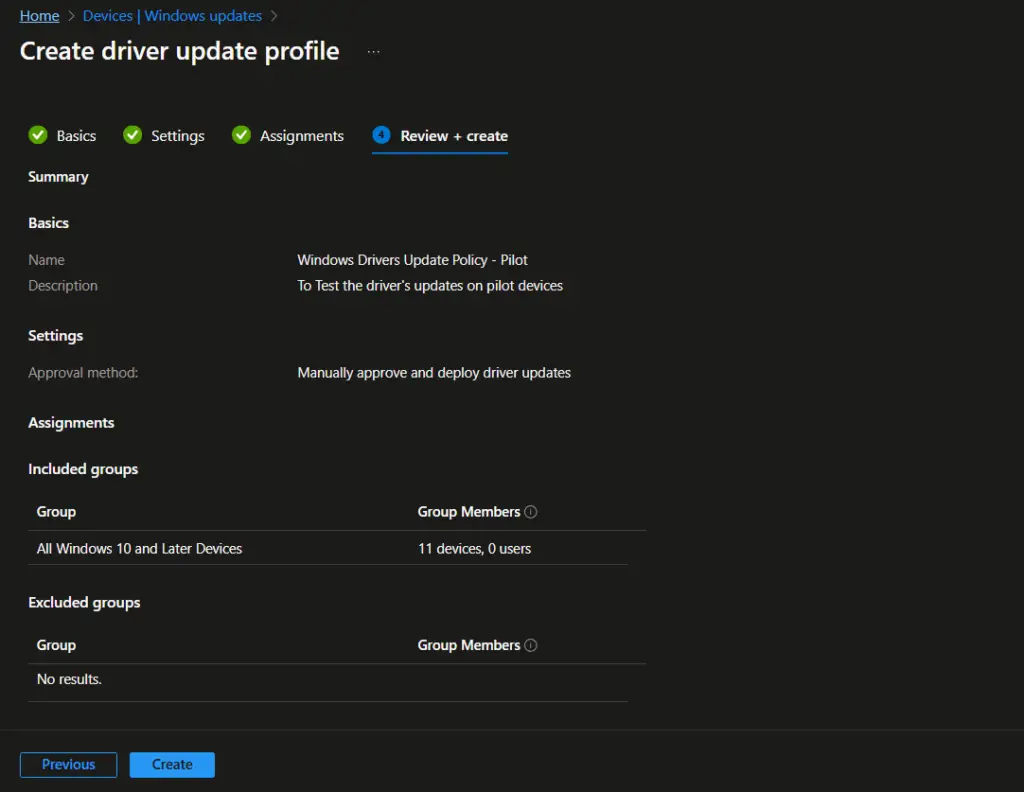
On the Review + Create page, review the policy settings. If everything looks good, then select Create to complete the policy creation process. You can select the Previous button to go back if any changes are required in the policy.
Review and Approve Drivers
Once an Intune driver update policy is configured and applied, the device syncs with Intune to receive the driver update policy. Intune communicates with Windows Update to identify applicable driver updates for the device. Initially, you may not see any drivers under Drivers to review for the policy you created, as the driver identification process takes time.
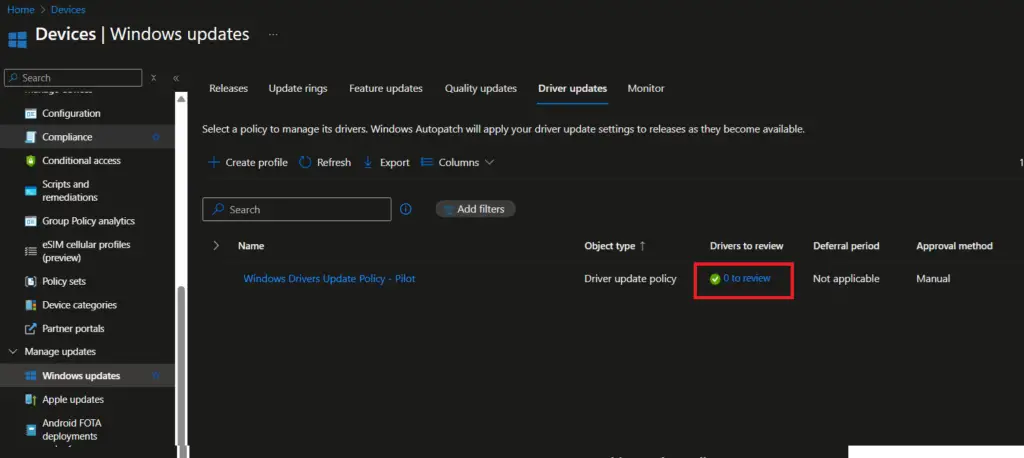
Once the scan is completed and data syncs with Intune, you will see the number of drivers to review. Click on the <x to review> column under Drivers to review column.

Driver Version Management in Intune
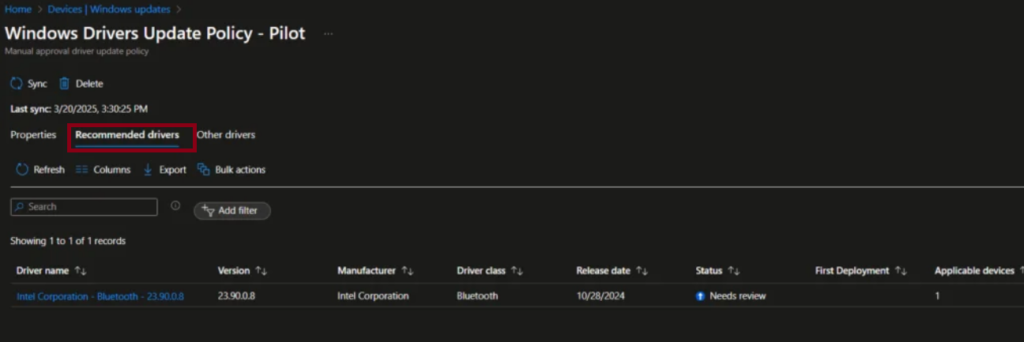
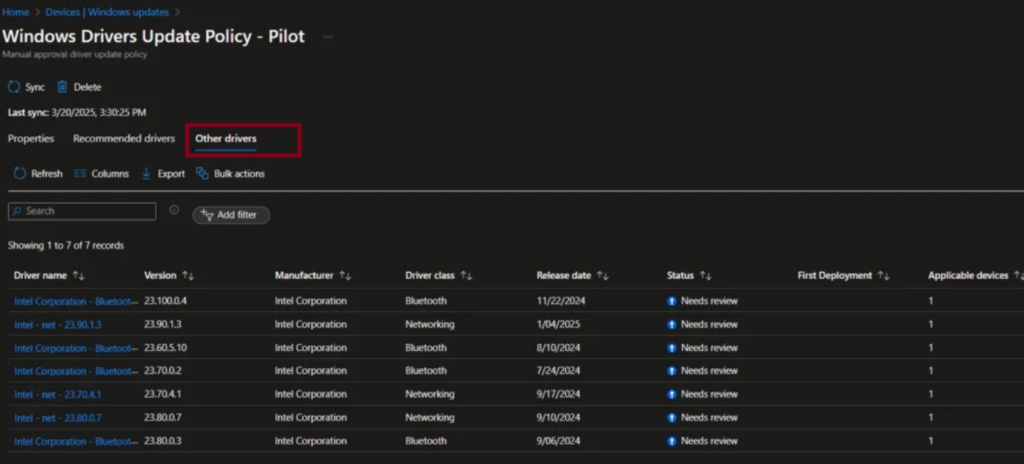
You will now see two tabs, Recommended drivers and Other drivers. The latest driver updates published by the driver publisher are visible on the Recommended Drivers page.
- Older drivers are archived: The older driver versions are automatically moved to the Other Drivers page in Intune. This keeps the active driver list clean and focused on current deployments.
- Automatic version updates: Intune intelligently detects when a new driver version is available and automatically picks the latest driver for deployment.
- Streamlined lifecycle management: Admins don’t need to manually track or replace outdated drivers—Intune ensures devices always receive the most up‑to‑date, approved versions.
- Reduced risk of compatibility issues: By maintaining only the latest drivers in deployment, Intune minimizes conflicts and ensures smoother device performance.
- Visibility and control: Even though older drivers are moved to the Other Drivers page, admins can still review them for historical context or troubleshooting.
Approving a Driver Update in Intune
To approve a driver update in Microsoft Intune:
- Locate the driver
- Navigate to the Driver name column in the Intune admin center.
- Select the driver you want to manage.
- Open the Manage Driver flyout
- This window provides available actions for the selected driver.
- Choose the action: Approve
- Click Approve to authorize deployment of the driver update.
- This ensures the driver is validated and ready for rollout.
- Set availability in Windows Update
- Under Make available in Windows Update, select a specific date.
- This date determines when the driver update becomes visible to end‑user devices for installation.
- Scheduling availability allows admins to control rollout timing, align with maintenance windows, and minimize disruption.
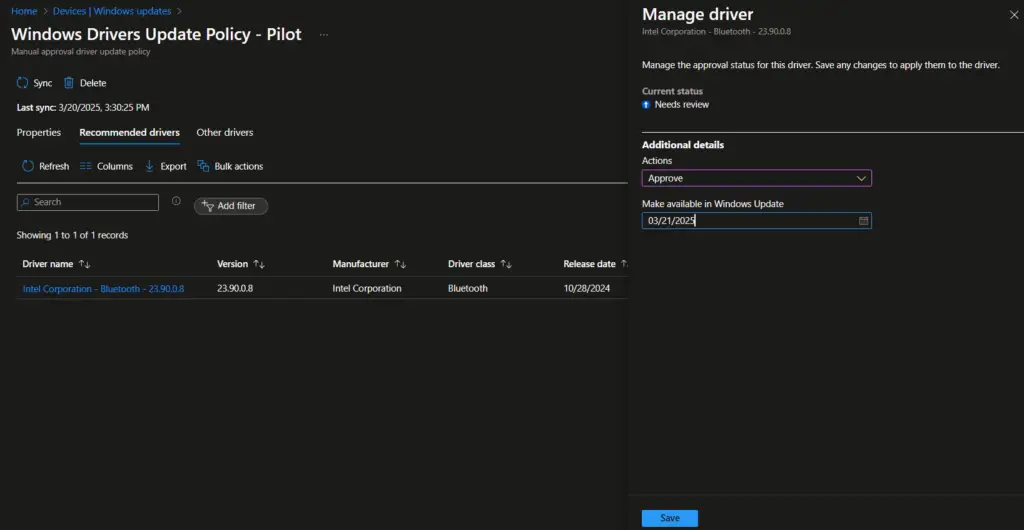
You can see the driver’s status as Approved.

Monitor Drivers Deployment
Intune provides reporting options for driver updates to help administrators monitor and manage the update process effectively. The Windows Driver Update Report provides insight into the status of driver updates on the device. This report shows which updates are applicable, approved, installed, or paused.
To check the driver update report, navigate to Reports > Windows Updates and select Windows Driver Update Report.
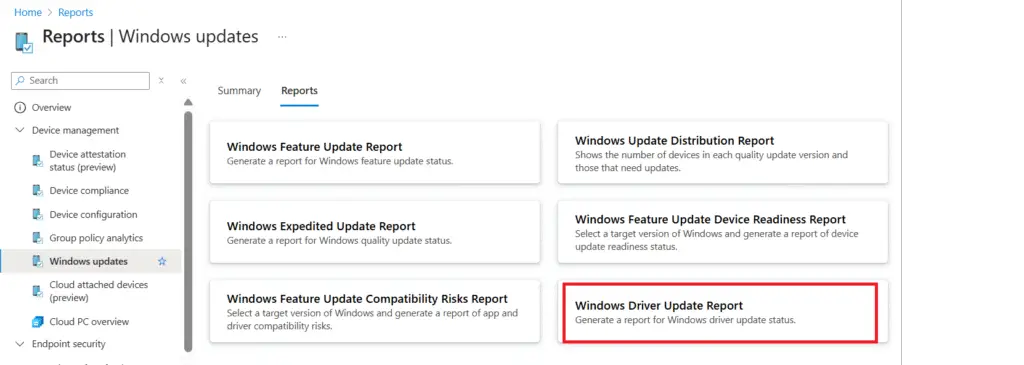
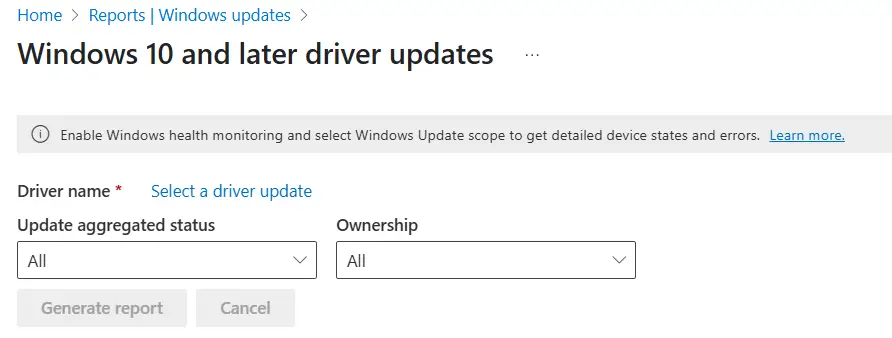
Click Select a driver update, then select the drivers from the flyer window. Select Generate Report to generate the driver deployment status report.
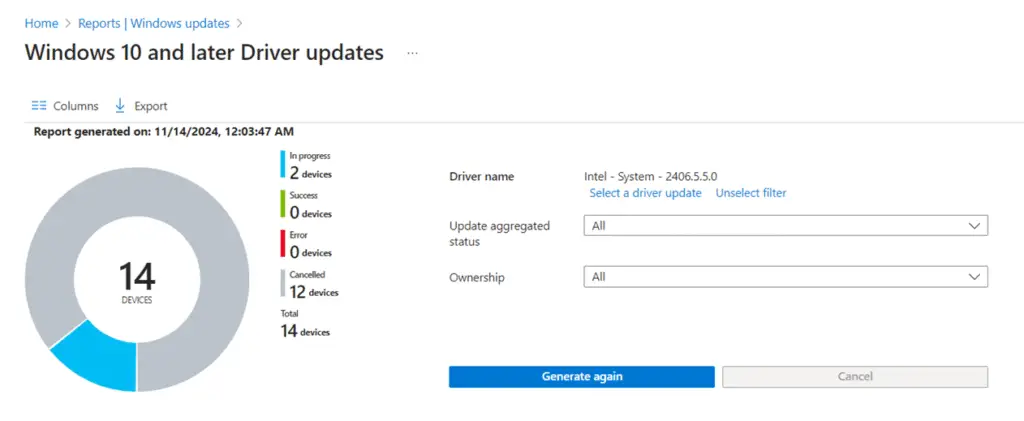
You can now see the status of driver deployment.
The following articles may help you troubleshoot Intune driver deployment-related issues.
Intune Driver update – Device not reporting correct status
Conclusion
Managing driver updates with Intune gives IT admins the ability to balance control, safety, and efficiency. By leveraging approval policies, pilot deployments, RBAC assignments, and built-in reporting, organizations can ensure devices remain secure and compatible without overwhelming manual effort. Whether you choose manual or automatic approvals, Intune’s structured approach reduces risk and simplifies driver lifecycle management across Windows 10/11 environments.
Frequently Asked Questions (FAQs)
Which editions of Windows support Intune driver update management?
Windows 10/11 Enterprise, Education, and Microsoft 365 Business Premium editions are supported.
Can I switch from manual to automatic approval in the same policy?
No. Approval method is fixed per policy. To change, you must create a new policy.
How can I safely test driver updates before broad rollout?
Create a pilot policy for a small group of devices, validate stability, then roll out to production.
How do I monitor driver update status across devices?
Use the Windows Driver Update Report in Intune to track approvals, installations, and paused updates.
Related Posts
- How to Enable Azure Single Sign-On in Google Chrome
- How to Allow Copilot in Microsoft Edge Using Intune
- Configure Microsoft Edge Sleeping Tabs using Microsoft Intune
- How to Configure Google Chrome settings using Administrative templates | Intune
- Manage Desktop Wallpaper with Microsoft Intune
- Manage Edge Chromium Favorites with Intune
Explore More Intune Guides
Continue building your Microsoft Intune skills with step-by-step tutorials covering device management, application deployment, automation, and troubleshooting.
- Microsoft Intune Learning – Explore comprehensive guides on device enrollment, compliance policies, application deployment, Windows updates, and more.
- Device Configuration Guides – Explore practical Microsoft Intune guides for configuring Windows and other devices, including device restrictions, browser settings, user experience, security, and system configuration.
