
During a Windows Autopilot deployment, the Enrollment Status Page (ESP) can sometimes fail during the Account setup phase with the following message:
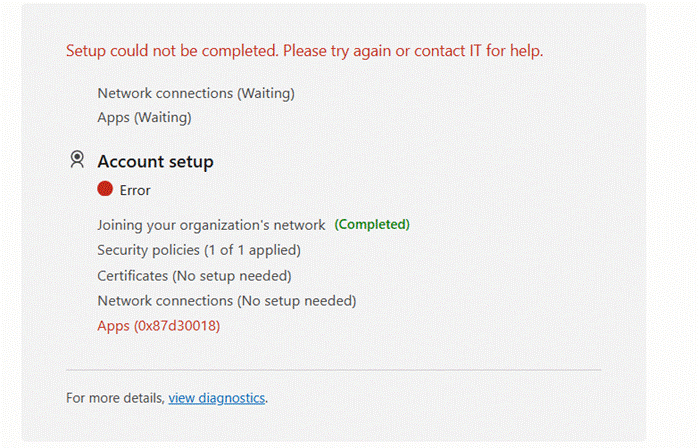
Setup could not be completed. Please try again or contact IT for help.
The Apps stage shows an error such as:
Apps (0x87D30018)
An example of this error is shown below:
In this situation, the device has successfully completed the organization network join, but an application installation has failed during Windows Autopilot enrollment. This can occur even when no apps are explicitly tracked by ESP, as required apps assigned to the device may still install during provisioning. This article explains how to identify the failing application and troubleshoot the underlying installation issue.
What does 0x87D30018 mean?
The 0x87D30018 code displayed by the Enrollment Status Page indicates that the application installation portion of the Autopilot enrollment has encountered an error.
However, the code shown on the ESP does not by itself identify which application failed or explain the actual installation problem. The underlying cause needs to be identified from the Intune application status and client-side logs.
This distinction is important because the same ESP Apps failure can be caused by different issues, including:
- A Win32 application installation failure
- An incorrect installation command
- An application detection rule that doesn’t detect the installed application
- Application dependencies or requirements not being satisfied
- An application requiring user interaction
- An application returning a non-success exit code
- Conflicts between application installers
- Network or content download problems
- MSI installation conflicts during ESP
Microsoft recommends reviewing the application installation information and Intune Management Extension logs when troubleshooting Win32 application failures.
Where does the error occur?
The error occurs on the Windows Autopilot Enrollment Status Page.
For example:
Setup could not be completed. Please try again or contact IT for help.

Network connections (Waiting)
Apps (Waiting)

Account setup
● Error

Joining your organization's network (Completed)
Security policies (1 of 1 applied)
Certificates (No setup needed)
Network connections (No setup needed)
Apps (0x87d30018)
The important part of the screen is:
Apps (0x87d30018)
This indicates that the failure is associated with the applications being tracked by ESP.
The Enrollment Status Tracking CSP is responsible for tracking application installation states during ESP. An application can have states such as NotInstalled, InProgress, Completed, or Error.
How to troubleshoot 0x87D30018
1. Identify the application that failed
The first step is to determine which application is responsible for the ESP failure.
Don’t immediately recreate the Autopilot profile or reset the device. The ESP message is only the symptom; the actual failure normally belongs to one of the applications assigned to the device or user.
In the Microsoft Intune admin center, review the affected device and application deployment status.
Check:
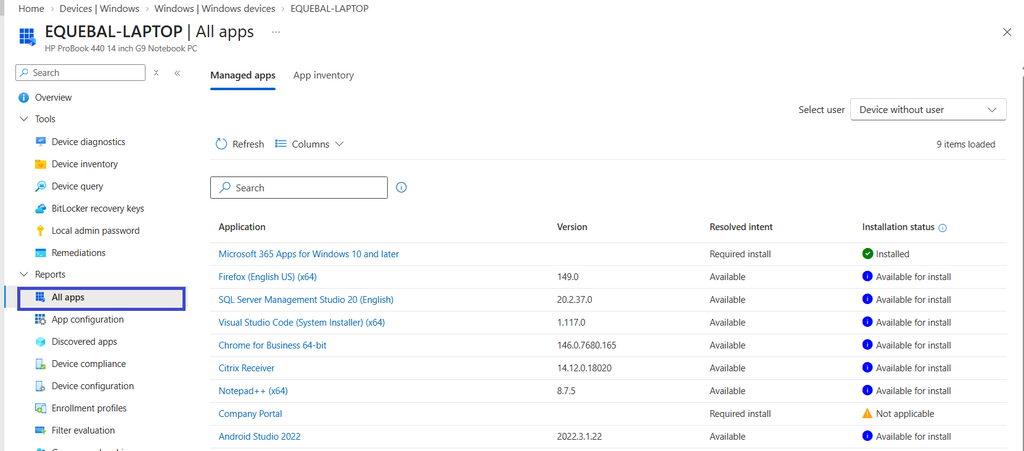
Devices > Windows > Windows devices > [Device] > All Apps > Managed Apps
Review the application installation status and look for applications showing:
- Failed
- Error
- Not installed
- Installation failed
- Requirements not met
You can also use the Intune Troubleshoot + support experience to review application deployment information for the affected user/device. Microsoft provides application troubleshooting information that can show details about the app lifecycle and installation status.
2. Check Win32 application status
If the failing application is a Win32 app, review its installation status in Intune.
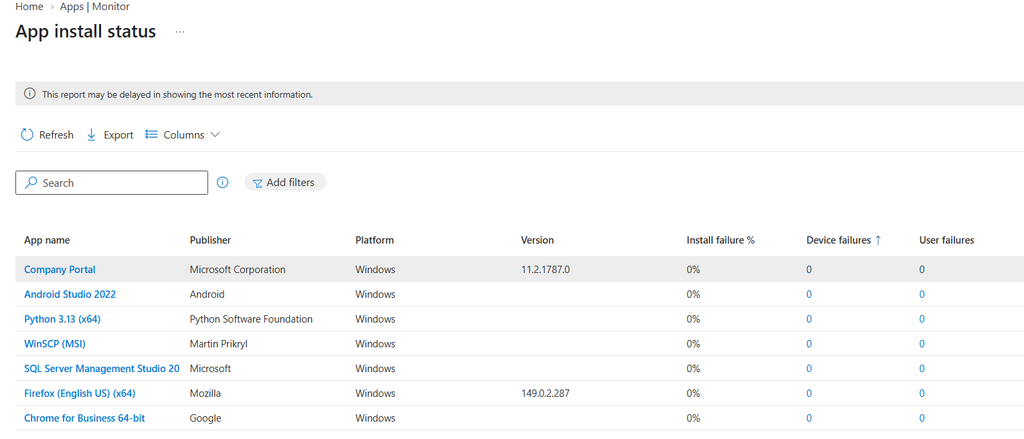
Go to Apps > Monitor > App Install Status and review the status of the apps that are targeted to All Devices or added in ESP. Any application targeted to all devices and failed on a high number of devices may cause failure during ESP. check the following details.
- Device install status
- User install status
- Installation details
- Error codes
- Detection status
- Requirements
- Dependencies
- Assignment
Pay particular attention to whether the application reports Installed or Failed on the affected device.
A Win32 application can return a successful installer exit code but still be reported incorrectly if the detection rule doesn’t match the installed application.
3. Check the Intune Management Extension logs
For Win32 applications, one of the most useful troubleshooting steps is to inspect the Intune Management Extension (IME) logs.
The logs are located at:
C:\ProgramData\Microsoft\IntuneManagementExtension\Logs
Microsoft identifies IntuneManagementExtension.log as the main IME log. Other useful logs include AppWorkload.log and AppActionProcessor.log.
The most relevant files are:
| Log | Purpose |
|---|---|
IntuneManagementExtension.log | General IME activity, policy processing and reporting |
AppWorkload.log | Win32 application deployment activity |
AppActionProcessor.log | Application detection and applicability processing |
AgentExecutor.log | PowerShell script execution |
For an ESP application failure, start with:
AppWorkload.log
and
IntuneManagementExtension.log
Use the timestamp of the ESP failure to narrow down the relevant entries.
4. Check the application installation command
If you identify a failed Win32 application, verify the Install command configured in Intune.
For example:
setup.exe /silent
or:
msiexec.exe /i application.msi /qn /norestart
Make sure the command:
- Runs silently
- Doesn’t require user input
- Doesn’t display installation dialogs
- Doesn’t require a user to click through a wizard
- Works when executed in the required installation context
Microsoft states that Intune-managed applications must support silent installation and cannot require interactive user input.
A useful test is to run the same installation command manually under the SYSTEM context on a test device.
5. Verify the detection rule
Incorrect detection rules are another common reason an application can cause problems during Autopilot.
For example, suppose the application installs successfully but the detection rule checks for:
C:\Program Files\Contoso\App\App.exe
while the actual application installs to:
C:\Program Files (x86)\Contoso\App\App.exe
The application may be installed, but Intune doesn’t detect it correctly.
Review:
Apps > All apps > [Application] > Properties > Detection rules
Verify that the detection rule matches the actual installation.
For registry-based detection, check:
- Registry path
- Registry value
- Value type
- 32-bit/64-bit registry location
- Detection value
Check Understanding Win32 App Detection Rules in Microsoft Intune – Deep Dive to know more about Intune win32 app detection rules.
6. Check application requirements
Review the application’s Requirements configuration.
Common areas to verify include:
- Operating system architecture
- Minimum operating system version
- Disk space
- Application requirements
- Custom requirement scripts
A requirement that evaluates incorrectly can prevent the application from installing or being considered applicable to the device.
Check out Understanding Win32 App Requirements Rule in Microsoft Intune to know more about Intune Win32 app requirement rules.
7. Check application dependencies
If the failing application has dependencies, verify that the dependency chain is configured correctly.
For example:
Application A
    ↓
Application B
    ↓
Application C
If an application depends on another application that fails to install, the dependent application may also fail. Review the dependecy from Apps > All apps > [Application] > Dependencies
Make sure the required applications are:
- Assigned correctly
- Supported on the device
- Installed successfully
- Not creating an installation conflict
8. Check for Win32 and LOB application conflicts
This is particularly important during Windows Autopilot ESP.
Microsoft documents a limitation where Win32 and line-of-business (LOB) applications shouldn’t be mixed during Windows Autopilot enrollment, because both can use Windows Installer/TrustedInstaller and may attempt installations simultaneously.
For example, an environment containing:
Win32 App
    +
LOB MSI App
    +
Microsoft 365 Apps
may introduce installation timing or MSI conflicts during ESP.
Microsoft specifically documents scenarios where an MSI installation is already in progress and another application attempts to install at the same time.
If possible, standardize applications deployed during Autopilot on the Win32 app model, particularly for traditional desktop applications.
9. Check Microsoft 365 Apps and Teams installation
Microsoft 365 Apps can also introduce installation conflicts during ESP.
Microsoft documents a specific scenario where the Teams Machine-Wide Installer included with Microsoft 365 Apps can conflict with other MSI-based application installations during Autopilot ESP.
If the failure occurs intermittently, check whether:
- Microsoft 365 Apps is being installed during ESP
- Teams is included in the Microsoft 365 Apps installation
- Other MSI-based Win32 applications are also being installed
One approach is to deploy some applications after Autopilot enrollment rather than making them blocking ESP applications.
10. Review the Enrollment Status Page configuration
Check the ESP profile assigned to the device.
Navigate to:
Devices > Windows > Windows enrollment > Enrollment Status Page
Review the ESP settings, particularly:
Block device use until these required apps are installed if they’re assigned to the user/device
Consider whether every application currently blocking ESP actually needs to be installed before the user reaches the desktop.
For example, instead of making 15 applications blocking:
ESP
 ├── Security agent
 ├── VPN
 ├── Office
 ├── Browser
 ├── Teams
 ├── PDF reader
 ├── Utility 1
 ├── Utility 2
 └── Utility 3
Consider limiting the blocking application set to applications that are genuinely required for the device to be ready.
Other applications can be deployed after the user reaches the desktop.
11. Collect Windows Autopilot diagnostics
Windows Autopilot provides additional diagnostic information that can help identify ESP failures.
On supported Windows 11 user-driven Autopilot deployments, the diagnostic page can be accessed using:
CTRL + SHIFT + D
provided that the ESP profile has the required diagnostic settings enabled.
Microsoft also documents automatically collected Autopilot diagnostic logs and the relevant Event Viewer locations.
Check:
Event Viewer → Applications and Services Logs → Microsoft → Windows → ModernDeployment-Diagnostics-Provider → Autopilot
Also review:
Applications and Services Logs → Microsoft → Windows → Provisioning-Diagnostics-Provider → Admin
The provisioning diagnostics log can contain information about application installation failures and ESP timeouts.
12. Check network connectivity
Although the screenshot shows:
Joining your organization's network (Completed)
application downloads can still encounter connectivity problems.
Verify that the device can access the required Microsoft and application-content endpoints.
This is especially important when the device is behind:
- Proxy servers
- SSL inspection
- Web filtering
- Firewall restrictions
- VPN
- Content filtering
Microsoft recommends checking network connectivity as one of the initial troubleshooting activities for Windows Autopilot issues.
A practical troubleshooting sequence
When you encounter:
Apps (0x87D30018)
I recommend following this sequence:
Autopilot ESP fails
       │
       ▼
Identify assigned applications
       │
       ▼
Find application showing Failed
       │
       ▼
Check Intune application status
       │
       ▼
Check IME AppWorkload.log
       │
       ▼
Check installation command
       │
       ▼
Check detection rule
       │
       ▼
Check requirements/dependencies
       │
       ▼
Check MSI / LOB / Win32 conflicts
       │
       ▼
Test application installation manually
       │
       ▼
Correct application configuration
       │
       ▼
Retry Autopilot deployment
This approach is preferable to repeatedly resetting the device because it focuses on the application that actually caused the ESP failure.
Important: Don’t assume the error code identifies the app
One important point when troubleshooting this error is that:
0x87D30018
appearing next to Apps does not tell you which application failed.
The ESP is reporting a failure in the application provisioning stage. The actual cause needs to be correlated with the application deployment status and client-side logs.
The EnrollmentStatusTracking CSP is specifically designed to track individual application installation states and report those states to ESP.
Conclusion
The Apps (0x87D30018) error during Windows Autopilot indicates that the application provisioning stage has encountered a failure. The most effective troubleshooting approach is to identify the specific application responsible rather than treating the ESP error code as the root cause.
Start by checking the application’s installation status in Intune, followed by the Intune Management Extension logs, particularly:
C:\ProgramData\Microsoft\IntuneManagementExtension\Logs\AppWorkload.log
Then verify the application’s installation command, detection rules, requirements, dependencies, and whether it is involved in an MSI/LOB/Win32 installation conflict.
Once the problematic application is corrected, rerun the Autopilot deployment and verify that the ESP progresses successfully.
Related Microsoft documentation
- Windows Autopilot troubleshooting FAQ
- Troubleshoot Win32 Apps in Microsoft Intune
- Understand Intune Management Extension
- EnrollmentStatusTracking CSP
