
Exporting managed device details from Microsoft Intune is essential for administrators who need to analyze inventory, troubleshoot issues, or migrate data. Intune offers two reliable methods: exporting directly from the Microsoft Endpoint Manager (MEM) admin center or using the PowerShell SDK for Intune Graph API. This guide walks you through both approaches, showing how to generate detailed reports in CSV format and leverage automation for scalable device management.
Export Managed Device Details from Microsoft Intune Admin Center
To export the device list, sign in to Microsoft Intune Admin Center and navigate to Devices > All Devices
When you export the data from the Intune admin center, you will have two options.
- Only include the selected column in the exported file
- Include all exported data in the exported file
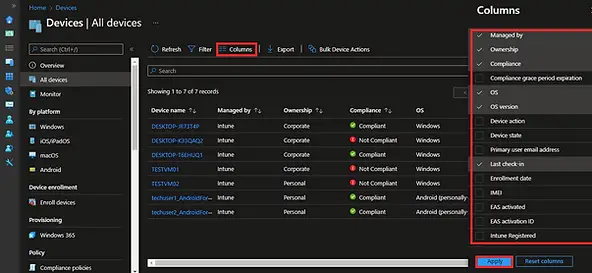
The first option will include all columns visible in the current view. If you want to add or remove columns, the current view can be customized.
To add/remove a column in the current view, click on Column, select or unselect the column from the flyer display, and click on Apply.
To export the device details in a CSV file, click on Export
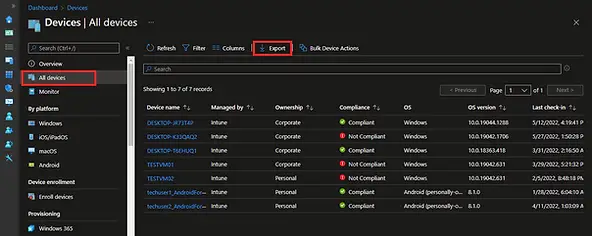
A Pop-up will appear with the following options. Select the option that you want to go for and click on Yes.

The export process will begin. You can monitor the progress in the notification area. You may get a dialogue box to save the file once the export is completed.

The exported data will be downloaded in .zip format. To open the file, double-click on the downloaded zip file and then open the CSV file.
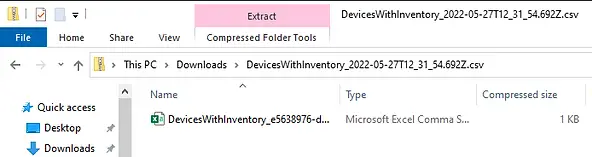
You can open a CSV file in Microsoft Excel and analyze the data.

Export Managed Device Details using PowerShell SDK for Intune Graph API – MSGraph (Legacy)
We need the PowerShell SDK for Intune Graph API to export the data using PowerShell. Follow the instructions in Install PowerShell SDK for Microsoft Intune Graph API to know how to install the PowerShell module for Intune Graph API and connect with MSGraph.
Note: The MSGraph PowerShell module is still supported and works for exporting Intune device data. However, Microsoft now recommends using the modern Microsoft Graph PowerShell SDK (Connect-MgGraph) for new scripts and automation, as it provides broader functionality and ongoing updates.
Once connected with MSGraph, you can use Get-IntuneManagedDevice cmdlets to view/export the data from PowerShell.
Let’s go through a few examples:
List all devices with selected inventory details in tabular format
Get-IntuneManagedDevice | select-object deviceName,manageDeviceOwnerType,OperatingSystem,ComplianceState,userName,model,SerialNumber | Format-Table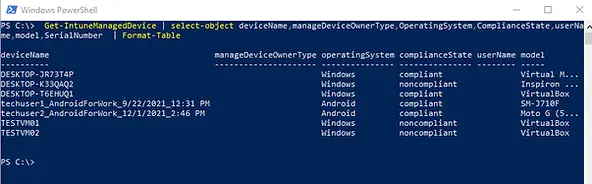
Export all devices with selected inventory data in CSV
Get-IntuneManagedDevice | select-object deviceName,manageDeviceOwnerType,OperatingSystem,ComplianceState,userName,model,SerialNumber | Export-csv -Path c:\temp\manageddevices.csvExport all devices with all inventory data in CSV
Get-IntuneManagedDevice | select-object * | export-csv -Path c:\temp\ManagedDevices.csv
Export all inventory data for virtual devices
Get-IntuneManagedDevice | Where-Object {$_.model -match 'Virtual'}| Export-csv -Path c:\temp\virtualdevices.csv
Export all data for a specific hardware manufacturer
The command below will export the list of all Dell devices from Microsoft Intune to a CSV file. You can update the command to pull the details for other manufacturers, such as HP, Lenovo, virtual devices, Surface devices, etc.
Get-IntuneManagedDevice | Where-Object {$_.manufacturer -match "Dell"} | Export-Csv -Path c:\temp\manageddevices.csv
Export Data for Single Device
Get-IntuneManagedDevice | Where-Object {$_.devicename -eq "DESKTOP-IG58DTD"} | Export-Csv -Path c:\temp\manageddevices.csv
List all Details for a single device
Get-IntuneManagedDevice | Where-Object {$_.devicename -eq "DESKTOP-IG58DTD"}
List Serial Number for Single Device
Get-IntuneManagedDevice | Where-Object {$_.devicename -eq "DESKTOP-IG58DTD"} | Select-Object SerialNumber
Get a list of all non Compliant Devices
Get-IntuneManagedDevice | Where-Object {$_.compliancestate -eq "noncompliant"} | Select-Object deviceName,manageDeviceOwnerType,OperatingSystem,ComplianceState,userName,model,SerialNumber
Get a list of all Test Devices (Based on Device Categories)
The command below lists all test devices whose device category is set to “Test Devices”.
Get-IntuneManagedDevice | Where-Object {$_.deviceCategoryDisplayName -eq "Test Devices"} | Select-Object deviceName,manageDeviceOwnerType,OperatingSystem,ComplianceState,userName,model,SerialNumber,deviceCategoryDisplayName
Export Managed Device Details using Microsoft Graph API – MgGraph (Recommended)
Exporting managed device details from Microsoft Intune is a common requirement for administrators who need inventory reports, compliance checks, or migration data. While the legacy MSGraph module is still supported, the recommended approach is to use the Microsoft Graph PowerShell SDK (MgGraph), which provides access to the full Microsoft Graph API with modern authentication and broader coverage.
Install Microsoft Graph PowerShell SDK
Install-Module Microsoft.Graph -Scope CurrentUser
Connect to Microsoft Graph
Connect-MgGraph -Scopes "DeviceManagementManagedDevices.Read.All"
- You’ll be prompted to sign in with an account that has Intune admin permissions.
- The scope ensures you can read managed device details.
Retrieve Managed Device Details
# Pull all managed devices with key details
Get-MgDeviceManagementManagedDevice | Select-Object Id, DeviceName, OperatingSystem, ComplianceState, SerialNumber
Export to CSV
Get-MgDeviceManagementManagedDevice |
Select-Object Id, DeviceName, OperatingSystem, ComplianceState, SerialNumber |
Export-Csv -Path "C:\IntuneDevices.csv" -NoTypeInformation
This will generate a CSV file containing key details such as Device Name, OS, Compliance State, and Serial Number.
Pull Details for a Single Device
# Replace <device-id> with the actual device Id
Get-MgDeviceManagementManagedDevice -ManagedDeviceId <device-id> |
Select-Object DeviceName, SerialNumber, Model, OperatingSystem, ComplianceState
This command fetches detailed information for a specific device by its unique Id.
Pull Devices by Specific Hardware Model
# Filter devices by hardware model, e.g., "Surface Pro 7"
Get-MgDeviceManagementManagedDevice |
Where-Object { $_.Model -eq "Surface Pro 7" } |
Select-Object DeviceName, SerialNumber, Model, OperatingSystem
This example filters and lists only devices matching the specified hardware model.
Export Filtered Devices to CSV
Get-MgDeviceManagementManagedDevice |
Where-Object { $_.Model -eq "Surface Pro 7" } |
Select-Object DeviceName, SerialNumber, Model, OperatingSystem |
Export-Csv -Path "C:\SurfacePro7Devices.csv" -NoTypeInformation
Related Posts
- Bulk Export Entra ID Group Members with PowerShell & Microsoft Graph API
- How to Bulk Sync Intune Devices with Microsoft Graph
- Get AAD Group Members Details Using PowerShell SDK for Microsoft Intune Graph API
- How To Export Serial number of Multiple Devices using PowerShell SDK for Intune Graph API
- Install PowerShell SDK for Microsoft Intune Graph API
- How to Export Managed Device Details from Intune
