
Single Sign-On (SSO) makes it easier for users to access Microsoft 365 and other Microsoft cloud applications without repeatedly entering their credentials. While Windows provides built-in authentication capabilities through Microsoft Entra ID, Google Chrome also needs to be configured to take advantage of this functionality.
In this guide, we’ll explore how to enable Microsoft Entra Single Sign-On in Google Chrome using Microsoft Intune. We’ll configure the required Chrome policy, understand the prerequisites, and verify whether SSO is working as expected.
This guide focuses on the Chrome SSO configuration and verification process. If you haven’t imported Google’s Chrome Administrative Templates (ADMX) into Intune yet, refer to my separate guide on Importing Google Chrome ADMX templates into Microsoft Intune.
Why This Matters
Without the appropriate Chrome configuration, users may continue to experience authentication prompts when accessing Microsoft 365 and other Microsoft cloud applications.
Enabling Microsoft Entra SSO in Chrome helps:
- Reduce repeated sign-in prompts: Allow Chrome to use the Windows sign-in identity for supported Microsoft cloud authentication scenarios.
- Improve user experience: Provide a more seamless sign-in experience when accessing Microsoft 365 services such as Teams, SharePoint and Outlook on the web.
- Maintain identity security: Work alongside your organization’s Microsoft Entra ID authentication and Conditional Access policies.
The goal is to make authentication more seamless without compromising your organization’s security requirements.
Prerequisites
Before configuring Single Sign-On (SSO) in Google Chrome, make sure the following requirements are met:
- Microsoft Entra ID joined or hybrid joined device: The Windows device should be joined to Microsoft Entra ID or hybrid joined.
- Valid user sign-in: The user should sign in to Windows using their organizational account.
- Primary Refresh Token (PRT): The device should have a valid PRT to support seamless authentication.
- Google Chrome: Use a supported version of Google Chrome (version 111 or later).
- Microsoft Intune enrollment: The device should be enrolled in Intune and able to receive configuration policies.
- Chrome configuration: The required Chrome policy,
CloudAPAuthEnabled, must be configured through Intune.
Note: You can check the device registration and PRT status by running dsregcmd /status from Command Prompt. Look for AzureAdJoined and AzureAdPrt in the output.
Step-by-Step Configuration to Enable Single Sign-On in Google Chrome
1. Import Chrome ADMX Templates in Intune
The Google Chrome ADMX templates are required to configure Chrome settings. If you have not imported Google’s Chrome Administrative Templates (ADMX) into Intune yet, refer to my separate guide on Importing Google Chrome ADMX templates into Microsoft Intune.
2. Create a Configuration Profile
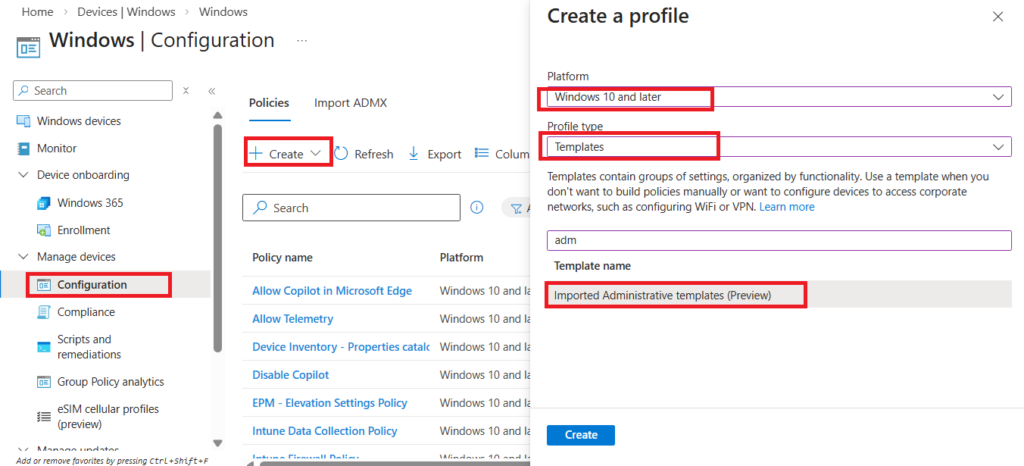
You need to create a device configuration profile to enable Google Chrome SSO using Intune. Follow the steps below to create a configuration profile in Intune.
- Navigate to Devices > Windows > Configuration profiles.
- Select + Create profile.
- Choose Platform: Windows 10 and later.
- Choose Profile type: Templates > Imported Administrative Templates.
- Choose Create.
3. Configure Chrome Identity Policies
Configure the following settings for Google Chrome.
| Policy | Role in SSO |
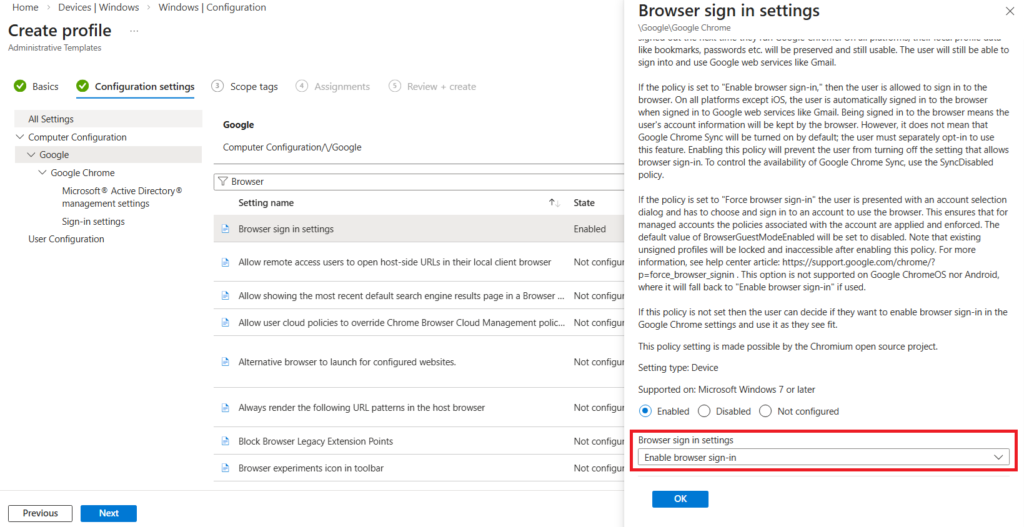
| Browser sign-in settings | This policy controls whether users can sign in to Chrome using their Google accounts. It also affects Chrome profile sign-in and synchronization. It is important to understand that this setting does not enable Microsoft Entra SSO. It controls Chrome’s own browser sign-in experience. |
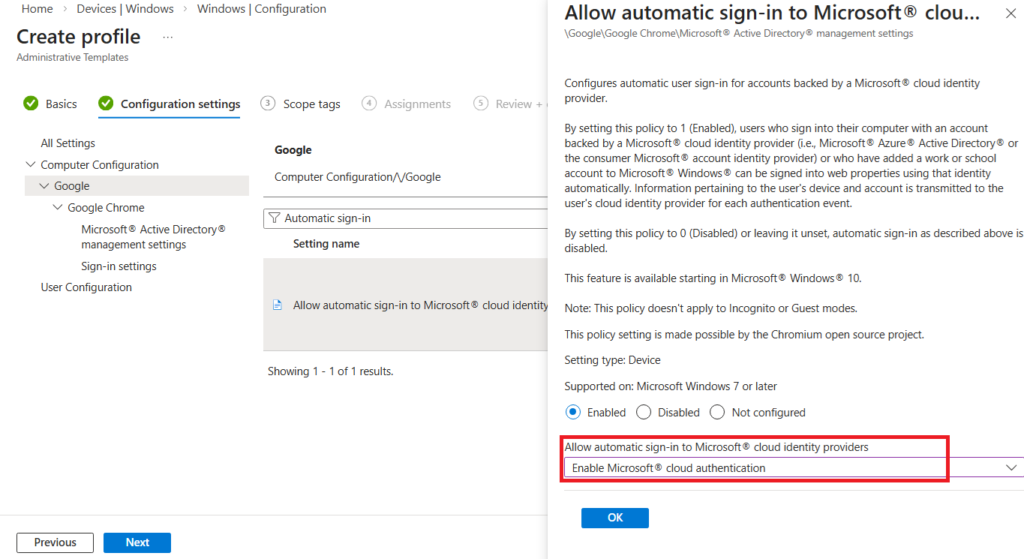
Allow automatic sign-in to Microsoft cloud identity providers (CloudAPAuthEnabled) | This is the key policy for enabling Microsoft Entra SSO in Chrome. When enabled, it allows Chrome to use the user’s Windows sign-in identity to authenticate to supported Microsoft cloud services without repeatedly asking for credentials. For this to work, the device must meet the required Windows identity and authentication requirements, including having a valid Primary Refresh Token (PRT). |
Browser sign-in settings > Enabled
Allow automatic sign-in to Microsoft cloud identity providers > Enabled
4. Assign the Profile
- Target the profile to your Azure AD groups (e.g., all Windows devices or specific departments).
- Save and deploy.
End User Experience
- On a managed Windows device, open Google Chrome.
- Chrome should use the user’s Windows sign-in identity for supported Microsoft cloud authentication.
- Open a Microsoft 365 application, such as Outlook or SharePoint, and verify that the user can access it without entering their credentials again.
- Note: The seamless sign-in experience depends on the device’s identity status, PRT availability and the application’s authentication requirements.
Common Pitfalls
- Outdated Chrome versions: Make sure Google Chrome version 111 or later is installed.
- Device registration issues: Ensure Windows devices are properly joined to Microsoft Entra ID or hybrid joined.
- Missing PRT: Check that the user has a valid Primary Refresh Token (PRT), as it is important for seamless authentication.
- Policy conflicts: Existing Group Policy Objects (GPOs) or other configuration policies may conflict with Intune settings.
- Incorrect policy configuration: Verify that
CloudAPAuthEnabledis enabled and successfully applied in Chrome by visitingchrome://policy.
Conclusion
Configuring Microsoft Entra Single Sign-On (SSO) in Google Chrome using Microsoft Intune can make it easier for users to access Microsoft 365 and other supported Microsoft cloud applications.
The key setting is Allow automatic sign-in to Microsoft cloud identity providers (CloudAPAuthEnabled). When enabled, it allows Chrome to use the Windows sign-in identity for supported Microsoft cloud authentication scenarios.
Make sure the device meets the required identity and authentication requirements, including having a valid Primary Refresh Token (PRT). Also, verify that the policy is successfully applied in Chrome.
With the correct configuration, users can enjoy a smoother sign-in experience with fewer repeated authentication prompts.
Frequently Asked Questions (FAQ)
Why is the “Allow automatic sign-in to Microsoft cloud identity providers” setting so important?
This policy (CloudAPAuthEnabled) allows Google Chrome to use the Windows sign-in identity for supported Microsoft cloud authentication scenarios. When enabled, it helps users access Microsoft 365 and other supported Microsoft cloud applications without repeatedly entering their credentials.
For this to work, the Windows device must meet the required identity and authentication requirements, including having a valid Primary Refresh Token (PRT).
I’ve enabled all policies, but my users still see a login prompt. What’s wrong?
The most common culprit is the Device Join Status. For SSO to function, the device must be either Microsoft Entra Joined or Hybrid Entra Joined. You can verify this on the local machine by running the command dsregcmd /status and ensuring AzureAdPrt is set to YES.
Do I still need the “Microsoft Single Sign-On” extension for Chrome?
No. If you are using Chrome version 111 or later and have configured the Allow automatic sign-in to Microsoft cloud identity providers policy, the extension is no longer required. The browser now handles this communication natively at the OS level.
Why can’t I find “EnableAutoLogin” or “IdentityConsistencyEnabled” in Intune?
Google has updated its ADMX templates. EnableAutoLogin is now largely managed via the Browser sign-in settings toggle. IdentityConsistencyEnabled has been superseded by the Microsoft cloud identity providers policy. If you are using the latest templates, search for these newer names in the Settings Catalog.
Does this SSO setup work in Incognito mode?
No. By design, Incognito mode prevents the browser from accessing the user’s OS identity tokens to ensure privacy. SSO will only function within standard, managed Chrome profiles.
Related Posts
- How to Enable Windows SSO in Firefox Using Microsoft Intune
- Configure Microsoft Edge Sleeping Tabs using Microsoft Intune
- Manage Microsoft Edge Favorites with Intune for Windows 10/11
- How to Configure Edge Chromium Homepage & Startup Page Using Intune
Explore More Intune Guides
Continue building your Microsoft Intune skills with step-by-step tutorials covering device management, application deployment, automation, and troubleshooting.
- Microsoft Intune Learning – Explore comprehensive guides on device enrollment, compliance policies, application deployment, Windows updates, and more.
- Device Configuration Guides – Explore practical Microsoft Intune guides for configuring Windows and other devices, including device restrictions, browser settings, user experience, security, and system configuration.
