
When working with Configuration Manager (ConfigMgr/SCCM), software update scans may fail with the error “Failed to Add Update Source for WUAgent of type (2) and id … Error = 0x80004005”. This issue typically appears in WUAHandler.log and ScanAgent.log and is linked to corrupt or misconfigured Group Policy settings. In this guide, we’ll walk through the symptoms, root cause, and step‑by‑step resolution — including how to rename the Registry.pol file, force a Group Policy update, and restart the SMS Agent Host service. By the end, you’ll have a reliable fix for this common SCCM client error and a cleaner update scan process.
Issue
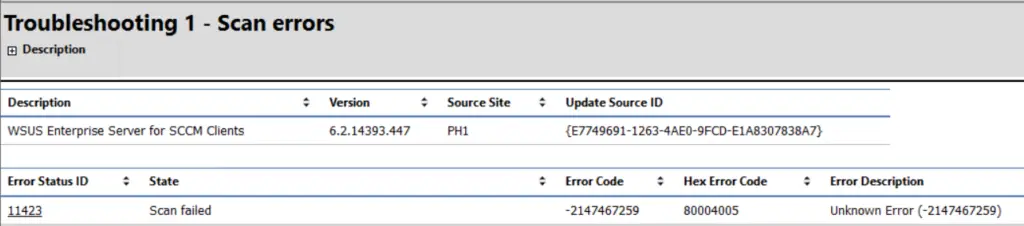
The SCCM software update scan failed on the Configuration Manager client. When you look into the Software Update Troubleshooting report ( Troubleshooting 1 – Scan errors ), it shows that the scan failed with Unknown Error -2147467259 (Hex Erro coThe SCCM software update scan failed on the Configuration Manager client. In the Software Update Troubleshooting report (Troubleshooting 1 – Scan errors), the scan result shows Unknown Error –2147467259 (Hex error code 0x80004005).de – 80004005).
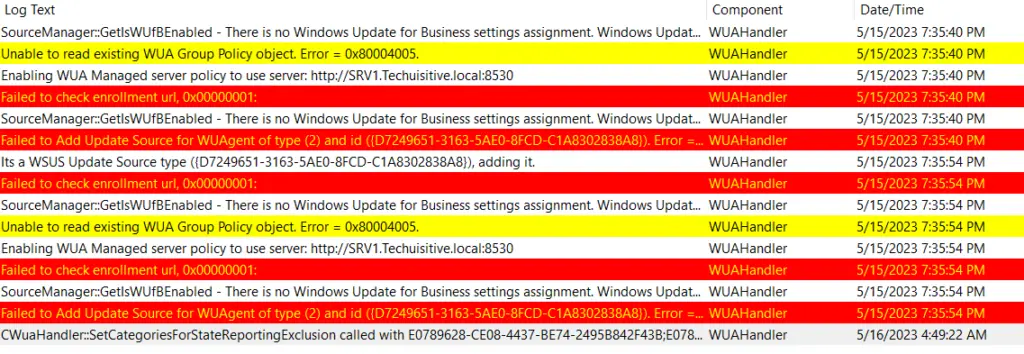
Error in SCCM client log WUAHandler.log
The following errors are recorded in the WUAHandler.log file, located in the client log directory at: C:\Windows\CCM\Logs
Its a WSUS Update Source type ({D7249651-3163-5AE0-8FCD-C1A8302838A8}), adding it. WUAHandler 5/15/2023 7:35:54 PM 5576 (0x15C8)
Failed to check enrollment url, 0x00000001: WUAHandler 5/15/2023 7:35:54 PM 5572 (0x15C4)
SourceManager::GetIsWUfBEnabled - There is no Windows Update for Business settings assignment. Windows Update for Business is not enabled through ConfigMgr WUAHandler 5/15/2023 7:35:54 PM 5572 (0x15C4)
Unable to read existing WUA Group Policy object. Error = 0x80004005. WUAHandler 5/15/2023 7:35:54 PM 5576 (0x15C8)
Enabling WUA Managed server policy to use server: http://SRV1.Techuisitive.local:8530 WUAHandler 5/15/2023 7:35:54 PM 5576 (0x15C8)
Failed to check enrollment url, 0x00000001: WUAHandler 5/15/2023 7:35:54 PM 7336 (0x1CA8)
SourceManager::GetIsWUfBEnabled - There is no Windows Update for Business settings assignment. Windows Update for Business is not enabled through ConfigMgr WUAHandler 5/15/2023 7:35:54 PM 7336 (0x1CA8)
Failed to Add Update Source for WUAgent of type (2) and id ({D7249651-3163-5AE0-8FCD-C1A8302838A8}). Error = 0x80004005. WUAHandler 5/15/2023 7:35:54 PM 5576 (0x15C8)
CWuaHandler::SetCategoriesForStateReportingExclusion called with E0789628-CE08-4437-BE74-2495B842F43B;E0789628-CE08-4437-BE74-2495B842F43B,A38C835C-2950-4E87-86CC-6911A52C34A3; for leaves and E0789628-CE08-4437-BE74-2495B842F43B,A38C835C-2950-4E87-86CC-6911A52C34A3; for bundles WUAHandler 5/16/2023 4:49:22 AM 1548 (0x060C)
Error in ScanAgent.log
The same error is also recorded in the ScanAgent.log file on the client computer.
CScanJob::Execute- Failed at AddUpdateSource, Error = 0x80004005 ScanAgent 5/15/2023 7:35:54 PM 5576 (0x15C8)
ScanJob({E01213CF-7FCD-49AF-A546-40C246C569AC}): CScanJob::OnScanComplete -Scan Failed with Error=0x80004005 ScanAgent 5/15/2023 7:35:54 PM 5576 (0x15C8)
ScanJob({E01213CF-7FCD-49AF-A546-40C246C569AC}): CScanJobManager::OnScanComplete- failed at CScanJob::OnScanComplete with error=0x80004005 ScanAgent 5/15/2023 7:35:54 PM 5576 (0x15C8)
Cause
This issue may occur due to a corrupt Group Policy. The exact reason can be difficult to determine, but in many cases the Group Policy update fails repeatedly on affected machines. In the environment where this error was observed, the computers had been migrated from a different domain and carried over several inherited configuration issues, which contributed to the problem.
Solution
The recommended fix is to rename the Registry.pol file and then force a Group Policy update. This action resolves the corrupt Group Policy issue and ensures a new Registry.pol file is automatically created. Renaming the file (instead of deleting it) is preferred, as it preserves a backup for reference.
You can perform these steps remotely using a PowerShell remote session:
Step 1: Connect to the remote machine
Enter-PSSession -ComputerName <ComputerName>
Step 2: Rename the Registry.pol file
cd C:\Windows\System32\GroupPolicy\Machine
REN Registry.pol Registry.pol.old
Step 3: Force Group Policy update
GPUPDATE /FORCE
Step 4: Restart SMS Agent Host service
Restart-Service ccmexec -Verbose
Step 5: Trigger Software Update Scan Cycle
Invoke-WmiMethod -Namespace root\ccm -Class sms_client -Name TriggerSchedule "{00000000-0000-0000-0000-000000000113}"
Related Posts
- SCCM Application Deployment Failed with Error 0x87d01106 | ConfigMgr
- SCCM Client Installation Failed With Error Code 0x87d00215
- PXE-E99: Unexpected network error – SCCM OSD
- Configuration Manager OSD task sequence fails with error code 0x80004005
- MECM OSD Task Sequence Failed with Error 0x80072EE7
- SCCM Client Push Installation Failed with Error 0x800706ba
- Failed to Add Update Source for WUAgent of type (2) and id ({ID). Error = 0x80004005
- SCCM OSD – Domain Join Failed with Error code 0x54b on HP Elitebook 840 G8
- ccmsetup failed with error code 0x87d00227
- Fix Application Deployment error 0x87d00213 in ConfigMgr
- CMG Connection Point Status Disconnected | SCCM | ConfigMgr
- CMG Setup – Subscription ID drop down not populating
- CMG Setup – Error when granting Contributor permission to the Azure AD app
- Failed to connect with DP – Error Code 0x8004100e | ConfigMgr | SCCM
- SCCM Client Installation Failed with error 0x87d0027e
- ConfigMgr OSD – PXE Troubleshooting
- SCCM WSUS sync error – Sync Failed – WSUS server not configured
- SCCM Software Distribution Troubleshooting
Subscribe to Techuisitive Newsletter
Be the first to know about our new blog posts. Get our newsletters directly in your inbox and stay up to date about Modern Desktop Management technologies & news.