
Deploying Win32 applications through Microsoft Intune can sometimes throw unexpected errors that leave administrators puzzled. One common issue is the failure with error code 0x80070653, which typically points to problems with the MSI installer package or detection rules. In this guide, we’ll break down what this error means, explore the most frequent causes, and walk through practical troubleshooting steps to help you resolve it quickly and keep your Intune deployments running smoothly.
Issue:
Microsoft Intune Win32 application deployment failed with error code 0x80070653
Error Code: 0x80070653
Error Description: This installation package could not be opened. Verify that the package exists and that you can access it, or contact the application vendor to verify that this is a valid Windows Installer package.
You can check for the error by following the steps below.
- Open Intune Admin Console
- Navigate to Apps > Windows > Windows Apps > < App Name>
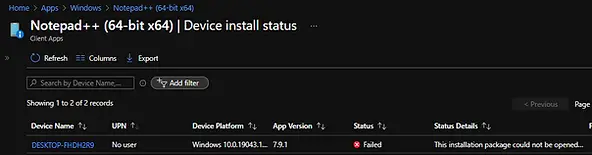
- Click on App status
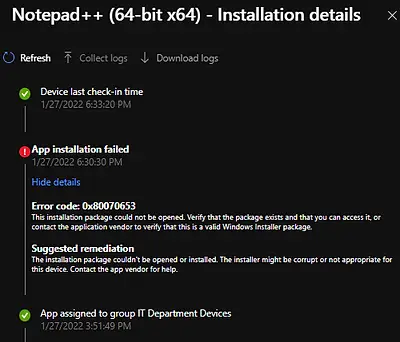
Causes for the Win32 App Deployment Error 0x80070653
Error code 0x80070653 (decimal 1619) is a Windows Installer return code that maps to ERROR_INSTALL_PACKAGE_OPEN_FAILED. In practical terms, this indicates that the installer was unable to access or open the specified installation package. Common reasons include a missing or corrupted MSI file, incorrect file path, insufficient permissions, or issues with how the package was delivered through Intune. When this error occurs, Windows essentially reports: “This installation package could not be opened.”
Troubleshooting Steps for Error 0x80070653
| Step | What to Validate | Why It Matters | How to Check |
|---|---|---|---|
| 1 | Package existence | If the installer file is missing, Windows Installer cannot proceed. | Confirm the MSI/EXE file exists at the specified path. |
| 2 | File name & path | Incorrect paths prevent the installer from being located. | Double-check the command line path and filename syntax. |
| 3 | Command line parameters | Invalid arguments can cause the installer to fail. | Review and correct command line switches/parameters. |
| 4 | File integrity | A corrupted installer cannot be opened. | Verify file hash or re-download the package. |
| 5 | Manual installation | Helps isolate silent install vs. package issues. | Run the installer manually without silent switches to see if errors occur. |
| 6 | Verbose logging | Provides detailed insight into failure points. | Use msiexec /i package.msi /L*v install.log and analyze the log file. Check out verbose logging for more details. |
Related Posts
- Win32 App Deployment failed with error code 0x80070643
- Win32 App Deployment Failed with Error 0x87D1041C
- Win32 App Deployment failed with error 0x87D300C9
- Win32 App failed with error code 0x80070653
- That account info didn’t work – error when disconnecting Windows 10 / 11 Work or School account
- Intune – Windows 10 MDM- Basic troubleshooting
- Deploying Microsoft 365 Apps Stuck in Downloading in Company Portal
- Windows 10 / 11 Operating System Build Versions
- MDM Enroll: Device Credential, Failed (Unknown Win32 Error code : 0xcaa9001f
- Microsoft Endpoint Manager: Error Code Reference
- Intune Bulk Enrollment with Provisional Package failed Error 0xCAA2000C
- How to Fix Intune Win32 App Deployment Error 0x87D30006
Explore More Intune Guides
Continue building your Microsoft Intune skills with step-by-step tutorials covering device management, application deployment, automation, and troubleshooting.
- Microsoft Intune Learning – Explore comprehensive guides on device enrollment, compliance policies, application deployment, Windows updates, and more.
- Intune Application Deployment & Management – Learn how to manage applications with Microsoft Intune, including app deployment, assignment, detection rules, updates, and troubleshooting. Explore practical guides for Microsoft Store apps, Win32 apps, and other application types.
