
Deploying Win32 apps through Intune can sometimes throw unexpected errors that leave administrators puzzled. One common issue is error 0x87D300C9, which typically indicates that the installer failed to run silently or timed out during execution. In this guide, we’ll break down the root causes of this error, show you how to analyze logs, and walk through practical fixes—so you can get your apps deployed smoothly without wasted cycles.
Issue:
Intune Win32 app deployment failed with error code 0x87D300C9.
Error Code: 0x87D300C9
Error Description: The unmonitored process is in progress; it may timeout.
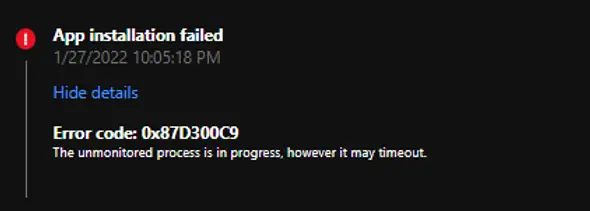
Intune – Win32 App – Error 0x87D300C9
Cause of Intune Error 0x87D300C9 – Process Still Running
The Intune error 0x87D300C9 occurs when Microsoft Intune detects that a process is still running after it has stopped monitoring the installation. This typically happens when the installer or deployment script becomes stuck during execution, preventing Intune from completing the Win32 app installation.
PowerShell scripts: The issue often arises when an unexpected message box or prompt appears, causing the script to hang indefinitely until manually closed.
Applications: Common causes include a corrupt installer, incorrect command‑line arguments, or missing silent install switches that prevent the installer from running unattended.
Properly configuring Intune Win32 app deployment scripts and ensuring installers support silent installation are key steps to avoiding this error.
Step-by-Step Guide to Investigate Intune 0x87D300C9 Error
Validate command-line switches
To resolve Intune error 0x87D300C9, first validate that the command‑line switches used in the installer are correct. Next, perform a manual installation using the same switches to confirm that the application runs in silent mode without generating any pop‑up messages or prompts. This ensures the installer supports unattended execution and prevents Intune from hanging during Win32 app deployment.
Manual Installation to Verify Intune Error 0x87D300C9
To troubleshoot Intune error 0x87D300C9, try installing the application manually using the same source file. This helps verify whether the installation process completes without hanging.
- If the issue occurs only on certain devices, perform the manual installation on one of the affected machines to isolate the problem.
- Failures may stem from a corrupt source file or missing prerequisites such as the .NET Framework or other required dependencies.
By confirming the installer runs correctly outside of Intune, you can determine whether the problem lies with the application package itself or with the Intune deployment process.
Check for Message Boxes in PowerShell Scripts – Intune Error 0x87D300C9
A PowerShell script may hang indefinitely if it displays a message box or interactive prompt during execution. This prevents the script from completing silently and can trigger Intune error 0x87D300C9 during Win32 app deployment.
Fix: Remove or suppress any interactive elements, so the script runs in unattended mode.
Why it happens: Message boxes require user interaction, which blocks the script from finishing and stops Intune from detecting completion.
How to verify: Run the script manually and confirm that no message boxes or prompts appear while it executes.
Ensuring scripts are designed for silent execution is critical for successful Microsoft Intune Win32 app installation.
Check IntuneManagementExtension.log for Win32 App Deployment Errors
The IntuneManagementExtension.log is the primary log file for troubleshooting Microsoft Intune Win32 app deployments.
Tip: Use a log viewer such as CMTrace to make entries easier to read and quickly identify error codes or failure points.
Purpose: This log records every step Intune takes during deployment—actions attempted, successes, and points of failure.
Why it matters: Reviewing the log helps pinpoint the exact cause of deployment issues, whether it’s a timeout, detection rule mismatch, or installer error.
By analyzing the IntuneManagementExtension.log, administrators can efficiently diagnose and resolve Intune Win32 app installation problems, ensuring smoother application deployment across devices.
Real World Example
To better understand why the deployment failed in this case, we analyzed the IntuneManagementExtension.log file.
Outcome: As shown in the second screenshot, the Win32 installation was aborted once the timeout was reached.
Root cause: The command‑line switch used was incorrect.
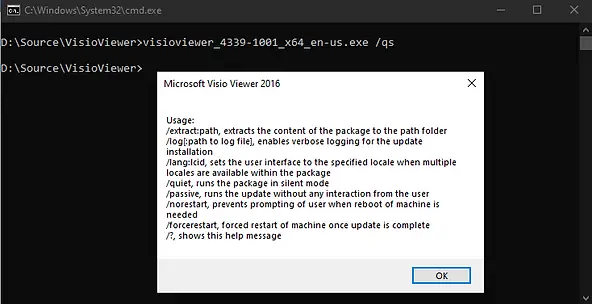
What happened: The Microsoft installer responded by displaying a usage prompt. Because the installation was running under the system account, the prompt was invisible to the user and required manual interaction to close.
Result: With no way to dismiss the prompt, the installer process remained stuck until Intune’s monitoring timed out after 60 minutes.
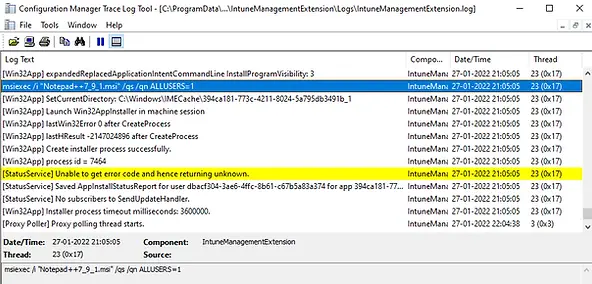
Figure: IntuneManagementExtension.log
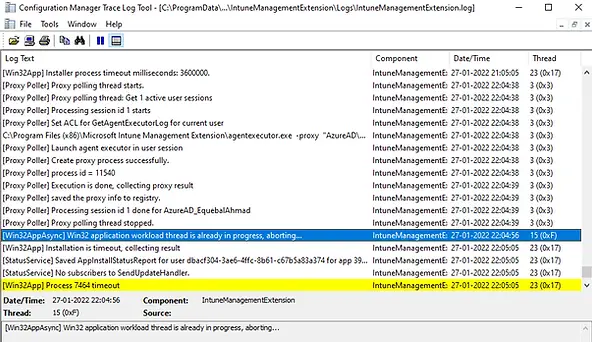
We attempted to install Microsoft Visio Viewer 2016 using the same command, but the /qs switch was incorrect. As a result, the Microsoft Installer (MSI) displayed a message box that required user interaction to close. Because the deployment was running under the system context, the prompt was invisible to the user. With no way to dismiss it, the installation process became stuck and eventually failed with Intune error 0x87D300C9.
This error highlights the importance of validating command‑line switches and ensuring installers run in silent mode during Microsoft Intune Win32 app deployments.
Related Posts
- Deploy Win32 App Using Intune Enterprise App Catalog
- Understanding Win32 App Detection Rules
- Understanding Win32 App Requirements Rule
- Upgrade / Replace Win32 Apps with Supersedence Relationship
- Win32 App Deployment with Dependencies
- Win32 Apps vs LOB Apps
- Win32 App Deployment failed with error code 0x80070643
- Win32 App Deployment Failed with Error 0x87D1041C
- Win32 App Deployment failed with error 0x87D300C9
- Win32 App failed with error code 0x80070653
- Deploy Google Chrome for Enterprise with Intune Win32 App
- How to Prepare Win32 App Installation source for Microsoft Intune
- SCCM Device Collection Equivalents in Microsoft Intune for App Deployment
- Deploy Microsoft SQL Server Management Studio 19.02 through Intune
- Organizing Laptop and Desktop in Intune Using Filters
Explore More Intune Guides
Continue building your Microsoft Intune skills with step-by-step tutorials covering device management, application deployment, automation, and troubleshooting.
- Microsoft Intune Learning – Explore comprehensive guides on device enrollment, compliance policies, application deployment, Windows updates, and more.
- Intune Application Deployment & Management – Learn how to manage applications with Microsoft Intune, including app deployment, assignment, detection rules, updates, and troubleshooting. Explore practical guides for Microsoft Store apps, Win32 apps, and other application types.
